Core Fields: Risk
The configurable fields available for the Risk module, and what each one is for
Contents
- 1. Introduction & Context
- 2. Key Features & Functions
- 3. Requirements
- 4. Step-by-Step Guide
- 5. Common Issues & Troubleshooting
- 6. Related Articles
1. Introduction & Context
This article lists every core field available for the Risk module, what each one is for, and where to control whether it appears in list views, the New and Edit forms, Mass Edit, and the record's Show View (detail page).
Who is it for? This is configured by Clew Admins in Admin Settings, under Custom Types > Risk.
What does it impact? These settings control what your team sees and can enter on Risk records, not the underlying data itself. Turning a field off in a given screen hides it there, but does not delete any information already stored against existing records.
2. Key Features & Functions
- 38 configurable core fields: covering ownership, approval, risk assessment content, dates, record metadata, and classification, listed in full in Section 4.
- 6 fixed fields: Type, ID #, Risk Title, and the three risk rating fields (Inherent, Residual, and ALARP) are always available and not part of the configurable list.
- Default list view columns: out of the box, the Risk list view shows Type, ID #, Inherent Risk Rating, Residual Risk Rating, ALARP Risk Rating, Risk Title, Status, Register, Location, and Review Date.
3. Requirements
- Clew Admin access, to open Admin Settings and Custom Types > Risk.
- The Risk module must already be enabled in Clew.
4. Step-by-Step Guide
Risk: Core Field Visibility
- Go to Admin Settings and open Custom Types.
- Select Risk.
- Scroll to Core Field Settings. Use the search box to find a specific field if the list is long.
- Update fields individually using the eye icons, or select several rows and use Mass Edit. See Core Fields: Overview for how these controls work.
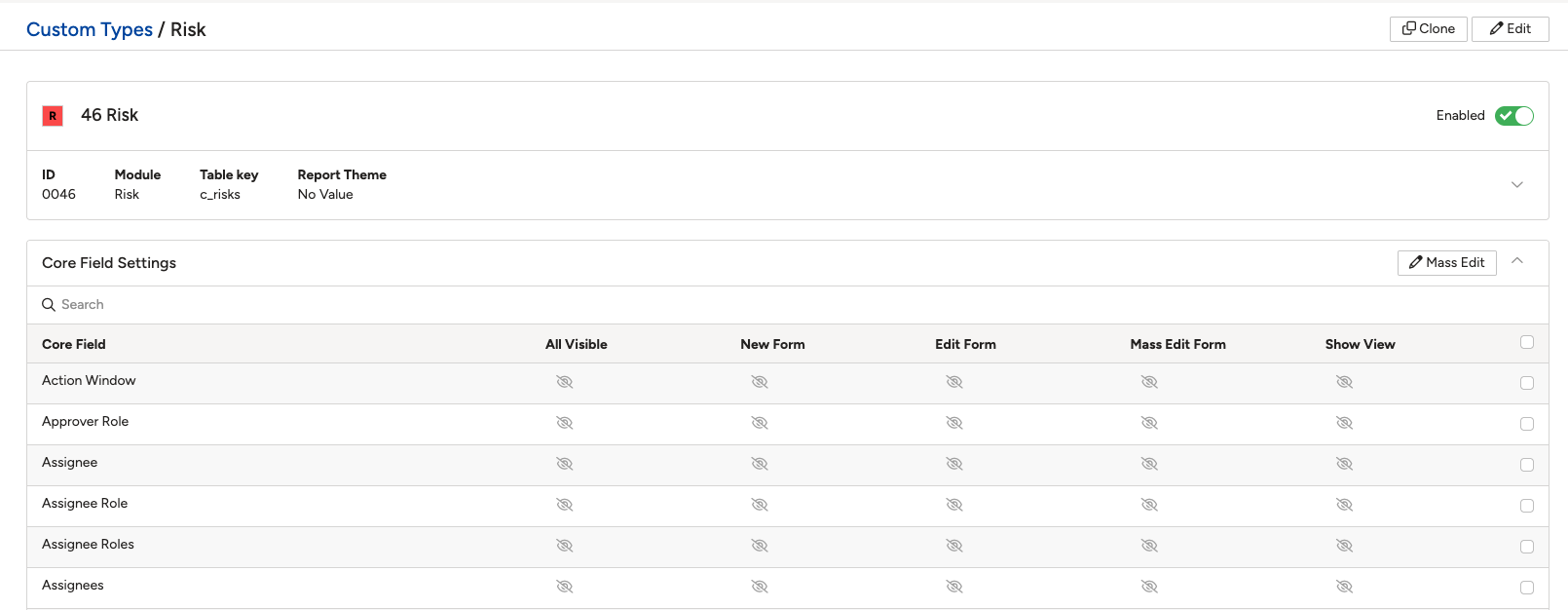
Risk: Field Reference
The configurable core fields available for the Risk module, grouped by what they're used for:
Ownership & Approval
| Field | What it's for |
| Owner | The person accountable for managing the risk. |
| Owner Role | The role the Owner holds. |
| Assignee | The person the record, or an action arising from it, is currently assigned to. |
| Assignee Role | The role the assignee holds, shown alongside or instead of their name. |
| Assignees | Everyone currently assigned to the record, where more than one person can be assigned. |
| Assignee Roles | The roles of everyone assigned, where a record supports more than one assignee. |
| Authoriser | The person who authorises the record, for example signing off the risk assessment. |
| Authoriser Role | The role the authoriser holds. |
| Approver Role | The role (rather than a named person) responsible for approving the record. |
| Risk Approver | The person responsible for approving the risk assessment. |
| Sanctioner | The person who gives final sign-off on the risk, as an additional approval step beyond the Approver. |
| Sanctioner Role | The role the Sanctioner holds. |
| Project.Owner | The owner assigned at the project level, where the risk is linked to a specific project. |
| Project.Owner Role | The role of the project-level owner. |
| Project.Approver | The approver assigned at the project level. |
| Project.Approver Role | The role of the project-level approver. |
Risk Assessment Content
| Field | What it's for |
| Risk Description/Summary | A written description summarising the risk. |
| Causes | The underlying cause(s) that could lead to the risk occurring. |
| Consequences | The potential outcomes or impacts if the risk occurs. |
| Indicators | Key risk indicators or early warning signs associated with the risk. |
| Ratings | The overall risk rating(s) calculated for the record, combining factors such as likelihood and consequence. |
| Business Objectives | The organisational objective(s) that this risk relates to or could affect. |
| Business Unit | The business unit or department the risk belongs to. |
| Location | The physical or organisational location the risk relates to. |
| Hubs | The organisational hub(s) or grouped site/location the risk is linked to, for organisations that use hubs. |
| Register | The register the risk belongs to, for example Strategic or Operational. |
Dates & Scheduling
| Field | What it's for |
| Action Window | The period during which an action linked to the risk is expected to be actioned. |
| Risk Window | The period during which the risk is considered active or relevant (shown as separate Start and End dates on some forms). |
| Review Date | The date the risk is next due to be reviewed. |
| Original Due Date | The due date originally set for the risk or its actions, before any extension. |
Record Metadata
| Field | What it's for |
| Created at | The date and time the record was first created. |
| Created by | The user who created the record. |
| Updated at | The date and time the record was last updated. |
| Closed at | The date and time the record was closed. |
Classification & Status
| Field | What it's for |
| Status | The record's current position in its workflow, for example Draft, Open, or Closed. |
| Mode | A classification field on the risk record. |
| Material | Flags whether the risk is considered material, that is, significant enough to warrant particular attention such as board-level reporting. |
| Sensitivity | Flags whether the record is sensitive, which can restrict who is able to view it. |
A small number of additional fields are fixed and always available, rather than being configurable through Core Field Settings:
- Type: the record type classification, distinguishing this custom type (Risk) within its module.
- ID #: the unique identifier number automatically assigned to the record.
- Risk Title: the short name or title given to the risk record.
- Inherent Risk Rating: the risk rating before any controls or mitigations are taken into account.
- Residual Risk Rating: the risk rating that remains after existing controls and mitigations are applied.
- ALARP Risk Rating: the risk rating assessed against the As Low As Reasonably Practicable (ALARP) principle, used to judge whether further mitigation is warranted.
5. Common Issues & Troubleshooting
These issues apply to Risk the same way they do to every module. See Core Fields: Overview for the general troubleshooting table and best practices.
| Issue | Likely Cause | Solution |
| A Risk field doesn't appear on a form or Show View | That specific column is switched off for the field in Risk's Core Field Settings | Open Custom Types > Risk > Core Field Settings and switch on the relevant column for that field |
| A field isn't listed under Risk's Available Fields or Core Field Settings at all | The field has not been enabled for your organisation | Raise a request with Clew support to have the field enabled for Risk |
- Core Fields: Overview
- Core Fields: Incidents
- Core Fields: Hazards
- Core Fields: Action
- Core Fields: Assurance (Audit Report)
- Core Fields: Audit
- Core Fields: Business Objective
- Core Fields: Change Request (Feedback)
- Core Fields: Control
- Core Fields: Library Control
- Core Fields: Learning (Declaration)
- Core Fields: Standard
- Core Fields: Performance Standard
- Core Fields: Measurement
Was this article helpful?
That’s Great!
Thank you for your feedback
Sorry! We couldn't be helpful
Thank you for your feedback
Feedback sent
We appreciate your effort and will try to fix the article