Core Fields: Overview
How to see which core fields are available for a module, and control where each one appears
Contents
- 1. Introduction & Context
- 2. Key Features & Functions
- 3. Requirements
- 4. Step-by-Step Guide
- 5. Common Issues & Troubleshooting
- 6. Core Fields by module
- 7. Related Articles
1. Introduction & Context
Core Fields are the set of fields Clew makes available for a module, such as Risk, Actions, or Incidents. This article explains how to see which core fields exist for a module and how to control where each one is allowed to appear, including in list views, the New and Edit forms, Mass Edit, and the record's Show View (detail page).
Who is it for? This is configured by Clew Admins in Admin Settings, under Custom Types for each module.
What does it impact? These settings control what your team sees and can enter, not the underlying data itself. Turning a field off in a given screen hides it there, but does not delete any information already stored against existing records.
2. Key Features & Functions
List View Columns: the Edit List Field Configuration screen lets you choose which fields appear as columns in a module's list view, by moving fields between Available Fields and Selected Fields.
Core Field Visibility: the Core Field Settings table, found under Custom Types for each module, lists every configurable core field for that module and lets you control, field by field, where it can appear:
- All Visible: a master switch for the field. Turning this on makes the field available across the platform; turning it off hides the field everywhere.
- New Form: whether the field appears when someone creates a new record.
- Edit Form: whether the field appears when someone edits an existing record.
- Mass Edit Form: whether the field appears in the bulk or mass edit screen.
- Show View: whether the field appears on the record's detail page.
Each column shows a green eye icon when the field is visible in that context, and a greyed-out crossed-eye icon when it is hidden. Fields can be updated individually, or in bulk using Mass Edit after selecting the checkboxes for the fields you want to change.
3. Requirements
- Clew Admin access, to open Admin Settings and the Custom Types screen for the module you want to configure.
- The module, or custom type, you want to configure must already exist and be enabled in Clew.
4. Step-by-Step Guide
These steps work the same way for every module. Replace "the module" below with the module you are configuring, for example Risk or Actions.
Setting Core Field Visibility
- Go to Admin Settings and open Custom Types.
- Select the module you want to configure.
- Scroll to Core Field Settings. Use the search box to find a specific field if the list is long.
- To change a single field, select the eye icon in the column you want to update, whether that is All Visible, New Form, Edit Form, Mass Edit Form or Show View, on that field's row.
- To change several fields at once, tick the checkbox on the right of each row you want to update, then select Mass Edit at the top of the table and apply the change.
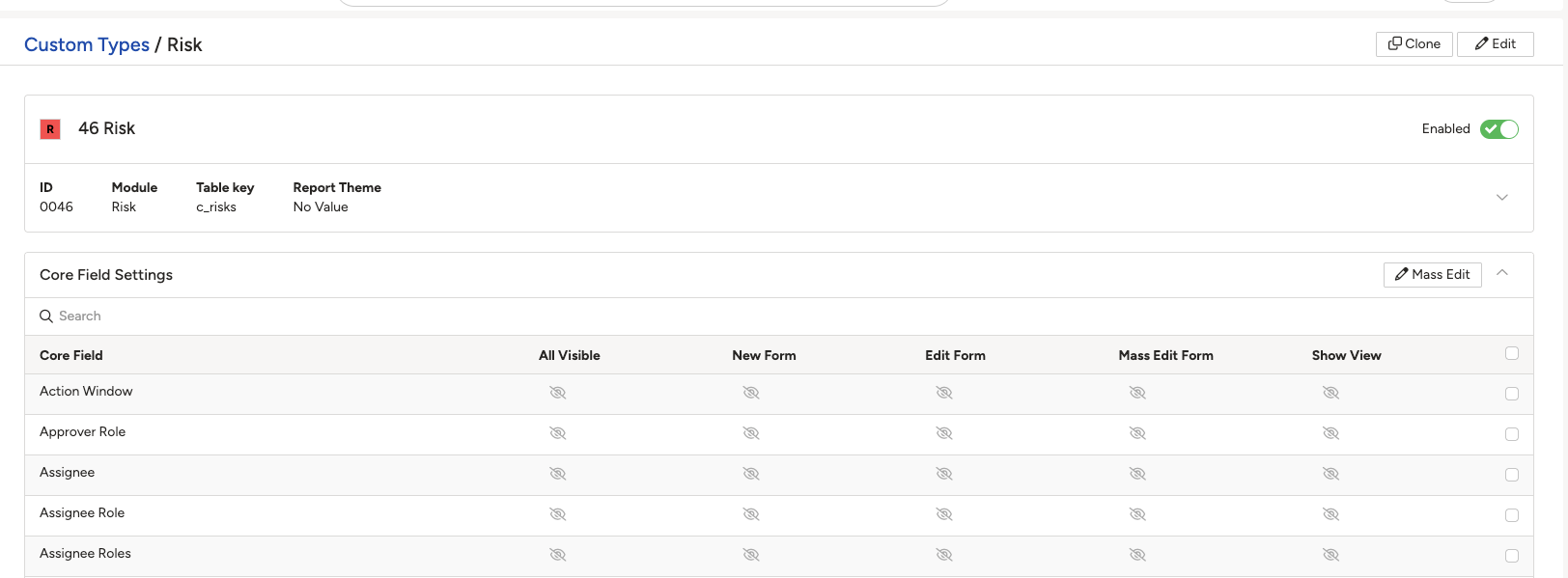
Core Field Settings, with an eye icon per field for each screen it can appear on.
5. Common Issues & Troubleshooting
| Issue | Likely Cause | Solution |
| A field does not appear on the New Form, Edit Form, Mass Edit Form or Show View | That specific column is switched off for the field in Core Field Settings | Open Core Field Settings for the module and switch on the relevant column for that field. |
| A field does not appear as a column in the list view | The field is still sitting under Available Fields rather than Selected Fields | Open Edit List Field Configuration and move the field into Selected Fields. |
| A field is not listed under Available Fields or Core Field Settings at all | The field has not been enabled for your organisation | Raise a request with Clew support to have the field enabled. |
| Changing several fields one at a time is slow | Individual toggles were used instead of bulk editing | Tick the checkboxes for the fields you want to change and use Mass Edit to update them together. |
Best practices:
- Check Core Field Settings before assuming a missing field needs a support request. Most visibility changes can be made by an admin directly.
- Use Mass Edit when updating several fields at once, rather than repeating the same change field by field.
- Keep list view columns focused on the fields your team scans most often. Too many columns makes the list harder to read.
6. Core Fields by module
This article covers the mechanics, which work the same way everywhere. Each module has its own article listing its configurable fields and what each one is for.
▾Custom Types Open full article »
Related article
What custom types are and how they are set up, which is where the Core Field Settings table lives.
▾Custom Fields Open full article »
Related article
Fields you add yourself, as opposed to the core fields Clew provides. Configured separately and scoped per custom type.
Was this article helpful?
That’s Great!
Thank you for your feedback
Sorry! We couldn't be helpful
Thank you for your feedback
Feedback sent
We appreciate your effort and will try to fix the article