Why isn't my field appearing in the schema or on the form?
The checks to run when a field does not display or hide as expected on a schema or form
Contents
- 1. Introduction & Context
- 2. Key Features & Functions
- 3. Requirements
- 4. Step-by-Step Guide
- 5. Common Issues & Troubleshooting
- 6. Related Articles
1. Introduction & Context
When creating or updating a schema, some fields may not hide or display immediately. If this happens, work through the checks below in order.
Who is it for? System administrators troubleshooting field visibility on schemas and forms.
What does it impact? These checks affect whether a field shows on a form, not the field's data.
2. Key Features & Functions
Whether a field appears depends on several layers, so it helps to check each:
- Schema sync: a new field only appears in the schema once the schemas have been synced.
- Custom Type enablement: the field must be enabled on the relevant Custom Type, including for the New and Edit forms.
- Schema visibility: the field's eye icon in the schema must be set to visible.
- Rules: a rule, such as conditional display logic, can override a field's visibility.
- Per Custom Type: field visibility is managed per Custom Type, so confirm you are working on the one your schema is linked to.
3. Requirements
- Access to Admin > Schemas and Admin > Custom Types.
4. Step-by-Step Guide
Field not appearing in the schema
If you have just created a new field and it does not show up in the schema:
- Go to Admin > Schemas.
- Click Sync Schemas.
- Return to your schema. The field should now be visible.
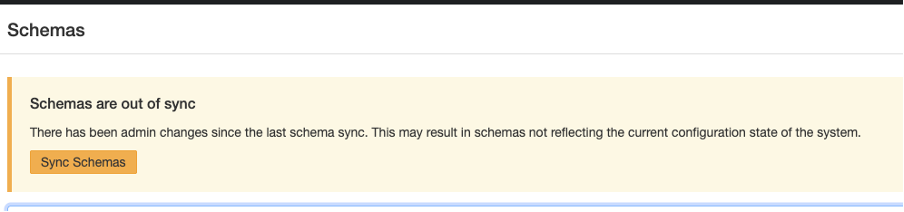
Clicking Sync Schemas to bring a new field into the schema.
Field not enabled on the Custom Type for the New or Edit form
If you have synced the schema and the field still does not appear, check that the field is enabled for the forms on the relevant Custom Type, and that it is generally enabled:
- Go to Admin > Custom Types.
- Select the relevant Custom Type.
- Check the visibility for your field.
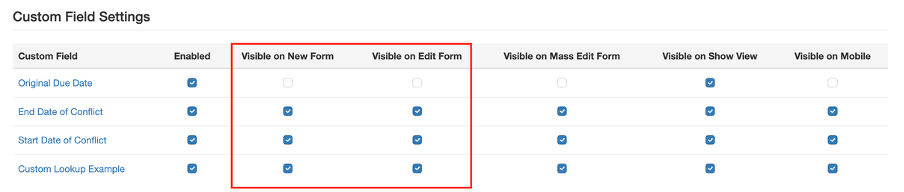
Checking the field's visibility on the Custom Type.
Field visible in the schema but not appearing on the form
If a field exists but is not visible:
- Go to Admin > Schemas.
- Search for the relevant schema and open it.
- Locate the field on the schema.
- On the right-hand side, check the eye icon to ensure the field is set to visible.

Checking the eye icon to make the field visible.
Marked as visible, but still not appearing
If the field is correctly marked as visible or hidden but the change does not reflect:
- Open the schema and review its configuration.
- Confirm the field's visibility setting matches your intent (visible or not visible).
- Check for any rules that may override the visibility, for example conditional display logic.
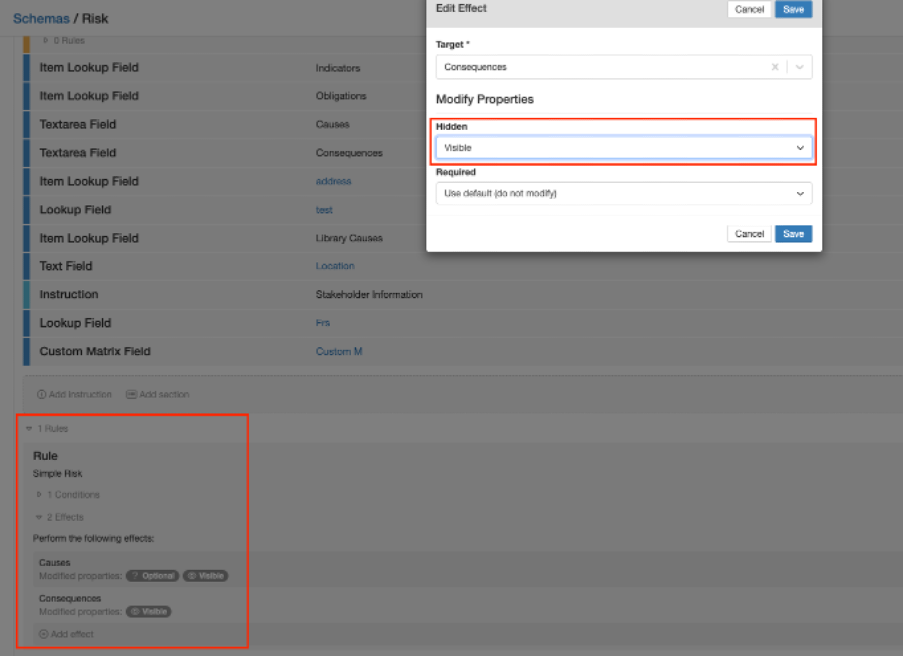
Checking schema rules that may override visibility.
5. Common Issues & Troubleshooting
| Symptom | Check |
| A new field is not in the schema | Sync Schemas, then reopen the schema. |
| Synced, but the field still does not appear | Check the field is enabled on the correct Custom Type, for the New and Edit forms. |
| In the schema but not on the form | Set the field's eye icon to visible in the schema. |
| Marked visible but still hidden | Check for a rule overriding visibility, such as conditional display logic. |
Field hidden on the module
If none of the above steps resolve the issue, contact Clew Support. In rare cases, core fields may be hidden across the entire module. This setting can only be adjusted by Clew, so reach out to support@clew.io for assistance.
Click a title to preview it here. Use the Open full article button to read the full version in a new tab.
▾Schemas Open full article »
Related article
How schemas work, including syncing and field visibility.
▾Custom Types Open full article »
Related article
How custom types are configured, including field visibility for forms.
Was this article helpful?
That’s Great!
Thank you for your feedback
Sorry! We couldn't be helpful
Thank you for your feedback
Feedback sent
We appreciate your effort and will try to fix the article