TABLE OF CONTENTS
How can I update the schema's order or conditions?
- Navigate to the Admin area > Schemas.
- Search for the schema you would like to change and click on it.
Click on the sub-panel 'Builder' to expand and see all the available fields and sections in your schema.
Reorder the Schema Fields:- To order fields, simply drag and drop the field into the right order.
In case you want to move a field in or out of a section you need to select the field and click 'transfer node here' in the desired section.
Update a Fields Visibility: - To update the visibility of the field click on the eye icon to hide/unhide current field.

Update a Field's Required Status: - To make a field required and prevent the form from being saved without it, click the asterisk icon.

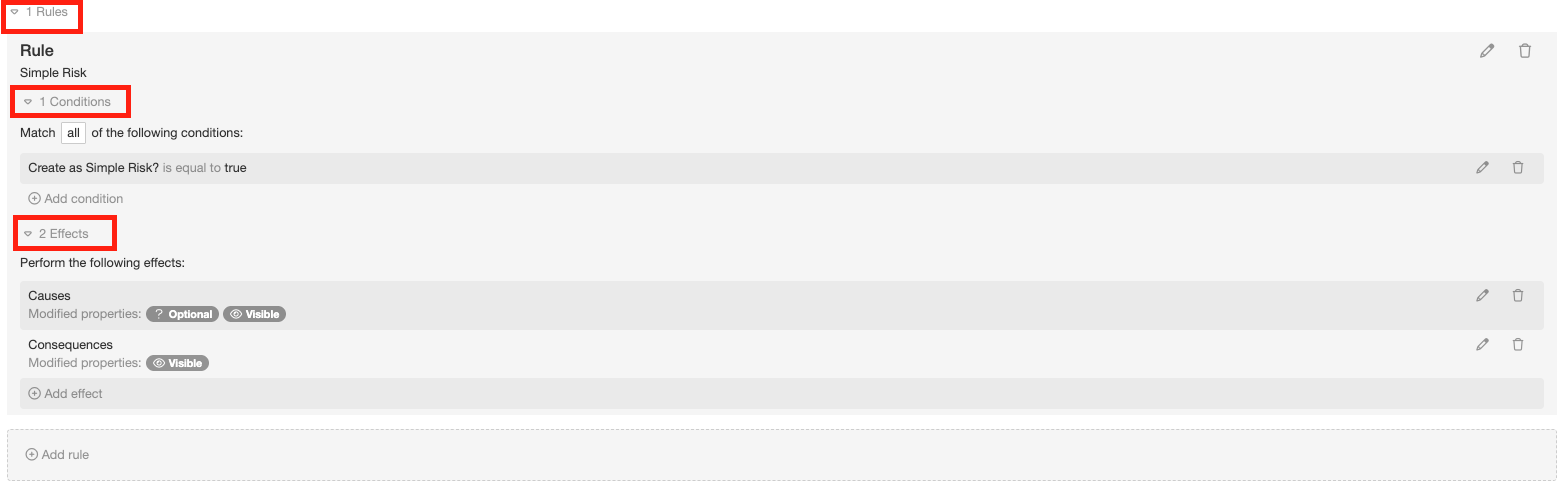
Change Schema's Conditions: - To change the rules applied to certain field on the schema, click on 'rules', either below a section or at the bottom of the schema.
Note: In a section, rules can only be applied to fields within that section. Outside a section, rules can only be applied to fields that are not part of any section. - Edit conditions using the pencil icon or add a new one with the 'Add Condition' button below.
- Edit effects using the pencil icon or add a new one with the 'Add Effect' button.
Was this article helpful?
That’s Great!
Thank you for your feedback
Sorry! We couldn't be helpful
Thank you for your feedback
Feedback sent
We appreciate your effort and will try to fix the article