How can I add a new custom field and enable it for the schema?
If you are a system admin, you can create new custom fields, unhide core fields, and make them available on a schema. For more details, check the linked article about custom fields.
In general, creating a new field and making it available on a schema involves two steps: first, create the field, and then enable it for the schema (form).
How to create a new custom field:
- You can add a new custom field when navigating to Admin > Custom Fields.
- Search for the module where you want to add the custom field and click ‘Add’.
- Fill out the form, more detailed information you can find in this article.
Note: Most of the times the fields Title, Type are the most important ones. - Enable it for the locations you want the field to appear and hit save
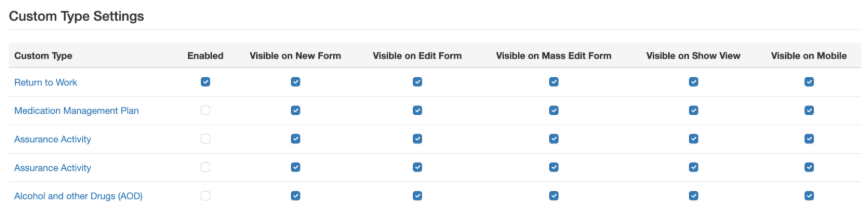
How to enable a core field:
- Navigate to Admin > Custom Type, then find your custom type you want to adjust.
- Remove the core field from the ‘Hidden Fields’ section depending on where you want do display the field. Add a field to a section to hide the core field. For more details about core fields, see this article.
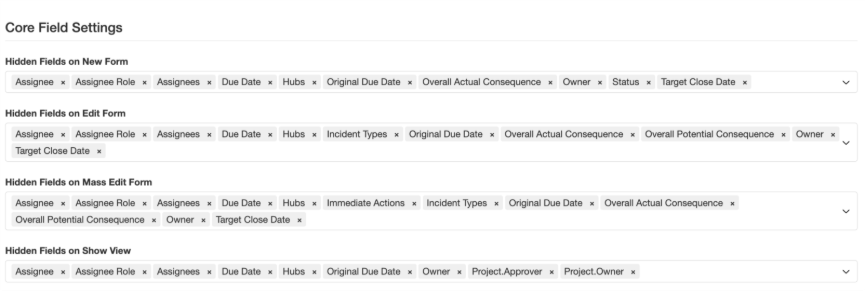
How to enable a field on the schema?
- After creating a field and enabling it for a form (e.g., New Form), go to Admin > Schemas.
Note: You only need to follow the next steps if your form uses a schema you can tell by the visual difference (see below screenshot) or by searching the schemas page for the name of your form.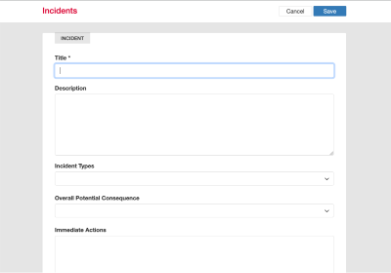 No Schema
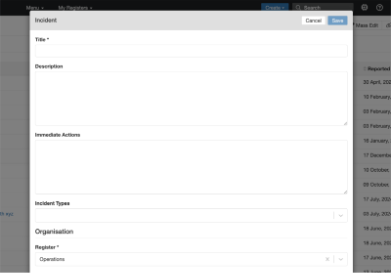 Schema
 - If changes to a field have been made or a new field was created, a banner will automatically appear at the top of the Schemas page asking you to [Sync Schemas].
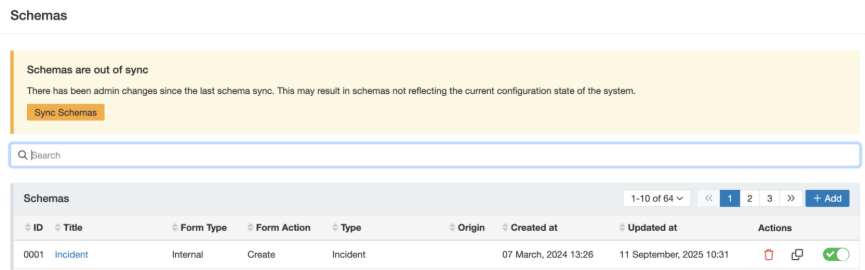
- Next, navigate to the schema you want to adjust. Open the Builder panel to:
For more details about the Schemas page, see this article.- Reorder fields
- Show or hide fields
- Add rules
Was this article helpful?
That’s Great!
Thank you for your feedback
Sorry! We couldn't be helpful
Thank you for your feedback
Feedback sent
We appreciate your effort and will try to fix the article