Offboarding Users
How Team Managers and Team Administrators remove a user from a team, and when to deactivate their account entirely
Contents
- 1. Introduction & Context
- 2. Key Features & Functions
- 3. Requirements
- 4. Step-by-Step Guide
- 5. Common Issues & Troubleshooting
- 6. Related Articles
1. Introduction & Context
Offboarding removes a user from one of your teams so they no longer have access to that team's records, permissions, and security groups, and it lets you do this yourself without waiting on a System Administrator.
Who is it for? Team Managers and Team Administrators who need to keep their team's membership current, for example when someone changes role, moves to a different team, or leaves the organisation.
What does it impact? Offboarding is scoped to a single team. The user immediately loses access to that team's records, dashboards, and security groups, but stays a member of any other teams they belong to and keeps their system login unless you also choose to deactivate their account. Deactivation is a separate, system-wide action that removes their ability to log in entirely, so use it deliberately, not as a default click during every offboard.
2. Key Features & Functions
- Self-service team management: Team Managers and Team Administrators can offboard users directly from the team, with no System Administrator involvement needed for the standard case.
- Scoped to one team: offboarding only affects the team you're managing. A user offboarded from one team keeps their membership, permissions, and access in any other teams they belong to.
- Optional account deactivation: if the person is leaving the organisation entirely, you can tick Deactivate User in the same step to revoke their system login as well as their team membership.
- Immediate effect: access is removed as soon as you confirm the offboard, so there's no delay or approval step to work around.
- Reversible: if a user is offboarded by mistake, they can be added back to the team using the Onboard option, or a System Administrator can restore their access.
3. Requirements
Before you can offboard users, a System Administrator must first set up your team access. Make sure the following are in place:
- You are a member of the team you want to manage.
- Your membership type for that team is Team Manager or Team Administrator. A standard Team Member cannot offboard other users.
- The user you want to remove currently appears as a member of that team.
This feature does not let you: create or delete teams, change another user's membership type, or offboard someone from a team you don't manage. Those actions still require a System Administrator.
4. Step-by-Step Guide
Find the team you manage
- Click your username in the top-right corner of the screen.
- Select My Teams from the dropdown menu to view every team you belong to.

- On the My Teams page, check the My Membership Type column to confirm you're a Team Manager or Team Administrator for the relevant team, then click the team name to open it.

Offboard a user from the team
- Find the user you want to remove in the team's member list.
- Click the three dots (⋮) to the right of their name, then select Offboard.

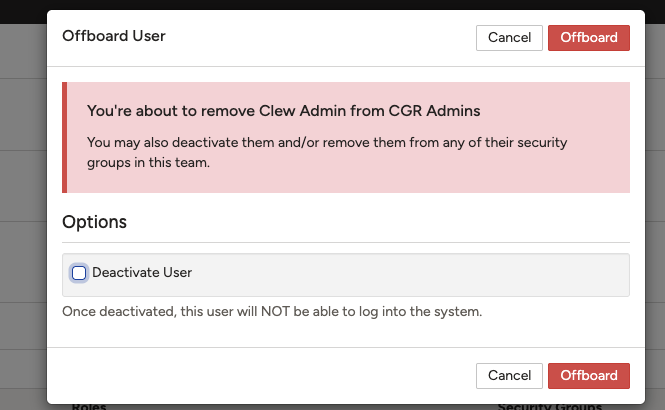
- Review the confirmation panel. It confirms which user is about to be removed from which team, and reminds you that you can also deactivate them and/or remove them from any of their security groups in this team.
- Click Offboard to confirm. The user is removed from the team immediately.
Deactivate a user at the same time (optional)
Use this step only if the person is leaving the organisation entirely and should lose their system login, not just their place on this team.
- On the confirmation panel, tick Deactivate User under Options.
- Click Offboard to confirm. The user is removed from the team and can no longer log in to the system.
5. Common Issues & Troubleshooting
| Issue | Likely Cause | Solution |
| I don't see the Offboard option next to a user | You don't have the required permissions. Only Team Managers or Team Administrators can offboard users. | Check your membership type on the My Teams page. If you're unsure of your role, contact your System Administrator. |
| I don't see any teams under My Teams | You haven't been added to any teams yet, or team setup hasn't been completed. | Check with your System Administrator to confirm your team membership. |
| I accidentally offboarded the wrong person | The user was selected in error and removed from the team. | Re-add the user with the Onboard option, or ask a System Administrator to restore their access. See the related Onboarding Users article. |
| I want to remove someone's access from the system entirely, not just this team | Offboarding on its own only removes team membership, it doesn't revoke system login. | Tick Deactivate User during the offboarding step. Use this only if the person no longer needs any access to the system. |
Best practices:
- Offboard promptly when someone changes role or moves teams, so access stays current and audit-ready.
- Reserve Deactivate User for people leaving the organisation entirely. Offboarding without deactivating is the safer default for internal moves.
- Double-check the team and user name on the confirmation panel before clicking Offboard. The action takes effect immediately.
- If you're unsure whether to offboard, deactivate, or both, check with your System Administrator first.
Click a title to preview it here. Use the Open full article button to read the full version in a new tab.
▾Onboarding Users Open full article »
Related article
Covers the reverse process: adding a new or returning user back onto a team, including how to reinstate someone offboarded by mistake.
▾Team Management Open full article »
Related article
An overview of how teams work in Clew, including membership types and what Team Managers and Team Administrators can each do.
▾My Teams Open full article »
Related article
How to find the My Teams page, read your membership type, and navigate into a team you belong to.
▾Deactivating a User and Transferring Records Open full article »
Related article
What happens to a user's records when they're deactivated, and how to transfer ownership before revoking their access for good.
Was this article helpful?
That’s Great!
Thank you for your feedback
Sorry! We couldn't be helpful
Thank you for your feedback
Feedback sent
We appreciate your effort and will try to fix the article