Filtered Orphaned Items Report
How to find records owned by former or deactivated users and transfer them to another user
Contents
- 1. Introduction & Context
- 2. Key Features & Functions
- 3. Requirements
- 4. Step-by-Step Guide
- 5. Common Issues & Troubleshooting
- 6. Related Articles
1. Introduction & Context
The Filtered Orphaned Items Report is an admin-only report that helps you find records still owned by users, often former staff, and transfer those records to another user when needed. This article explains how to run the report and use its results to reassign records.
Who is it for? System administrators who manage user offboarding and need to keep records assigned to active users.
What does it impact? The report itself only reads data. However, from the results you can open the Mass Edit function to transfer records to another user, which does change record ownership.
2. Key Features & Functions
- Identify orphaned records: find records owned by specific users, including former or deactivated staff.
- Flexible filtering: narrow the report by register, user, active status, locked status, and more.
- Transfer via Mass Edit: click any result with records to open the Mass Edit function and reassign those records to another user.
3. Requirements
- You must be a System Administrator to run this report.
4. Step-by-Step Guide
Running the Orphaned Items Report
- Go to Menu, then Filtered Search Reports, then Miscellaneous Reports.
- Select Filtered Orphaned Items Report.
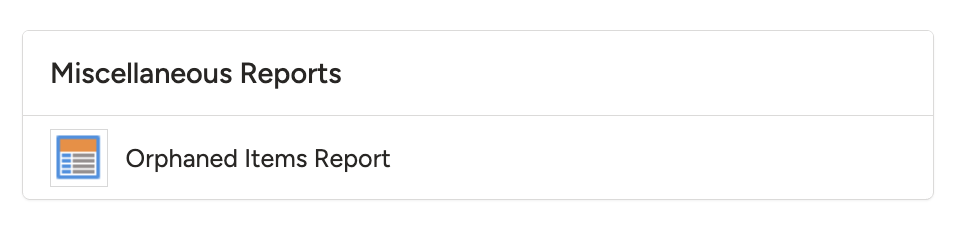
Selecting the Filtered Orphaned Items Report.
- Enter a Report Title.
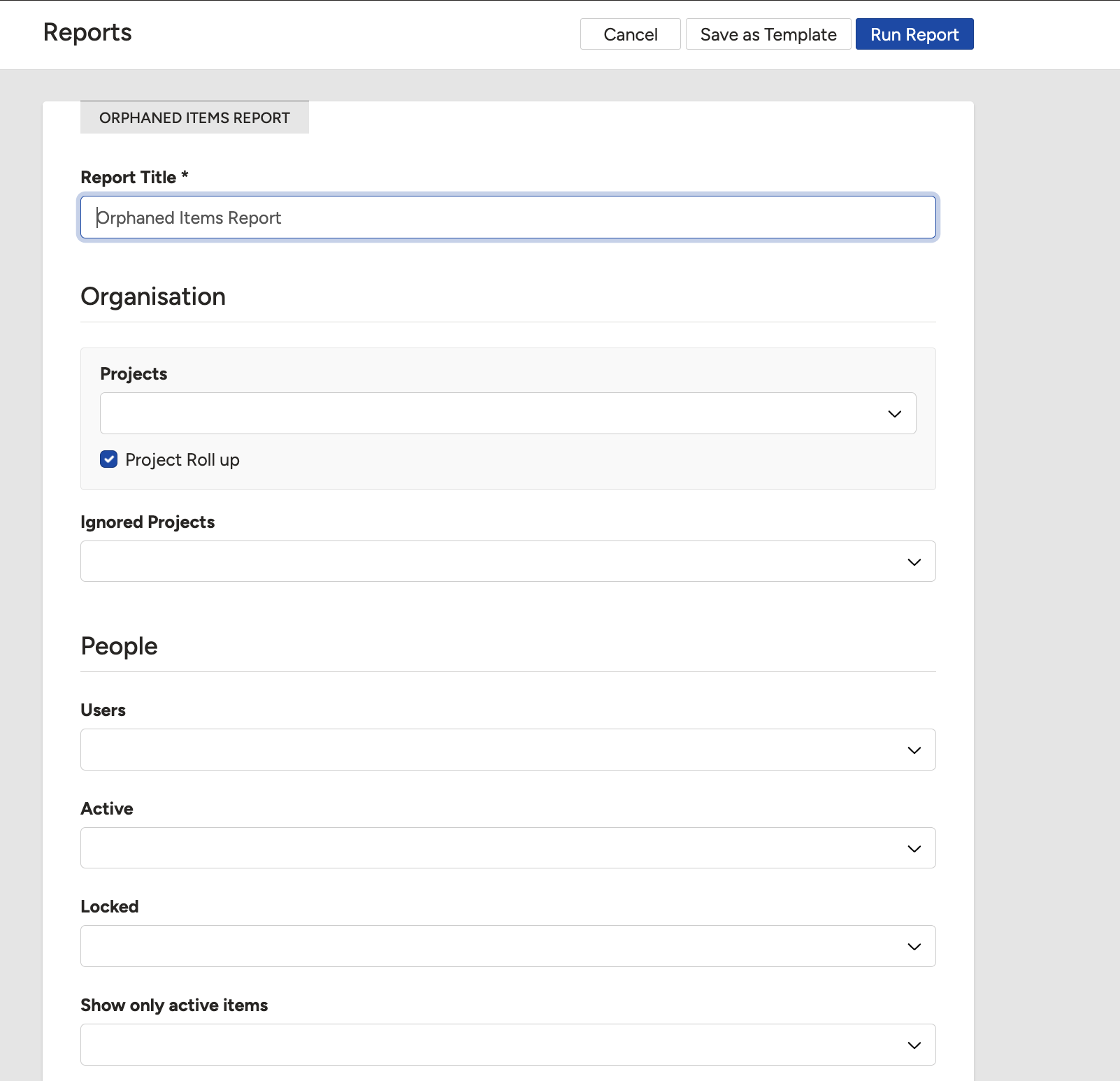
Entering a report title.
- (Optional) Select the Registers to include. Leave this blank to include all registers.
- (Optional) Configure the filters below as needed.
| Filter | Description |
| Users | Select specific users to check. Leave blank to include all users. |
| Active | Select No to include records from deactivated users. Leave blank to include all users. |
| Locked | Include records for locked-out users. |
| Show only active items | Shows only active records and excludes closed records. |
| Hide users with no items | Select Yes to exclude users who have no records. |
- Click Run Report.
- The report results appear in a table. Any cell with more than 0 records can be clicked to open the Mass Edit function, where you can transfer those records to another user.

The report results, with clickable cells for transferring records via Mass Edit.
5. Common Issues & Troubleshooting
| Issue | Likely Cause | Solution |
| The report is not available in the menu | You do not have System Administrator access. | Confirm your account has System Administrator access, since this is an admin-only report. |
| Records for a former user are not showing | The user is deactivated and the Active filter is excluding them. | Set the Active filter to No to include records from deactivated users. |
| The results are cluttered with empty rows | Users with no records are included in the report. | Set Hide users with no items to Yes. |
| A cell cannot be clicked to transfer records | The cell shows 0 records, so there is nothing to transfer. | Only cells with more than 0 records open the Mass Edit function. |
Best practices:
- Run this report as part of your offboarding process to catch records left with departing users.
- Use the Active filter set to No to focus on deactivated users specifically.
- Set Hide users with no items to Yes to keep the results focused on users who actually own records.
Click a title to preview it here. Use the Open full article button to read the full version in a new tab.
▾Users Open full article »
Related article
How to manage users in Clew, including deactivating accounts as part of offboarding.
▾How to change what fields can be mass edited Open full article »
Related article
How to control which fields can be mass edited, which governs how records are reassigned from the report results.
Was this article helpful?
That’s Great!
Thank you for your feedback
Sorry! We couldn't be helpful
Thank you for your feedback
Feedback sent
We appreciate your effort and will try to fix the article