Rating Transformations
How to configure and view transformed risk ratings in Clew
Contents
- 1. Introduction & Context
- 2. Key Features & Functions
- 3. Requirements
- 4. Step-by-Step Guide
- 5. Common Issues & Troubleshooting
- 6. Related Articles
1. Introduction & Context
Rating transformations let you adjust a risk rating systematically by mapping one set of likelihoods and severities onto another, so risks rated under different frameworks can be compared on a single, consistent scale.
The feature maps a baseline or global likelihood, represented by the ALARP rating, against the current risk's metric (the Inherent or Residual rating) to produce a final Transformed rating. The ALARP matrix is the baseline risk framework, an Inherent rating shows risk before mitigation, and a Residual rating shows risk after controls are applied.
Who is it for? System Administrators who configure how risk ratings are calculated and compared across projects.
What does it impact? Once configured, transformed ratings appear against rated risks throughout the platform, helping teams compare risks across frameworks and improve prioritisation.
2. Key Features & Functions
- Cross-framework comparison: map a baseline (ALARP) likelihood against inherent or residual ratings so risks from different frameworks can be compared directly.
- Industry-wide comparability: align internal ratings to a global metric for consistent benchmarking.
- Refined prioritisation: improve prioritisation by refining impact and likelihood assessments.
- Customisable mappings: transformation mappings can be applied across different matrices to suit your organisational requirements.
Where transformed ratings appear:
- Risk: Risk Show View, Bowtie, and List View.
- Dashboard > Risk Heatmap: transformed ratings are displayed.
- Filtered Risk Report (Detailed view): shows transformed ratings under the expanded list.
- Exported reports: PDF export includes transformed ratings; CSV export does not.
3. Requirements
- Feature activation: rating transformations must be enabled in system settings.
- Administrator access: only System Administrators can configure transformed ratings.
- Matrices to map: a Baseline Matrix (ALARP) representing a global likelihood metric (for example, a 1 x 5 matrix), which acts as the source matrix; and additional matrices for Inherent or Residual ratings (for example, 5 x 5 or 4 x 5), which act as the target matrices.
- Rating strategies: configure rating strategies so a project's ALARP rating reflects the baseline likelihood matrix, while the inherent rating reflects the current likelihood matrix.
4. Step-by-Step Guide
Configuring Rating Transformations
- Navigate to Admin > Rating Transformations.

The Admin menu with Rating Transformations selected.
- Select the baseline rating strategy (Target/ALARP) as the Source Rating Strategy.
- Choose the appropriate Source Severity Category.
- Select the inherent rating strategy as the Target Rating Strategy.
- Choose the corresponding Target Severity Category. Initially, no cells show a highlighted asterisk, which means transformations have not been defined yet.
- Select, in order, the source matrix cell, the target matrix cell, and the transformed matrix cell. Once selected, each cell is outlined with a dotted line.
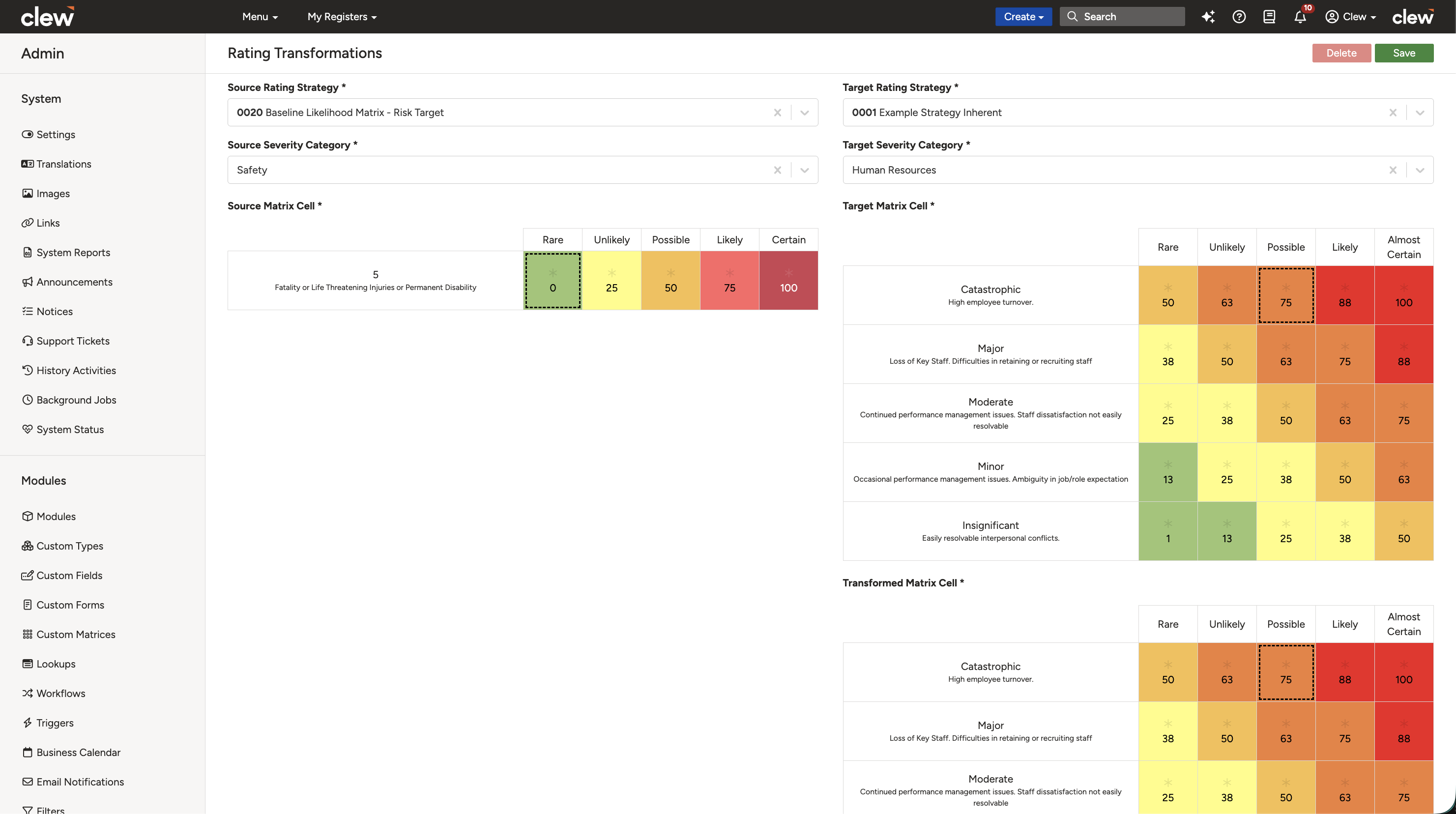
Selecting the source, target, and transformed cells, each outlined with a dotted line.
- Click the Save button at the top to apply the transformation.
- Scroll down to expand the Transformation Table and verify the saved mappings.
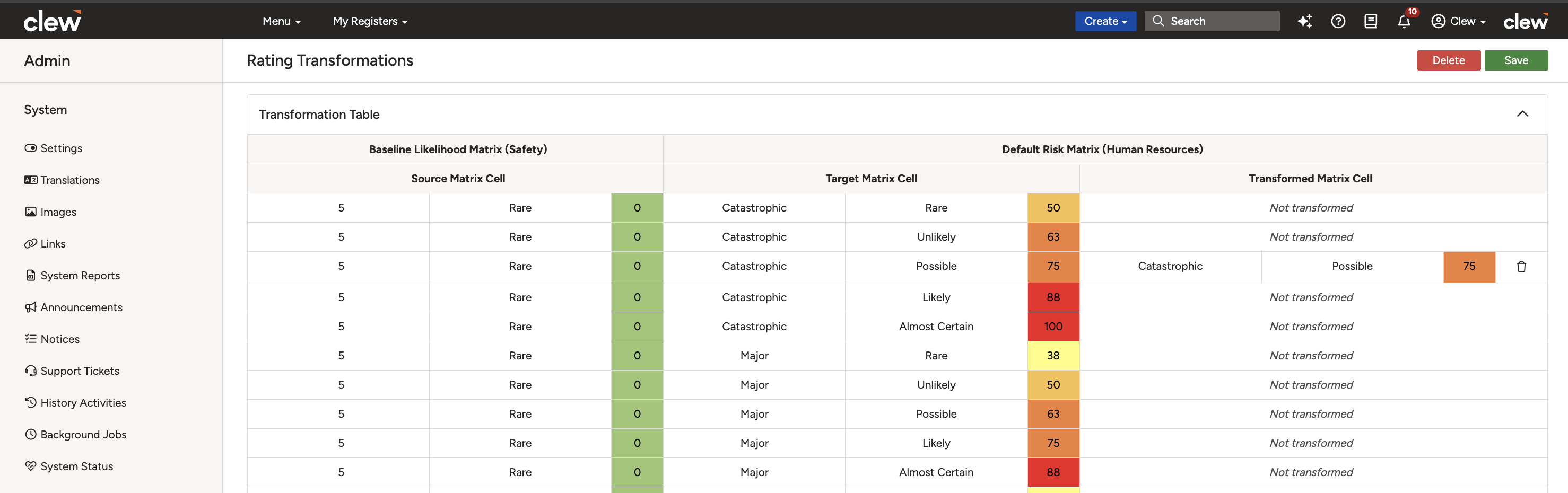
The expanded Transformation Table showing the saved mappings.
Viewing Transformed Ratings on Risks
- Configure a project with ALARP and Inherent matrices matching those used in the rating transformation, using rating strategies.
- Navigate to any risk within the project.
- Rate the risk using the ALARP rating strategy and severity category, then rate the same risk with the Inherent rating strategy and severity category (as selected in the mapping).
- Click Save. An asterisk appears on the transformed cell on the rating page.
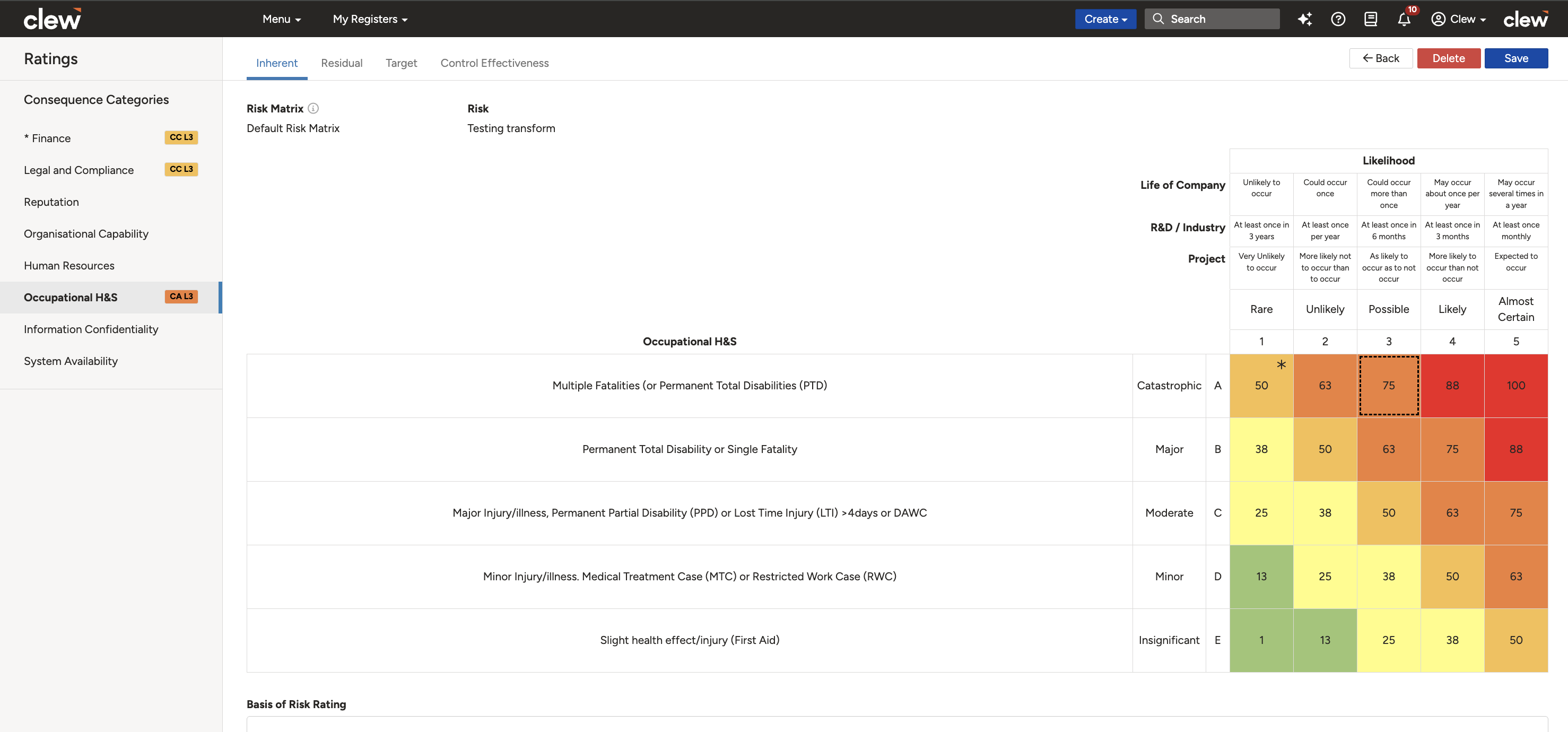
An asterisk marks the transformed cell once both ratings are saved.
- Navigate to the Risk Show View and expand the rating pill to view the transformed ratings.
- Open the Risk Bowtie View and confirm the transformed ratings are also displayed under the expanded inherent rating pill.
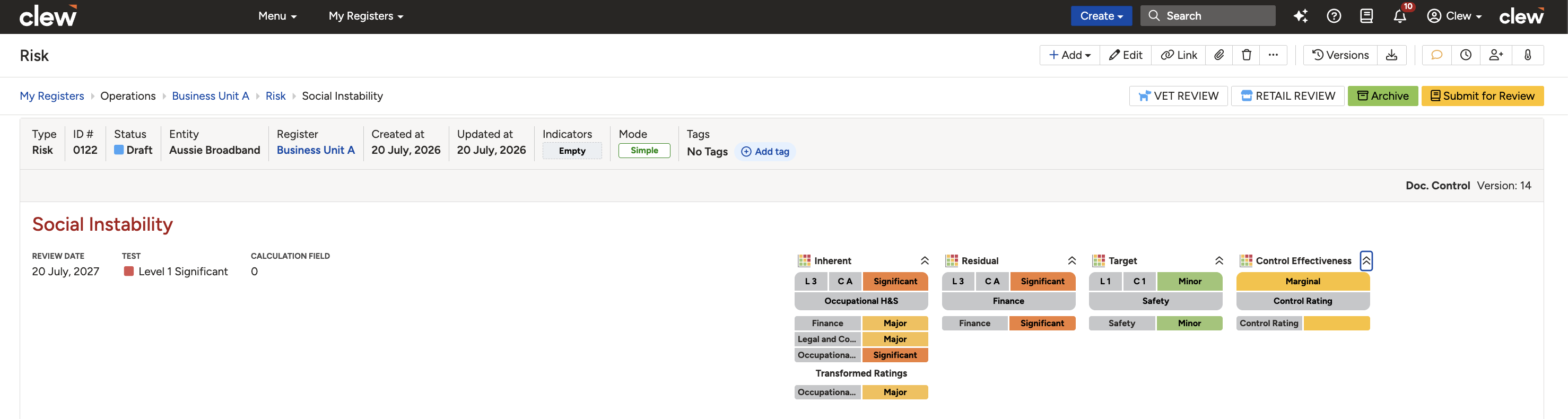
The transformed rating shown in the expanded Risk Show View rating pill.
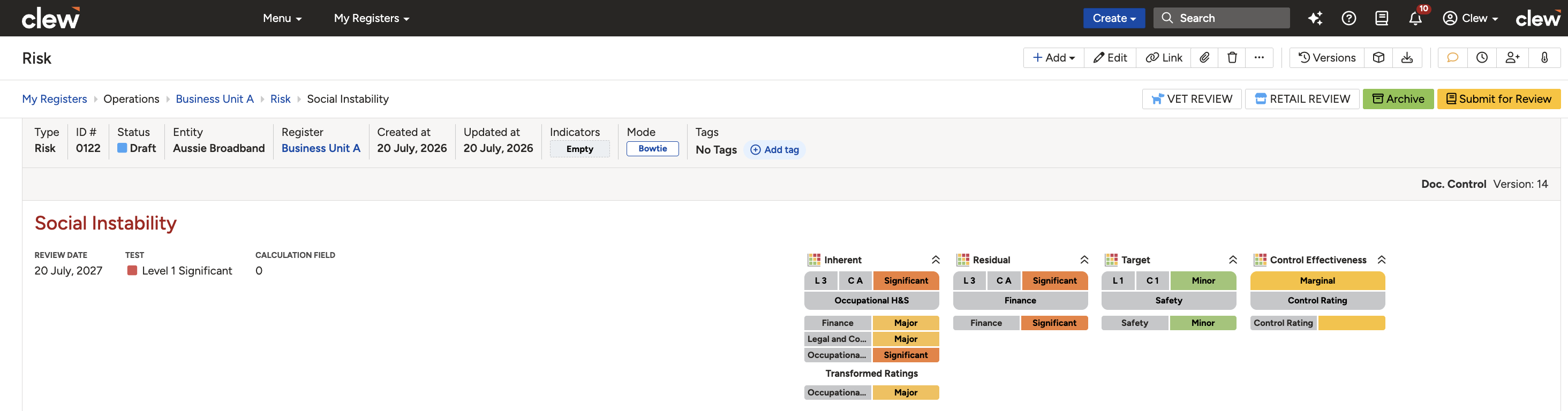
The transformed rating shown under the expanded inherent rating pill in the Bowtie View.
5. Common Issues & Troubleshooting
| Issue | Likely Cause | Solution |
| Transformed ratings do not appear on the Risk Show View. | The configured matrices, severity categories, or transformation mapping have not been correctly applied to the rating. | Confirm the configured matrices were selected when rating the risk, the correct severity categories were chosen, and a transformation has been configured for the selected rating. |
| Transformed ratings show in the exported PDF but not the CSV. | This is expected behaviour. The CSV export does not include transformed ratings. | Use the PDF export, or a Detailed filtered risk report, to view transformed ratings. |
| Transformed ratings are missing from a filtered risk report. | The report style is not set to Detailed. | Set Report style to Detailed. The Risk Show views are then listed below the summary and include the transformed ratings. |
Best practices:
- Confirm the feature is enabled in system settings before you begin configuring transformations.
- Make sure a project's rating strategies use the same ALARP and inherent matrices defined in the transformation, or the mapping will not apply.
- Verify saved mappings in the Transformation Table before relying on them in live risk assessments.
- Remember that CSV exports exclude transformed ratings, so use the PDF or Detailed report when sharing them.
Click a title to preview it here. Use the Open full article button to read the full version in a new tab.
▾Risk Matrix Configuration Open full article »
Related article
How to build the ALARP, inherent, and residual matrices that a transformation maps between.
▾Rating Strategies Open full article »
Related article
How to configure the ALARP and inherent rating strategies a transformation relies on.
▾Mapped Ratings Open full article »
Related article
The related feature for converting ratings across a project hierarchy, and how it differs from transformations.
Was this article helpful?
That’s Great!
Thank you for your feedback
Sorry! We couldn't be helpful
Thank you for your feedback
Feedback sent
We appreciate your effort and will try to fix the article