Mapped Ratings
How to map risk matrix ratings from a child project to its parent project
Contents
- 1. Introduction & Context
- 2. Key Features & Functions
- 3. Requirements
- 4. Step-by-Step Guide
- 5. Common Issues & Troubleshooting
- 6. Related Articles
1. Introduction & Context
Mapped Ratings lets a System Administrator link risk matrix cells from a child project to the matching cells in its parent project, so risks assessed on one matrix display consistently when viewed against the parent. This standardises risk evaluation across a project hierarchy, giving your team a single, comparable view of risk even when child projects use a different risk matrix from their parent.
Who is it for? System Administrators who manage a hierarchy of projects in which the parent project and its child projects use different risk matrices.
What does it impact? Mapping does not change the original rating recorded on the child project. It only controls how that rating is translated and displayed when a risk is viewed against the parent project's matrix (for example, in the parent's Risk List View, Project Show view, Risk Show view, Bowtie, filtered reports, and PDF exports).
2. Key Features & Functions
- Cell-to-cell mapping: link a specific rating score in the child (source) matrix to a specific rating score in the parent (target) matrix.
- Severity category control: map ratings separately for each severity category, so different risk types translate correctly.
- Update and unmap: replace an existing mapping at any time, or remove it entirely with the Unmap button.
- Clear visual indicators: mapped ratings show an asterisk on the rating pill, and a note at the top of the view confirms the ratings are mapped to the parent project.
- Consistent across the platform: once the Map Ratings filter is enabled, mapped ratings appear in the Risk List View, Project Show view, Risk Datagrid, Risk Show view, Bowtie, filtered reports, and PDF exports.
3. Requirements
- The Mapped Ratings feature must be enabled in your settings.
- Only a System Administrator can configure mapped ratings.
- Projects must be organised in a hierarchical structure in which the parent project uses a different risk matrix from its child projects.
4. Step-by-Step Guide
Create a mapped rating
- Navigate to Admin > Risk Matrices.
- Click the Mappings button in the top-right corner of the Risk Matrices admin page.

The Mappings button in the top-right corner of the Risk Matrices admin page.

The Mappings screen, ready for you to select the source and target matrices.
- Select the source and target matrices:
- For the Source Risk Matrix, choose the child project's matrix and select the appropriate Severity Category.
- For the Target Risk Matrix, choose the parent project's matrix and select the corresponding Severity Category.
- Once you have selected both the source and target, all cells initially appear as 'Not mapped'.
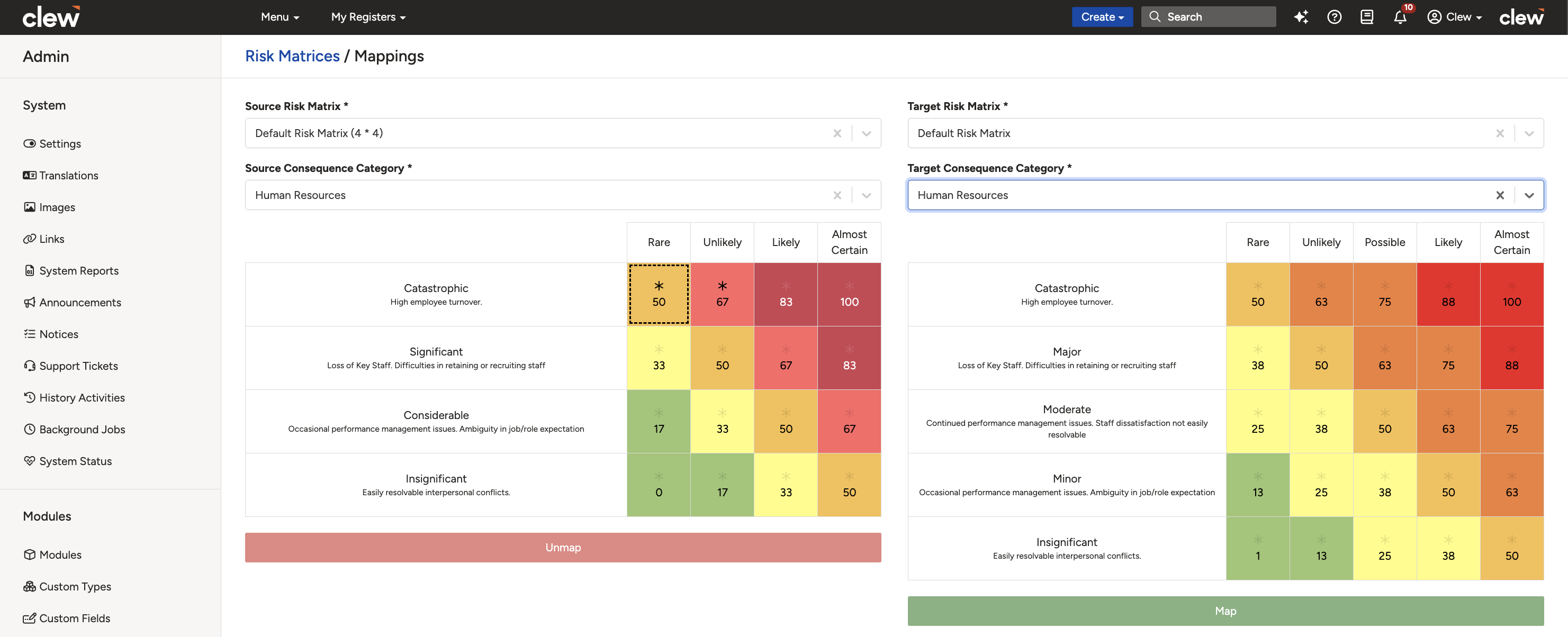
The source (child) and target (parent) matrices selected, with cells showing as Not mapped.
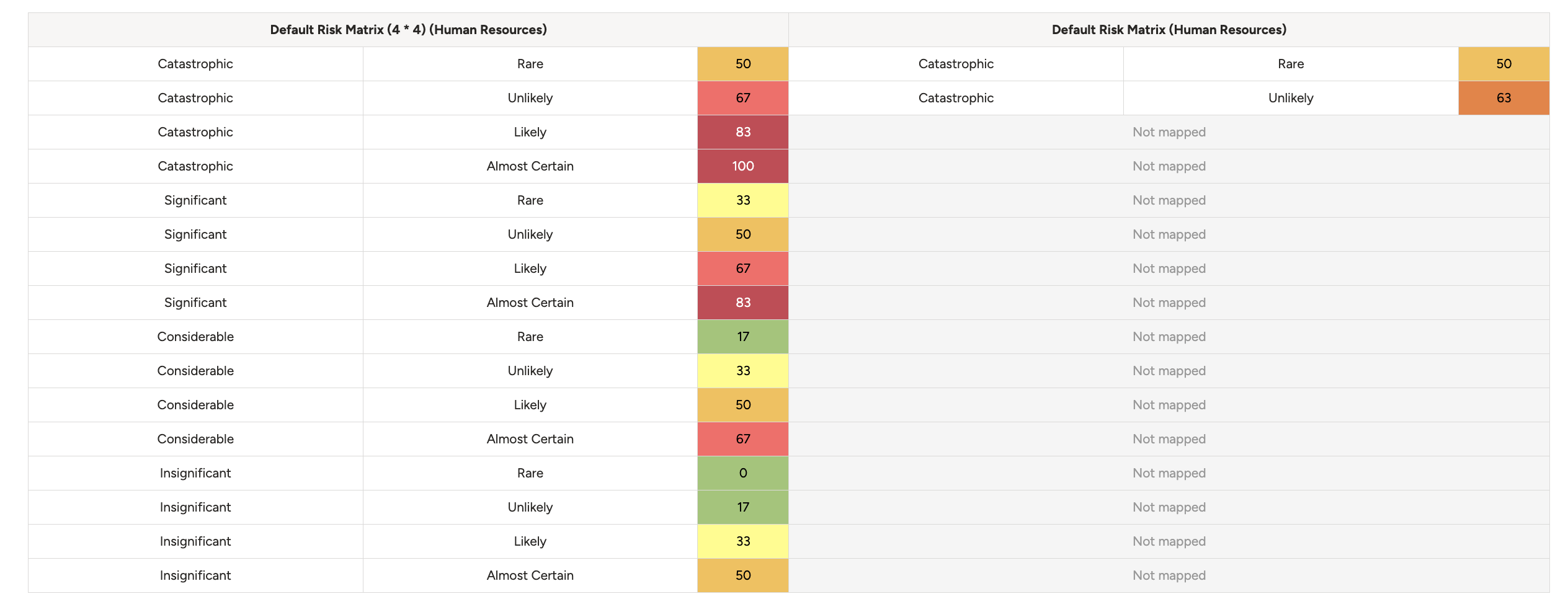
Both severity categories selected, ready to begin mapping cells.
- Map the rating score:
- Select a rating score in the source (child) matrix, for example 17.
- Select the corresponding cell in the target (parent) matrix, for example 25.
- Click the green Map button below the target risk matrix.
- The mapped ratings appear in the columns below.
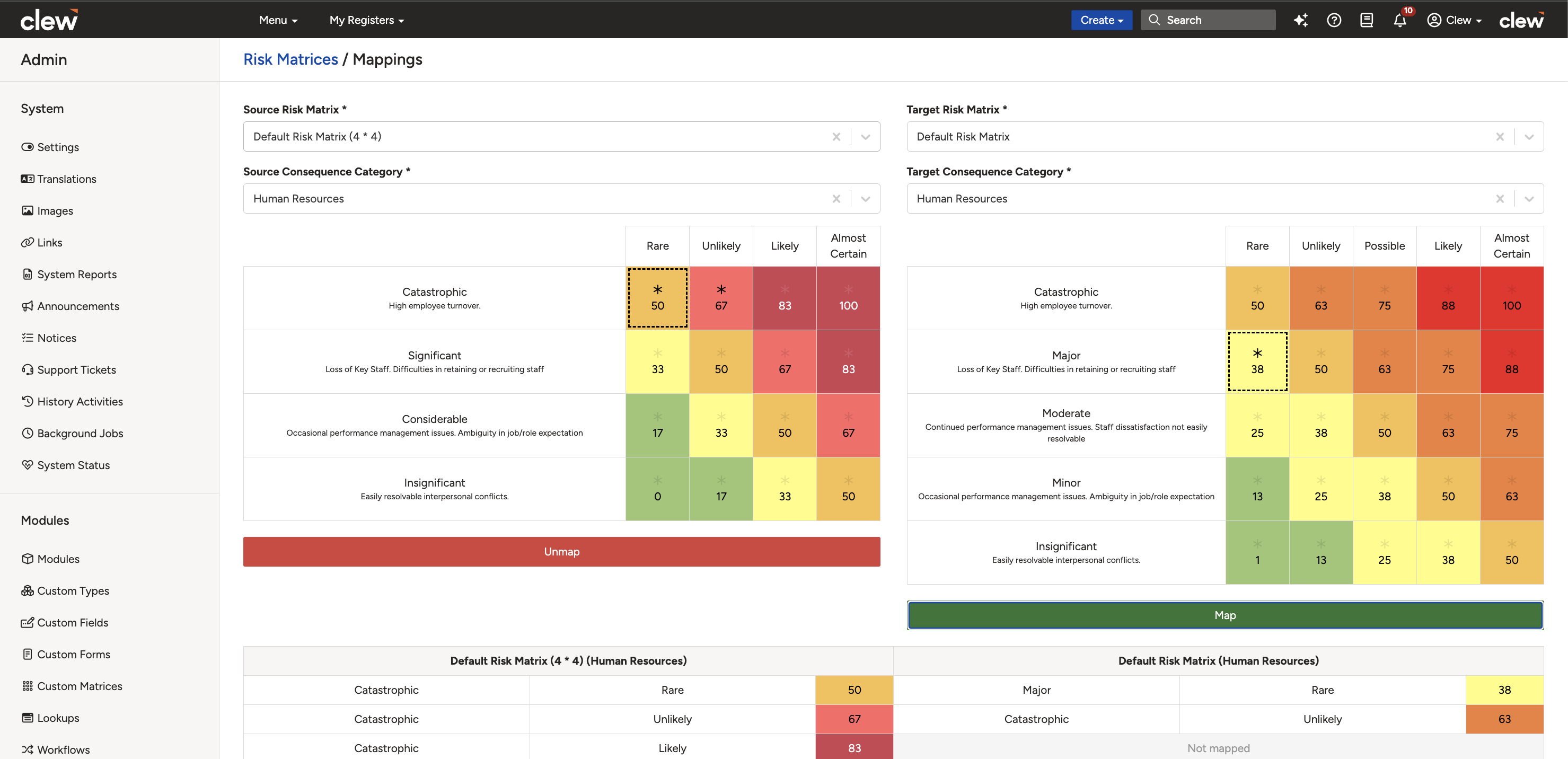
A completed mapping, shown in the columns below the matrices.
- Repeat steps 3 and 4 for all required ratings.
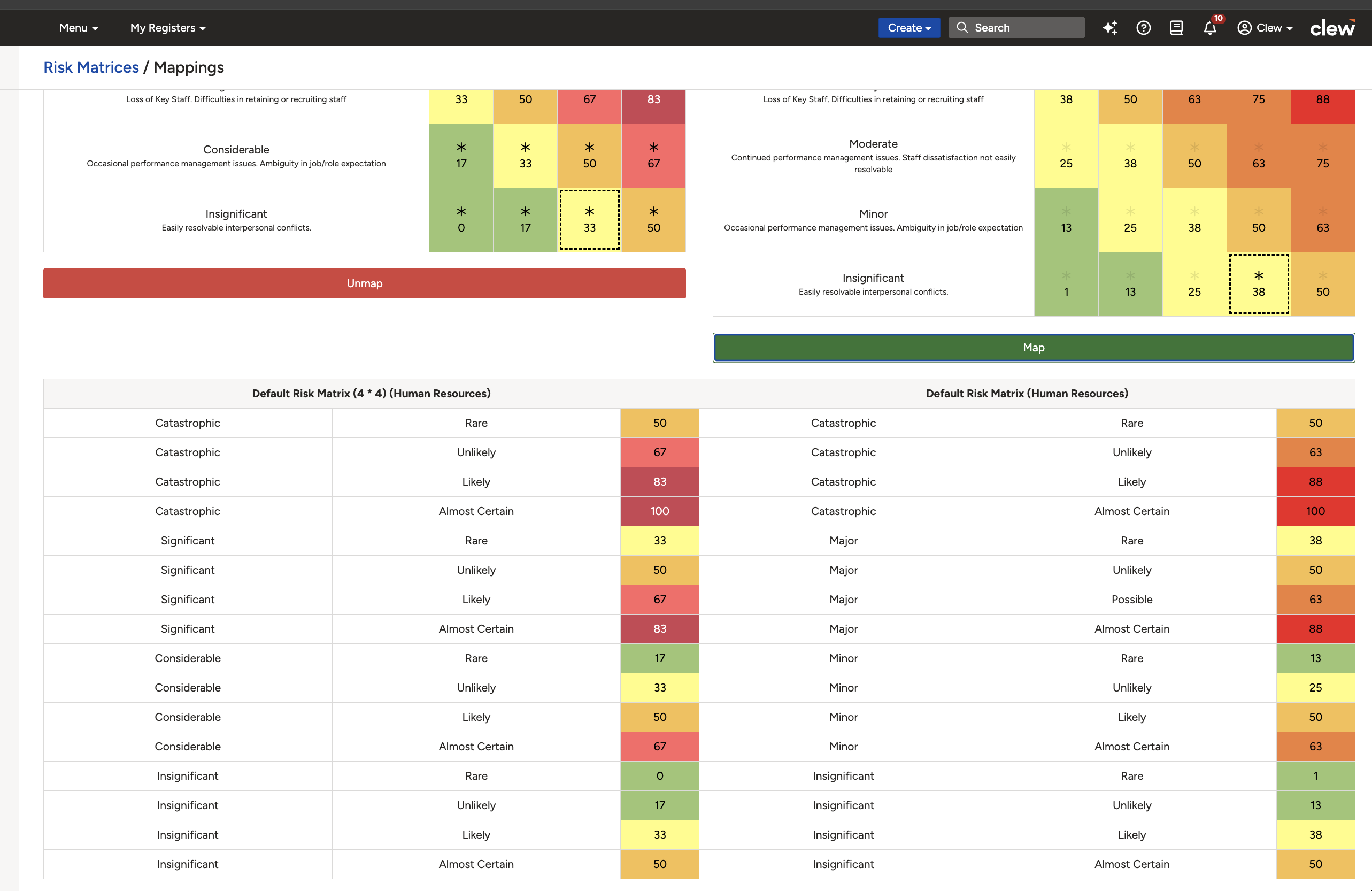
Several ratings mapped across the source and target matrices.
Update a mapped rating
- Reselect the new cells in the source and target matrices, then click Map. This replaces the previous mapping.
Delete a mapped rating
- Click the mapped cell in the source matrix and select the Unmap button.
View mapped ratings in the Risk List View
- Scope to the parent project and open the Risk List View.
- Apply the Map Ratings filter (set to Yes) to refresh the view.
- Mapped ratings appear with an asterisk on the rating pill.
- A note at the top of the view reads "Ratings mapped to xxxx", confirming the parent project the ratings are mapped to.
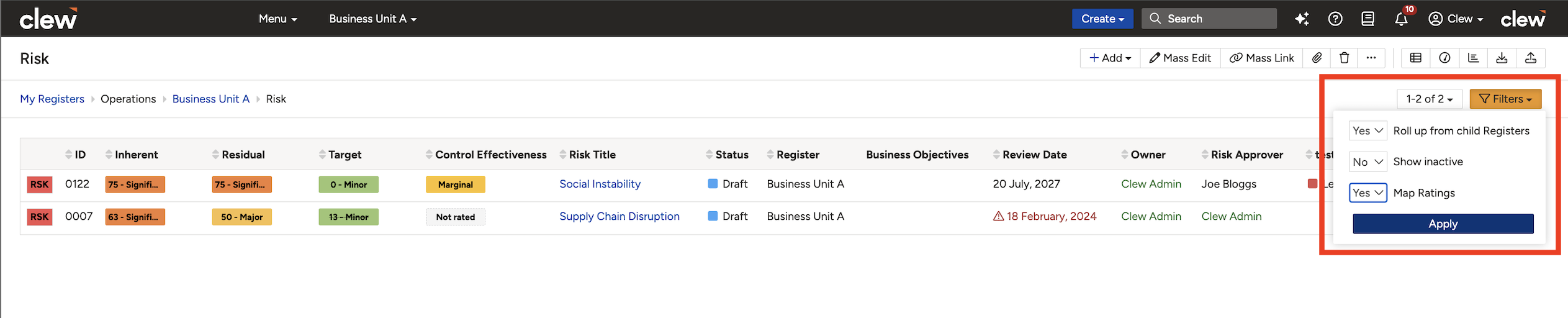
Mapped ratings shown with an asterisk on the rating pills in the parent project Risk List View.
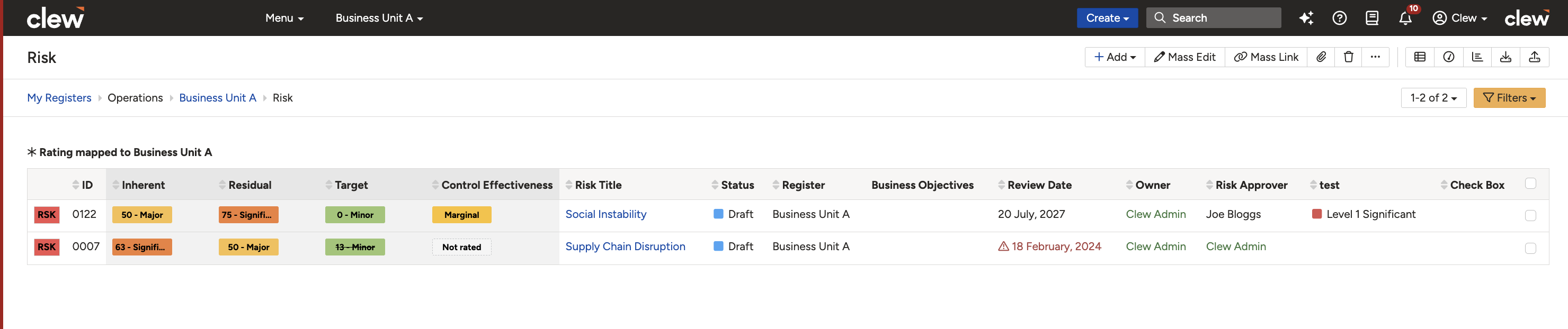
The note confirming that ratings are mapped to the parent project.
5. Common Issues & Troubleshooting
| Issue | Likely Cause | Solution |
| Mapped ratings not visible in the Risk List View | View is not scoped to the parent project, the Map Ratings filter is off, or the wrong severity category is assigned. | Scope the view to the parent project, set the Map Ratings filter to Yes, and confirm the correct severity category is assigned to the risk rating. Note that only the highest rating for each rating type is shown. |
| Mapped ratings not visible in the Risk Show view or Bowtie | The risk is not scoped to the parent project, or the Map Ratings filter is not set to Yes. | Check that the risk is scoped to the parent project and confirm the Map Ratings filter is set to Yes. |
| Mapped ratings not displayed on the Project Show view | The Map Ratings filter is not enabled on the Project Show view. | Enable the Map Ratings filter on the Project Show view. |
| Mapped ratings missing in filtered risk reports | The input filter is not scoped to the parent project. | Confirm that the Map ratings to project input filter is correctly scoped to the parent project. |
How to identify if ratings are mapped:
- The Risk List View displays a note indicating that child project matrices are mapped to the parent project.
- Mapped ratings have an asterisk on the rating pills.
Where mapped ratings can be seen (when the Map Ratings filter is enabled):
- Risk List View of the parent project
- Project Show view
- Risk Datagrid, when navigated from the above areas
- Risk Show view and Bowtie, only when scoped to the parent project
- Filtered reports, when the Map ratings to project input filter is specified correctly
- PDF exports from list views, show views, and filtered reports that contain mapped ratings
Best practices:
- When mapping, select the child project's risk matrix as the source (left) and the parent project's risk matrix as the target (right).
- Choose the correct severity categories before mapping.
- Select cells accurately when mapping ratings.
- Scope the Risk List View, Datagrid, or Risk Show view to the parent matrix to view mapped ratings.
Click a title to preview it here. Use the Open full article button to read the full version in a new tab.
▾Risk Matrix Configuration Open full article »
Related article
How to build the parent and child risk matrices whose cells you map between.
Was this article helpful?
That’s Great!
Thank you for your feedback
Sorry! We couldn't be helpful
Thank you for your feedback
Feedback sent
We appreciate your effort and will try to fix the article