Setting a Default Filter on a Widget
Attach a saved filter to a widget's own configuration, so it loads pre-filtered every time
Contents
- 1. Introduction & Context
- 2. Key Features & Functions
- 3. Requirements
- 4. Step-by-Step Guide
- 5. Common Issues & Troubleshooting
- 6. Related Articles
1. Introduction & Context
Instead of applying a filter every time you view a widget, you can attach a saved filter to the widget's own configuration in Dashboard Widgets, so it loads pre-filtered automatically for anyone who sees it.
Who is it for? Whoever is building or editing the widget itself, rather than someone just viewing it day to day.
What does it impact? A filter set this way applies to everyone who sees that widget, in addition to any filter they apply themselves from the widget's own Filter icon. Unlike a personal filter, they cannot remove it, only supplement it. It does not change what data anyone has access to, only what the widget displays by default; access is still controlled by Security Groups.
2. Key Features & Functions
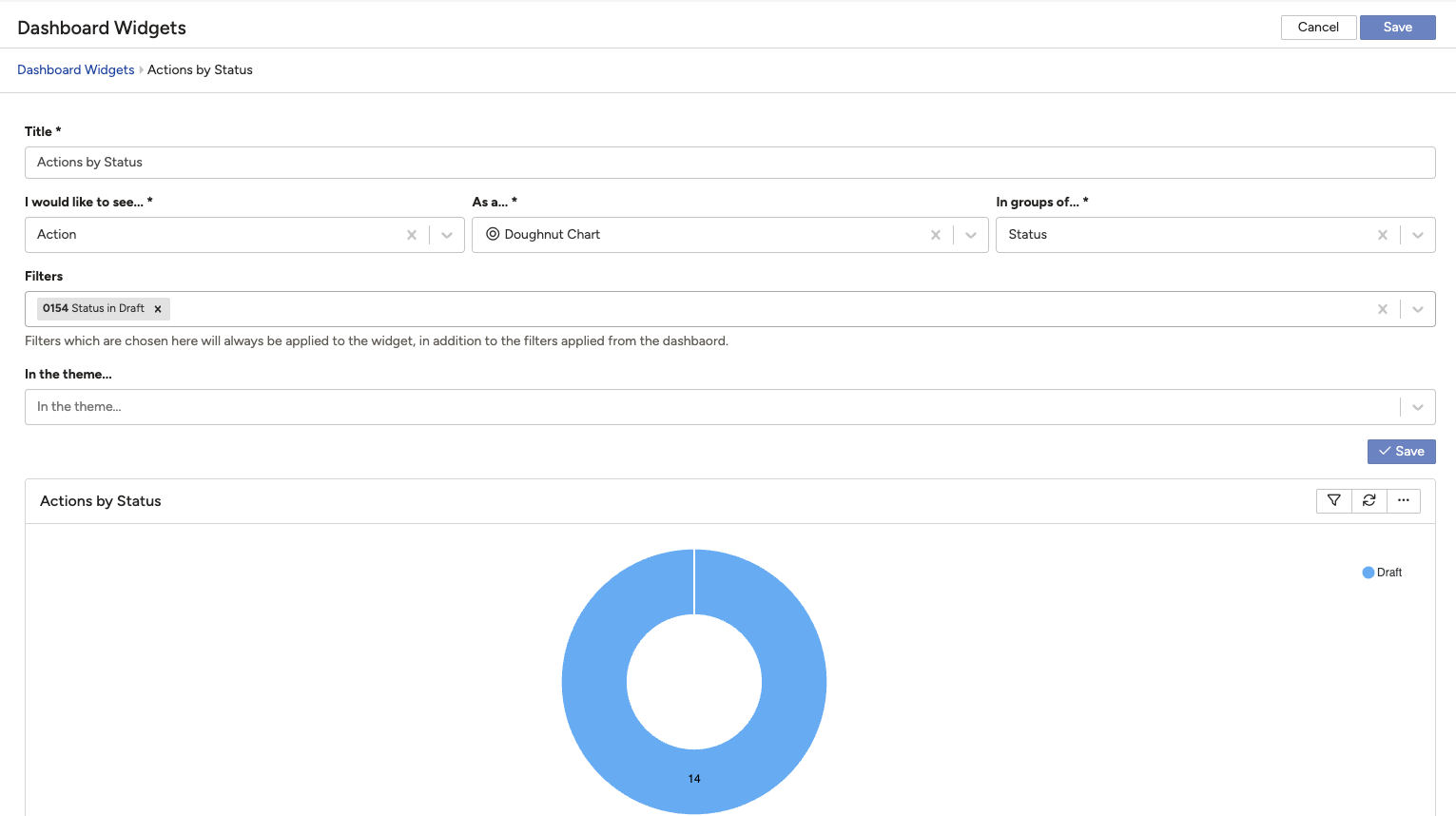
- Filters field: the Dashboard Widgets builder screen has a dedicated Filters field where you attach one or more saved filters to the widget's configuration.
- Applies to everyone: a filter attached here loads for every user who sees the widget, not just you.
- Stacks with dashboard filters: it is applied in addition to any filter selected from the dashboard itself, not instead of it.
- Cannot be removed by other users: once set, users viewing the widget can supplement it with their own filter, but cannot clear the one set here.
Example scenario: An "Obligation Status by Register" widget is shared across a team, but only obligations that have been assigned a status should ever appear on it. Rather than asking every team member to apply the same filter themselves, you attach it directly to the widget's configuration, so it's always in effect.
3. Requirements
- You need access to edit the widget through Dashboard Widgets.
- The filter you want to attach must already be saved. See How to Apply My Own Filters in a Widget to create one first.
- Consider whether the filter should apply to everyone before attaching it here; unlike a personal filter, other users will not be able to remove it.
4. Step-by-Step Guide
- Open the widget for editing from Dashboard Widgets.
- In the Filters field, select the saved filter you want applied every time this widget loads.
- Click Save.
- Refresh the dashboard to see the widget update with the filter already applied.
5. Common Issues & Troubleshooting
| Issue | Likely Cause | Solution |
| Users are complaining they can't remove a filter from a widget | This is expected once a filter is attached in the Filters field; other users can only supplement it, not clear it | If it should be removable, take it out of the Filters field on the widget and let users apply their own instead |
| The widget doesn't reflect the filter I just attached | The dashboard hasn't been refreshed since the widget was saved | Refresh the dashboard page |
| The Filters field doesn't show the filter I want to use | The filter hasn't been saved yet, or it was shared to a different Module than this widget uses | Save the filter first, and confirm its Module matches the data the widget shows |
Best practices:
- Only attach a filter here when it should genuinely apply to everyone who sees the widget.
- Give the underlying filter a clear Title so anyone editing the widget later understands what it does.
- Let users apply their own personal filter on top, rather than trying to cover every use case in the widget's default.
- Review widgets periodically to confirm an attached filter is still the right default as your data or processes change.
Click a title to preview it here. Use the Open full article button to read the full version in a new tab.
▾How to Apply My Own Filters in a Widget Open full article »
Related article
How to check for, build, and save a filter on a widget, including a filter you can then attach here.
▾Sharing a Filter with Other Users Open full article »
Related article
How to give specific people access to a filter, with permissions and an optional expiry date, without attaching it to the widget for everyone.
Was this article helpful?
That’s Great!
Thank you for your feedback
Sorry! We couldn't be helpful
Thank you for your feedback
Feedback sent
We appreciate your effort and will try to fix the article