What are Filters?
A short introduction to filtering data on your dashboard widgets
Contents
- 1. Introduction & Context
- 2. Key Features & Functions
- 3. Requirements
- 4. Step-by-Step Guide
- 5. Common Issues & Troubleshooting
- 6. Related Articles
1. Introduction & Context
A filter narrows down which records a dashboard widget shows you, for example by Status, Owner or Register, without changing the underlying data or what other users see.
A worked example: your Open Risks widget lists every risk across the organisation, which is more than you need. You filter it to your own register and to the status Open, and from then on the widget answers the question you actually have. Nobody else's view of that widget changes.
Who is it for? Any user viewing widgets on a dashboard. No administrator access is required to apply or save your own filters.
What does it impact? A filter only changes what a widget displays for you. It does not change which registers, projects or records you can access, as that is controlled by your Security Groups.
2. Key Features & Functions
- Quick filters: build a single condition directly on a widget and save it for later.
- Multi-condition filters: combine several conditions with AND logic when one condition is not specific enough.
- Favourites: any filter you save stays available under Favourites, even after you clear it from view.
- Shared filters: a filter can be shared with everyone, or with specific named users.
- Default filters: a system administrator can attach a filter to a widget's own configuration, which normal users can supplement but not remove.
3. Requirements
- No administrator access is needed to apply, build or save your own filters.
- You need access to the widget or dashboard through your existing Security Groups. A filter can only narrow down data you already have access to.
- System administrator access is needed only to set a default filter on a widget, or to share a filter with everyone.
4. Step-by-Step Guide
Every widget has its own Filter icon, and that is the entry point for everything below.
- On the widget, click the Filter icon in the top right corner.
- From here you can apply an existing Favourite, build your own filter, or check whether a default filter is already in place.
- To stop using a filter, clear it. Clearing removes it from your view only, so a filter you saved stays available under Favourites.
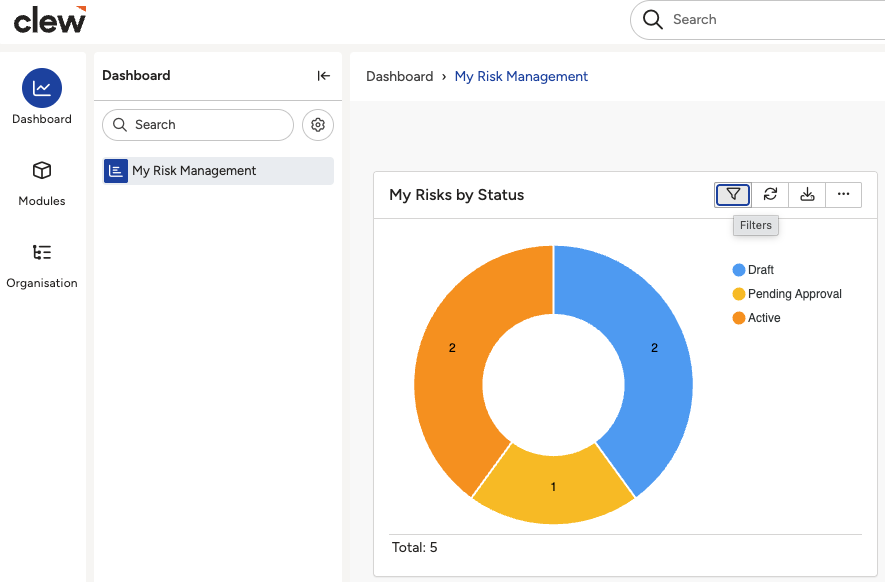
The Filter icon in the top right corner of a widget.
5. Common Issues & Troubleshooting
| Issue | Likely Cause | Solution |
| A widget already shows filtered data and you did not set that | A default filter has been attached to that widget by an administrator | This is expected. You can add your own filter on top, but contact your system administrator if the default itself needs to change. |
| You cannot find a filter you saved earlier | Clearing a filter only removes it from view, it is not deleted | Open the widget's Filter icon and check under Favourites. |
| The widget returns no records at all | Conditions in a multi-condition filter combine with AND, so every condition must be met | Remove conditions one at a time to find the one excluding everything, then rebuild with fewer conditions. |
| Records you expect are still missing after clearing every filter | This is an access question, not a filter one. Filters can only narrow data you already have access to | Ask your system administrator to check your Security Groups for the register or project concerned. |
Click a title to preview it here. Use the Open full article button to read the full version in a new tab.
▾How to Apply My Own Filters in a Widget Open full article »
Related article
The full walkthrough for checking, building, saving and clearing your own filter on a widget.
▾Sharing a Filter with Other Users Open full article »
Related article
How to share a saved filter with specific people, with permissions and an optional expiry date.
▾Setting a Default Filter on a Widget Open full article »
Related article
How to attach a saved filter permanently to a widget's own configuration.
Was this article helpful?
That’s Great!
Thank you for your feedback
Sorry! We couldn't be helpful
Thank you for your feedback
Feedback sent
We appreciate your effort and will try to fix the article