What is a Dashboard?
An introduction to dashboards, widgets, and how filtering works in the Clew Platform.
Contents
- 1. Introduction & Context
- 2. Key Features & Functions
- 3. Requirements
- 4. Step-by-Step Guide
- 5. Common Issues & Troubleshooting
- 6. Related Articles
1. Introduction & Context
A dashboard in the Clew Platform is a single screen that brings the data you care about into one view, so you can see your risks, actions and other records at a glance without opening each one. It is built from individual visual components called widgets.
Each widget displays one set of data in a chosen format, such as a pie chart, bar chart, card or table. You can have more than one dashboard available to you: one you have built yourself, and others that have been shared with you by an administrator or colleague. For example, a risk manager might open a Risk Overview dashboard containing a heatmap of risks by rating, a bar chart of risks by category, and a table of overdue actions, all on one screen.
Who is it for? Every user. Anyone can view the dashboards available to them, and any user can build their own personalised dashboard using Dashboard Manager. No administrator access is needed to view a dashboard or to create your own.
What does it impact? Viewing or filtering a dashboard never changes the underlying data, and it does not change what anyone else sees. A dashboard is only a way of looking at data you already have access to.
2. Key Features & Functions
- Widgets: the building blocks of a dashboard. Each widget shows one set of data in one visual format, and the same widget can appear on more than one dashboard.
- Multiple dashboards: you can hold several dashboards at once, for example your own personal view alongside a team dashboard shared with you.
- Two levels of filtering: a filter set on the dashboard applies to every widget on it, while a filter set on a single widget applies to that widget only. See the guide below.
- Quick filters: interactive controls that appear at the top of a dashboard, letting you refine what you see on the fly without editing anything permanently.
- Personalisation: build and arrange your own dashboard from scratch in Dashboard Manager, then keep it private or share it with others.
3. Requirements
- An active Clew Platform account.
- Read access, through your Security Groups, to the modules and registers or projects a widget draws its data from. A widget can only ever show data you already have access to.
- No administrator access is needed to view a dashboard, apply quick filters, or build your own dashboard.
4. Step-by-Step Guide
Filtering: Dashboard Level vs Widget Level
A common question is whether a filter applies to the whole dashboard or to a single widget. The answer is that both are possible, and they work together.
- Dashboard-level filters apply to every widget on the dashboard at once. These are set in the dashboard itself and come in two kinds: a default filter that always applies (for example, fixing the dashboard to a single location or date range), and quick filters that you can change interactively from the top of the dashboard.
- Widget-level filters apply to one widget only. They are set on that widget and leave every other widget on the dashboard untouched.
When both are present, they stack. A widget shows the data that meets its own filters and the dashboard's filters. So if the dashboard is filtered to one register and a widget is also filtered to open risks, that widget shows open risks in that register. This is worth remembering when a widget shows less than you expect: check both levels.
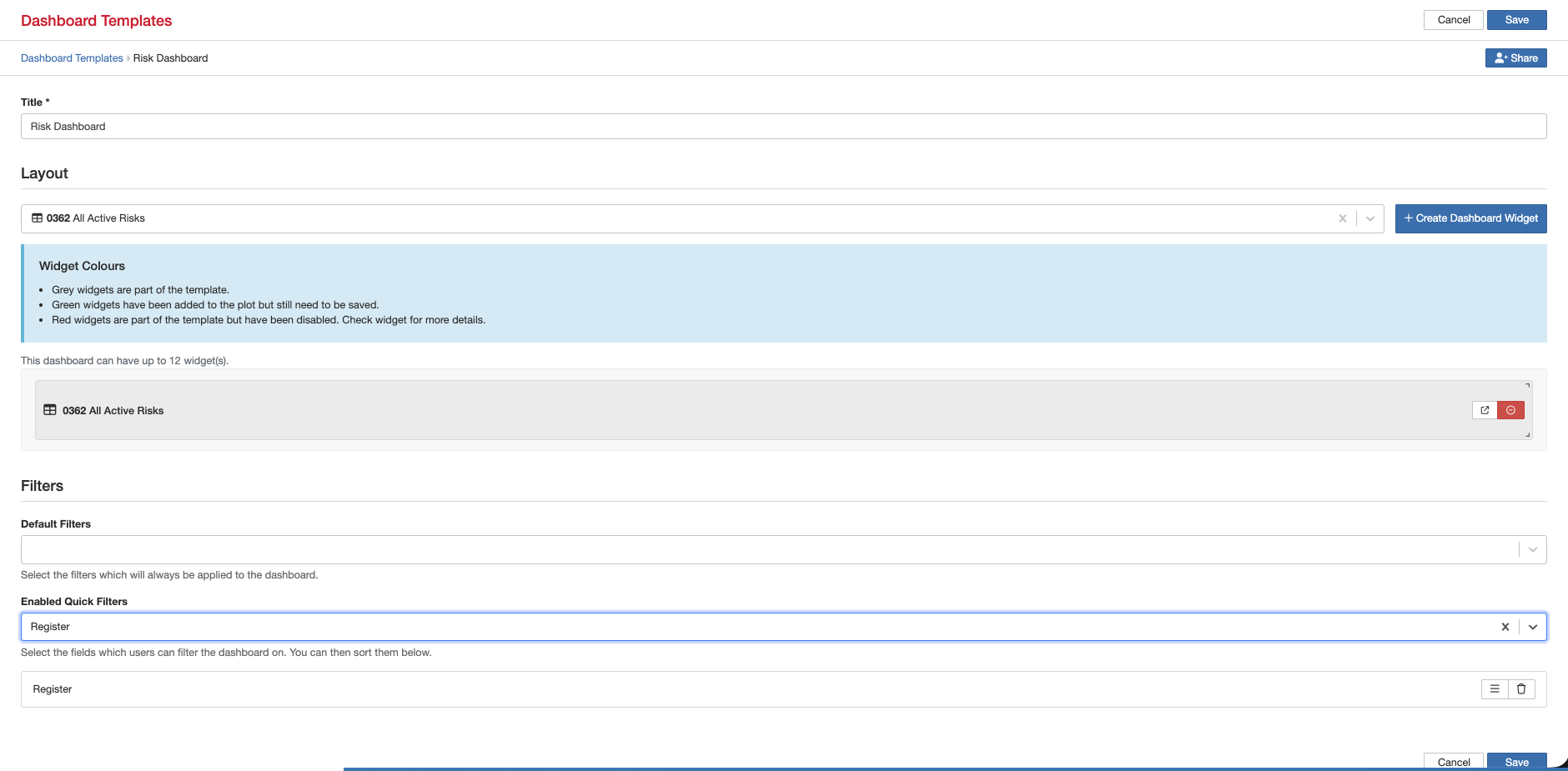
Dashboard-level filters: the Default Filters and Enabled Quick Filters settings apply to every widget on the dashboard.
Selecting and Changing Your Dashboard
If more than one dashboard is available to you, one of them is your default: the dashboard that loads first when you sign in. You can change which dashboard is your default, and you can reorder the dashboards available to you, so the ones you use most are easiest to reach.
The steps for changing your default dashboard and reordering your dashboards are covered in the dedicated FAQ linked in Related Articles below.
5. Common Issues & Troubleshooting
| Issue | Likely Cause | Solution |
| A widget shows no data. | You may not have read access to the module or register the widget draws from. | Ask your administrator to confirm your access for the relevant module and registers. A widget can only show data you already have access to. |
| A widget shows fewer records than you expected. | A dashboard-level filter and a widget-level filter are both applying and combine to narrow the data. | Check the filters at both the dashboard level and the widget level, and adjust or clear whichever is narrowing the view. |
| A dashboard opens already filtered and you did not set that. | A default filter has been built into that dashboard. | This is expected. You can still apply quick filters on top. If the default itself needs to change, ask the person who owns the dashboard. |
| The wrong dashboard loads when you sign in. | Another dashboard is set as your default. | Change your default dashboard using the FAQ in Related Articles below. |
Best practices:
- When a dashboard looks wrong, check the filters before assuming the data is missing. Most surprises come from a filter, not from the records.
- Use quick filters to answer different questions from the same dashboard, rather than building a separate dashboard for each variation.
- Set your most-used dashboard as your default so it loads first every time.
▾Dashboard Manager Open full article »
Related article
How to build your own dashboards and widgets, set dashboard filters, and share a dashboard template with other users. Start here when you want to create rather than just view.
Was this article helpful?
That’s Great!
Thank you for your feedback
Sorry! We couldn't be helpful
Thank you for your feedback
Feedback sent
We appreciate your effort and will try to fix the article