TABLE OF CONTENTS
Context
The 'Scheduling a report' feature in CGR allows users to automate the delivery of reports based on specific filters defined at regular intervals (daily, weekly, monthly) instead of manually applying filters and exporting results each time. This helps ensure that the right stakeholders receive the right subset of data at the right time, without needing repeated manual intervention.
Important Notes
- Only System Administrator or Team Administrators can schedule the reports for other users.
- General Users can only schedule the reports to themselves.
How do I schedule a report?
In order to schedule a report, please follow these steps:
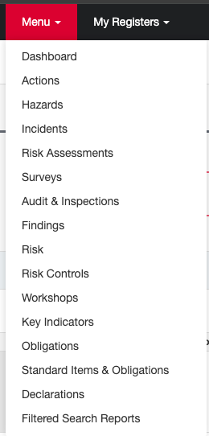
- Navigate to Menu > Filtered Search Reports (at the bottom of the menu) and click on the report as required.
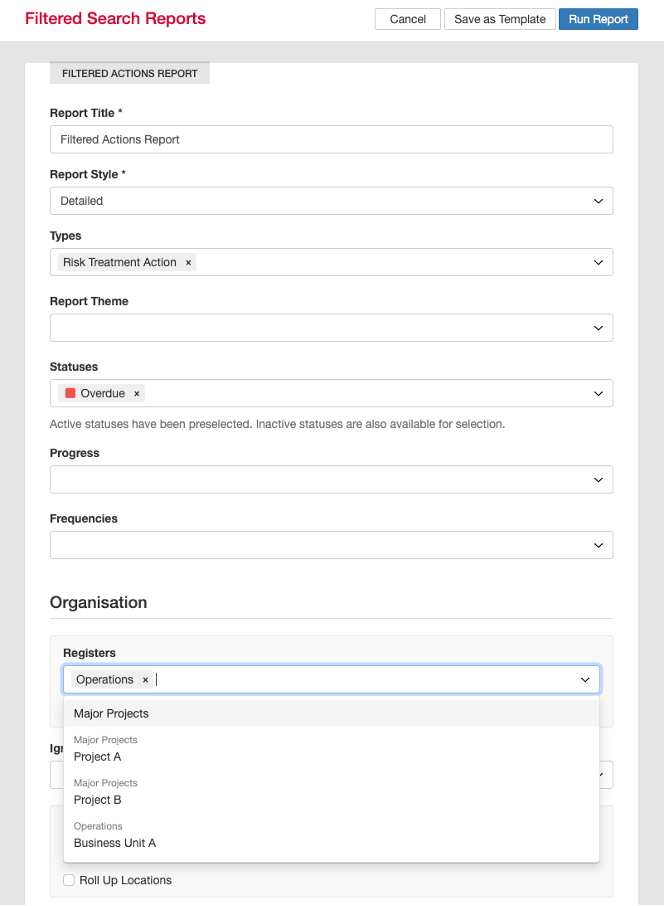
- For this FAQ as an example, we will schedule a filtered action report, click on 'Filtered Actions Report' and apply below filters as example
- Change the Title as required.
- Type - Risk Treatment Actions
- Status – Overdue
- Registers - Operations and its sub registers
- Any other filters as required.
- Click 'Save as Template' at the top of the page.
- Click 'Star' icon adjacent to the report and click pencil button.

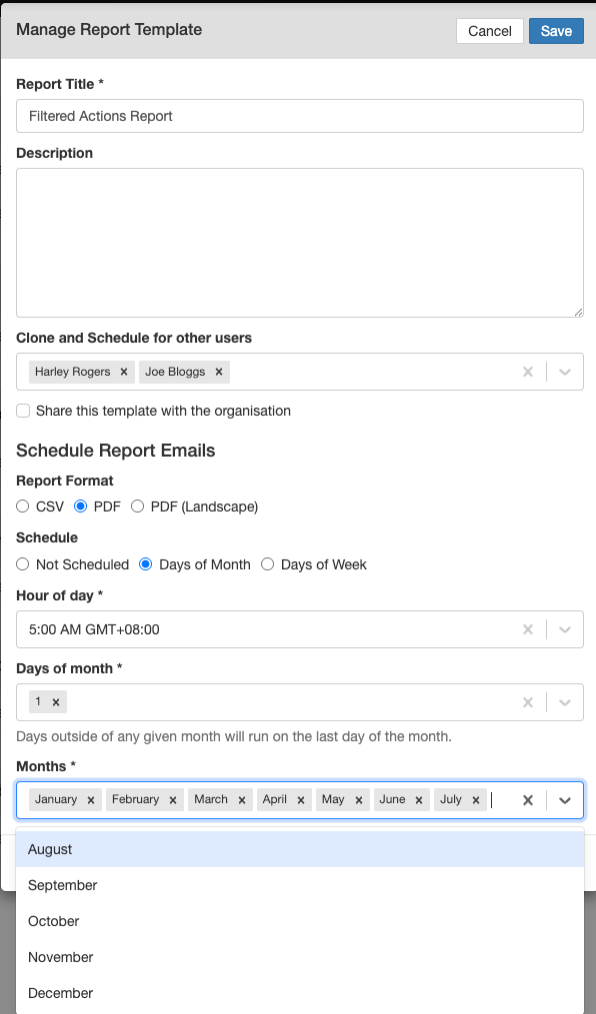
- In this page, you can manage the report template
- Report Title – Change the title of the report as required.
- Description – Ability to add description if needed.
- Only Admin Option - Clone and Schedule for other users – Select the users with whom the report template should be shared and designate the recipients to whom the scheduled report email will be sent.
- Only Admin Option - Share this template with the organisation – Tick the box if you want to share the template to all the users so they can run when ever need without reapplying filters.
- Report Format – Select the desired output format.
- Schedule – Select the 'Days of Month' or 'Days or Week' as required
- Hour of Day – Select exact delivery time
- Days of month or Days of week – Select the day of the month or week the report should be delivered.
- Months – Select the required months the report should be delivered.
- Click save.
Was this article helpful?
That’s Great!
Thank you for your feedback
Sorry! We couldn't be helpful
Thank you for your feedback
Feedback sent
We appreciate your effort and will try to fix the article