Why is a lookup option missing from the dropdown?
Why an option may be missing, how to re-enable a disabled one, and how to add a new one
Contents
- 1. Introduction & Context
- 2. Key Features & Functions
- 3. Requirements
- 4. Step-by-Step Guide
- 5. Common Issues & Troubleshooting
- 6. Related Articles
1. Introduction & Context
When filling out a form that includes a Lookup field (for example, Finding Type or Category), you might notice that certain options are missing from the dropdown list. This usually happens when a lookup option has been disabled, or has never been included in the Lookup Options configuration.
Who is it for? Administrators who manage lookup options, and users who find an option missing.
What does it impact? A disabled option is hidden on forms but kept for reference; adding a new option makes it immediately selectable.
2. Key Features & Functions
A disabled lookup option does not appear in dropdown menus during form entry, even if the main lookup field is active. In the configuration, a disabled option shows a red toggle and an (Inactive) tag next to its label.
- Only Admin users can modify lookup options.
- Disabled options are hidden from users during data entry but remain stored in the system for reference.
- Be cautious when disabling options. If they are already used in existing records, disabling them will not remove those values, but will prevent new selections.
3. Requirements
- Admin access to modify lookup options under Custom Fields.
4. Step-by-Step Guide
Re-enable a disabled lookup option
- Go to Admin > Custom Fields.
- Use the search bar to find the relevant custom field.
- Click the custom field to open its configuration page (for example, click Overall MRC Outcome, shown in blue).
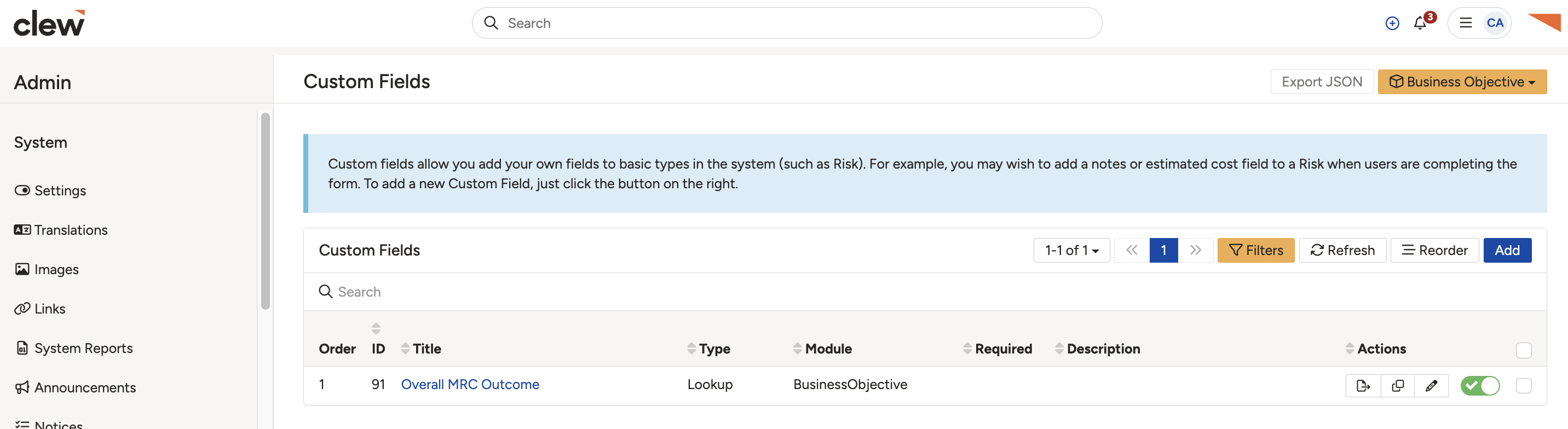
Opening the custom field's configuration.
- Review the options listed under that lookup. If the toggle is red, the option is disabled and will not be visible in the form. If the toggle is on, the option is active and available for selection.
- A disabled option shows an (Inactive) tag next to its label, so it is not available for selection in forms.
- To make the option visible again, click the toggle to re-enable it. The (Inactive) tag disappears and the toggle shows its active state.
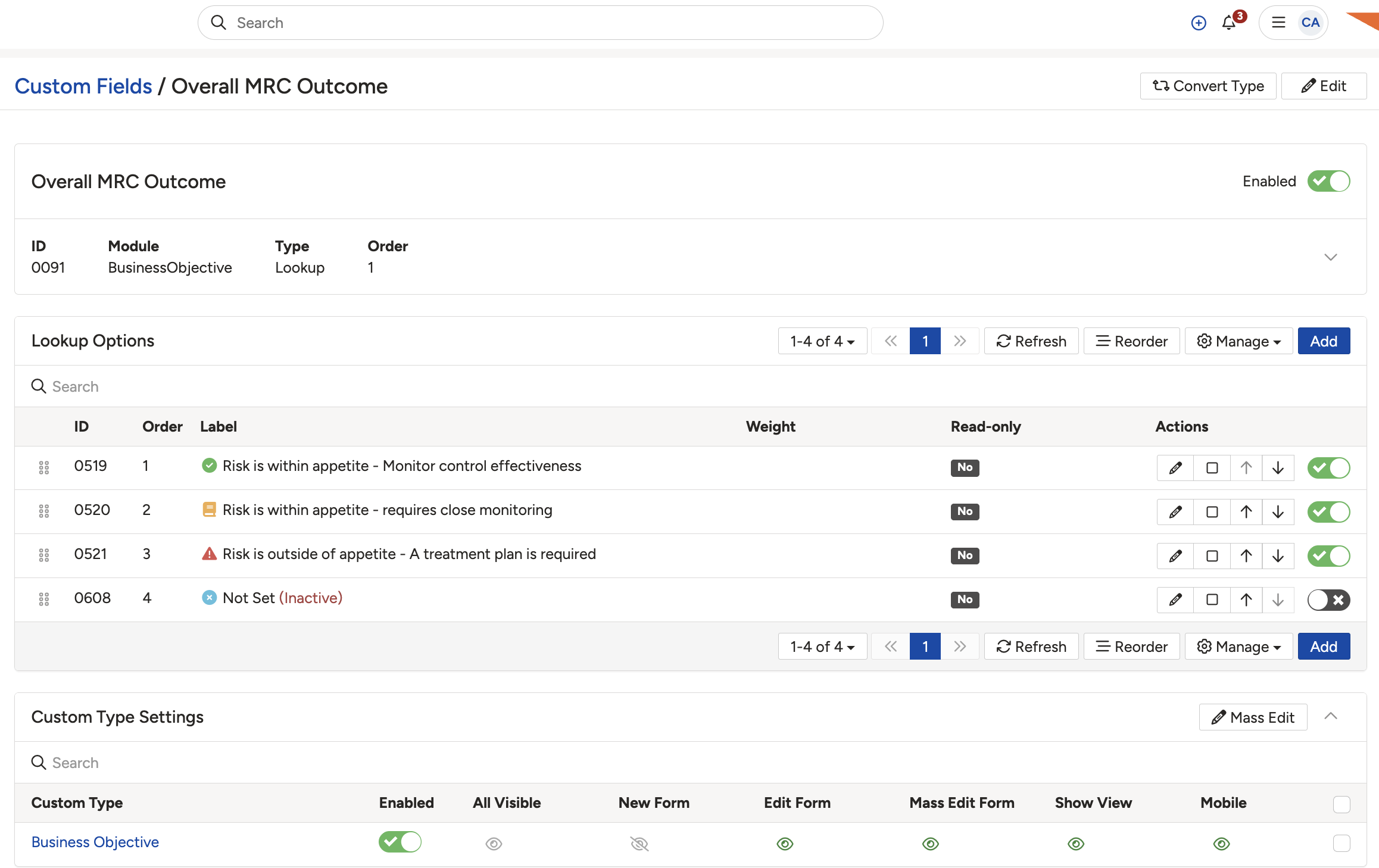
A disabled option, shown by a red toggle and an (Inactive) tag.
Add a new custom lookup option
If the required option does not exist, you can add it under the Lookup Options for that custom field.
- Navigate to Admin > Custom Fields.
- Locate and click the custom field (for example, Overall MRC Outcome) to open its configuration.
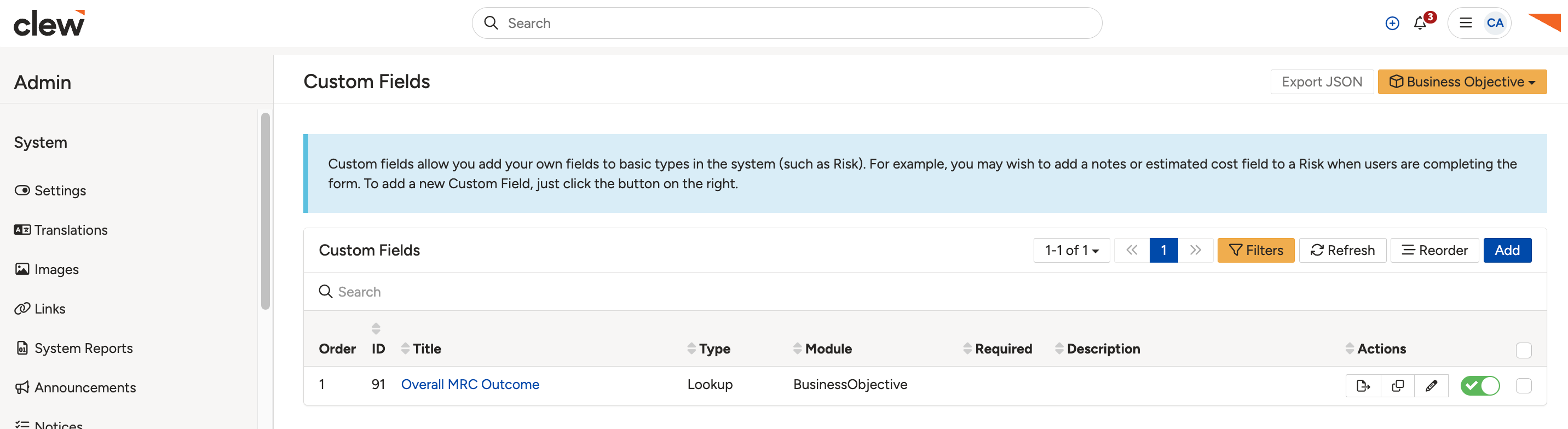
Opening the custom field configuration.
- Scroll to the Lookup Options section.
- Click Add in the top-right corner.
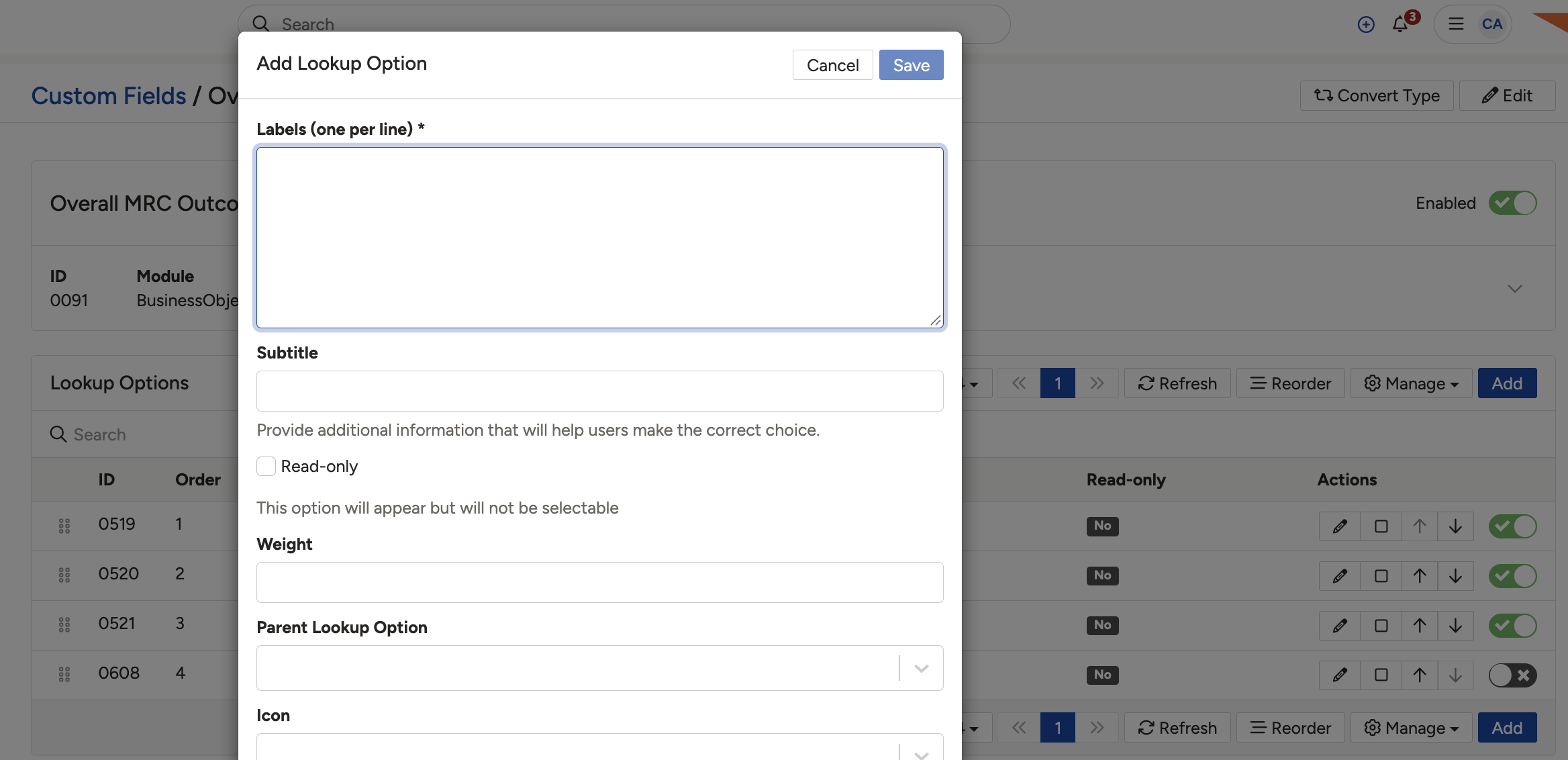
Clicking Add in the Lookup Options section.
- Enter the Label for the new lookup option in the Add Lookup Option configuration (for example, Extremely High Appetite).
- Click Save to confirm. The new lookup option appears in the dropdown immediately when users fill in the corresponding form.
5. Common Issues & Troubleshooting
| Issue | Likely Cause | Solution |
| An option is missing from the dropdown | It is disabled, or it has never been added. | Check the Lookup Options: re-enable the option if it shows (Inactive), or add it if it does not exist. |
| An option shows (Inactive) | Its toggle is red (disabled). | Click the toggle to re-enable the option; the (Inactive) tag will disappear. |
| A disabled option still shows on old records | Disabling does not remove existing values. | This is expected. Disabling only prevents new selections; stored values remain for reference. |
Click a title to preview it here. Use the Open full article button to read the full version in a new tab.
▾Lookups Open full article »
Related article
How lookups work, including their options and settings.
▾Why can't I select a lookup option I can see? Open full article »
Related article
When a visible option is unselectable because it is Read-only.
Was this article helpful?
That’s Great!
Thank you for your feedback
Sorry! We couldn't be helpful
Thank you for your feedback
Feedback sent
We appreciate your effort and will try to fix the article