TABLE OF CONTENTS
How can I change my default dashboard?
(i) For All Users
Your default dashboard is always the last dashboard you visited.
Each time you log in, the system automatically opens the dashboard you most recently viewed.
(ii) For System Administrators
For first-time users, you can control which dashboard is displayed on initial login by adjusting the dashboard order.
The dashboard that a user has access to in the highest position will be displayed on initial login.
Users will only see dashboards that have been shared with them.
Tip: Place a dashboard that all users can access in the first position to ensure a consistent initial experience.
How to change the dashboard order?
Dashboard order can be managed by System Administrators at a global level or by individual users for their personal dashboard view.
(i) For All Users
All users can manage the order and visibility of dashboards for their own view. These changes do not affect other users.
Click the Clew menu icon in the top-left corner
At the top of the menu, click the current dashboard name (for example, My Dashboards or another dashboard name)
Now, click Dashboard Preferences (gear icon)
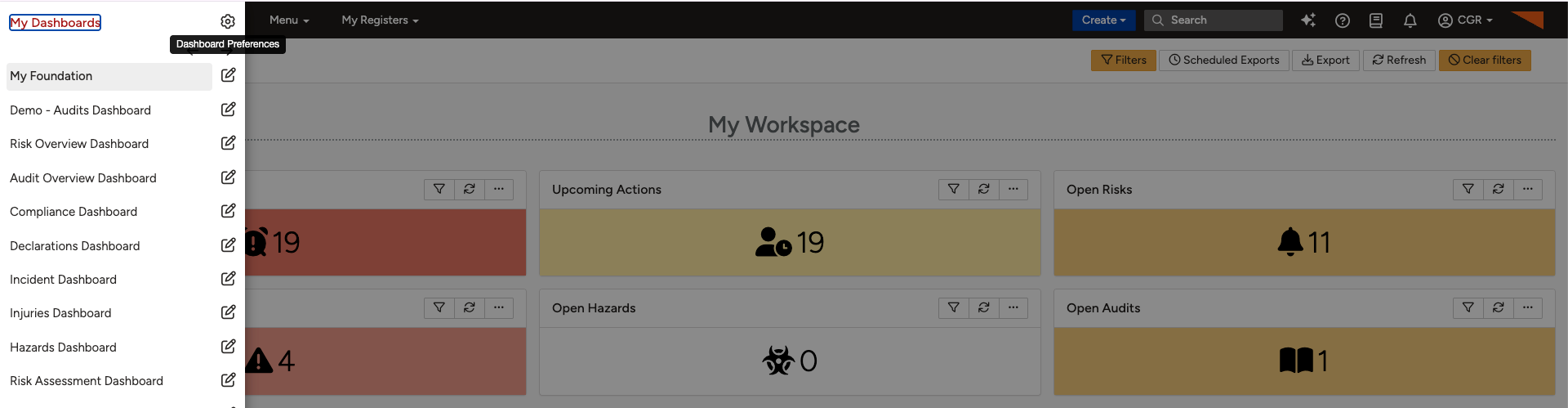
From Dashboard Preferences, users can:
Show or hide dashboards using the toggle switch
Reorder dashboards by clicking and dragging the three-line handle next to a dashboard up or down
Changes made here apply only to the individual user and do not impact the system-wide dashboard order.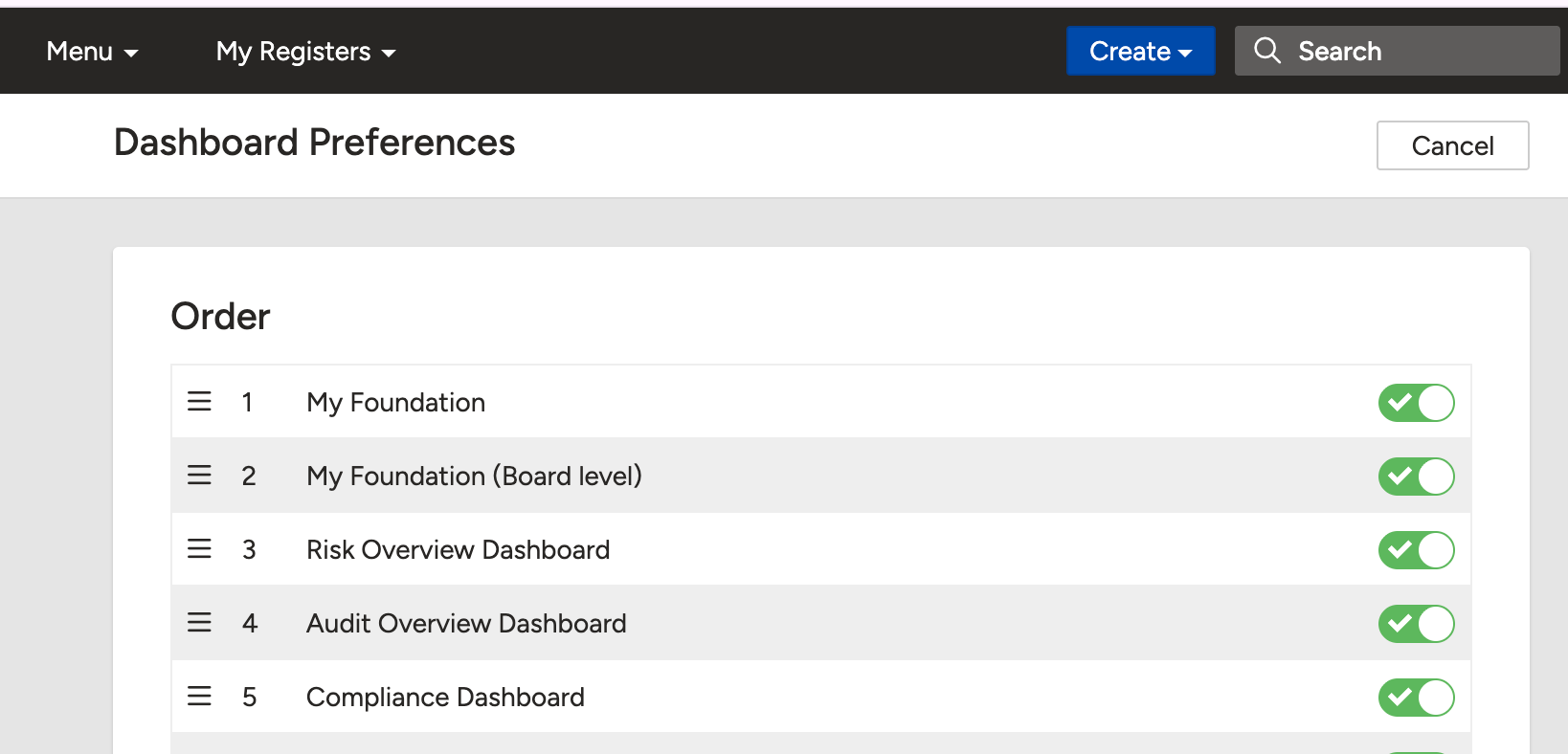
(ii) For System Administrators
You must be a system admin to change the global position of dashboards
Navigate to Admin > Dashboard Templates
Click the hyperlinked title of the dashboard you want to edit
Open the Core sub-panel
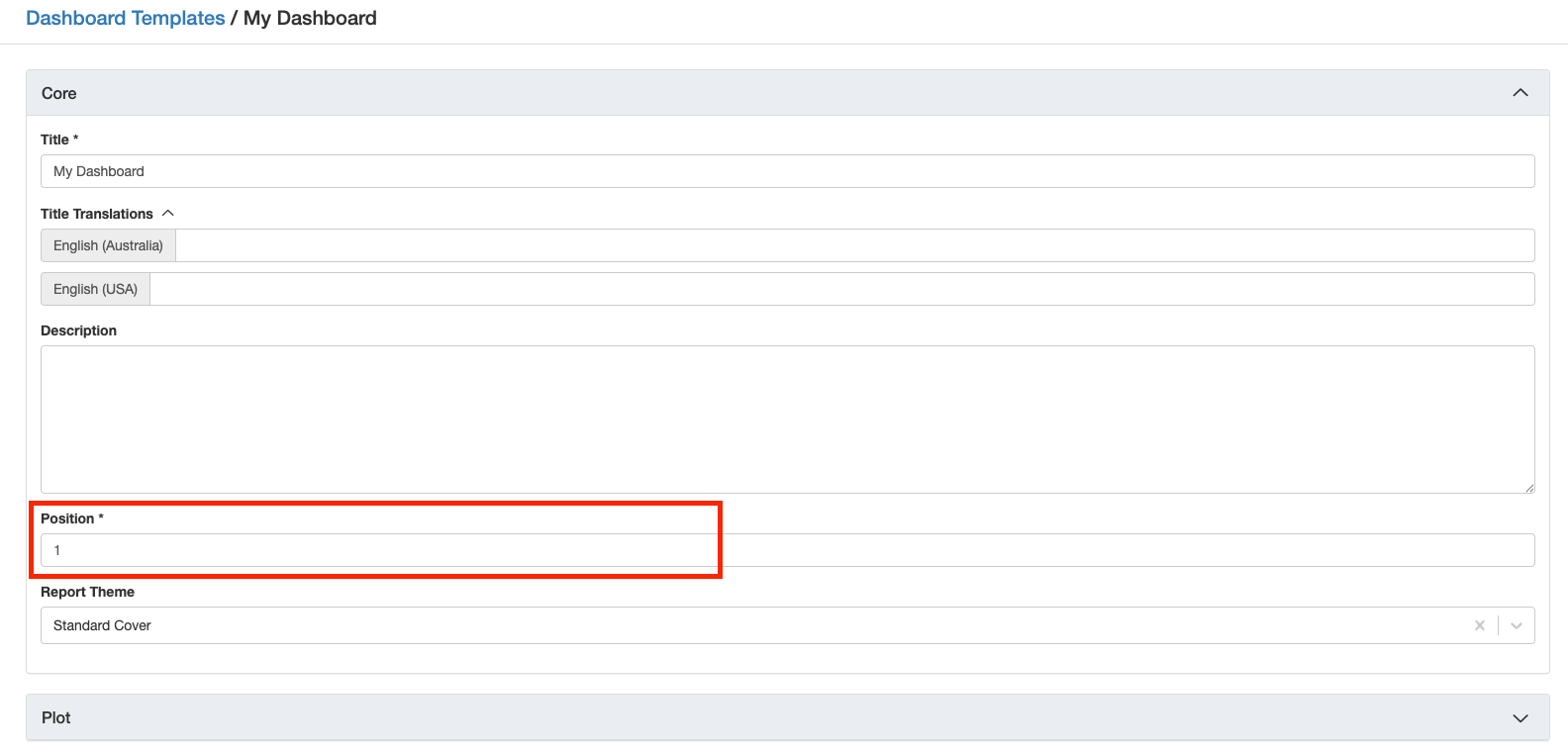
Update the Position field to the desired order
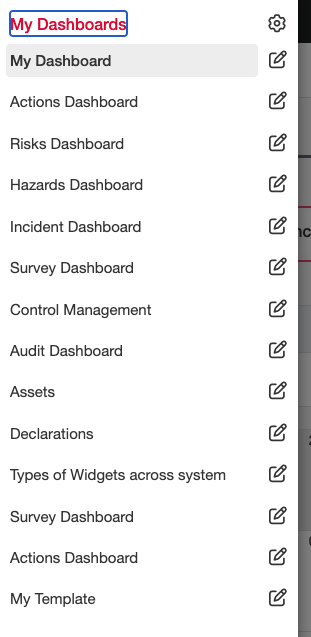
Review the dashboard list to confirm the new positioning
Notes:
Dashboards are displayed in ascending order by position (the lowest number appears first).
Users will only see dashboards that have been shared with them.
Thus, what dashboards appear in the list for individual users may vary depending on sharing permissions.
You can learn more about advanced dashboards templates click here or about the dashboard manager click here.
Was this article helpful?
That’s Great!
Thank you for your feedback
Sorry! We couldn't be helpful
Thank you for your feedback
Feedback sent
We appreciate your effort and will try to fix the article