Dashboard Manager
How to create, manage, and share custom dashboards and widgets in the Clew Platform
Contents
- 1. Introduction & Context
- 2. Key Features & Functions
- 3. Requirements
- 4. Step-by-Step Guide
- 5. Common Issues & Troubleshooting
- 6. Related Articles
1. Introduction & Context
Dashboard Manager lets you build your own dashboards in the Clew Platform, so you can see the data that matters to you in the visual format that works best, rather than relying on a fixed layout.
Dashboards are made up of individual building blocks called widgets. Each widget displays a specific set of data in a chosen format, such as a pie chart, bar chart, card, or table. You assemble one or more widgets into a layout to create a dashboard template. For example, a risk manager might build a Risk Overview dashboard containing a heatmap widget showing risks by rating, a bar chart of risks by category, and a table of overdue actions.
Who is it for? Any user on the Clew Platform can use Dashboard Manager to build their own personalised dashboard. Administrators can also create and share dashboard templates with other users or teams.
What does it impact? Dashboards you create are private by default. They are only visible to you until you choose to share them. Sharing a dashboard does not affect the underlying data, it only controls who can view or edit the template.
2. Key Features & Functions
- Widget creation: Build visual data components using fields from any module. Choose the data, the display format, how data is grouped, and an optional colour theme.
- Dashboard templates: Combine up to 12 widgets into a single dashboard layout. Drag, resize, and reorder widgets to suit your workflow.
- Default and quick filters: Set fixed filters that always apply to a dashboard, and enable quick filters so users can interactively refine the data they see.
- Dashboard sharing: Share a dashboard template with specific users or teams, set view or edit permissions, and optionally apply an expiry date to access.
- Widget reuse: Widgets are independent of any single dashboard. You can add an existing widget to multiple dashboard templates without recreating it.
3. Requirements
- You must have an active Clew Platform account to create or manage dashboards.
- To see data in a dashboard, you must have read access to the relevant modules and registers or projects the widget is drawing from.
- Sharing dashboard templates with other users requires sufficient permissions within your organisation's Clew configuration.
- Widgets can be created directly within the dashboard template editor, so you do not need to create all widgets in advance.
4. Step-by-Step Guide
Creating a New Widget
Widgets are the individual data components that make up a dashboard. Follow these steps to create one from the Dashboard Manager.
- Click your name in the top-right corner, then select Dashboard Manager from the menu.
- Select Dashboard Widgets from the left-hand navigation.
- Click Add to open the new widget form.
- Complete the following fields:
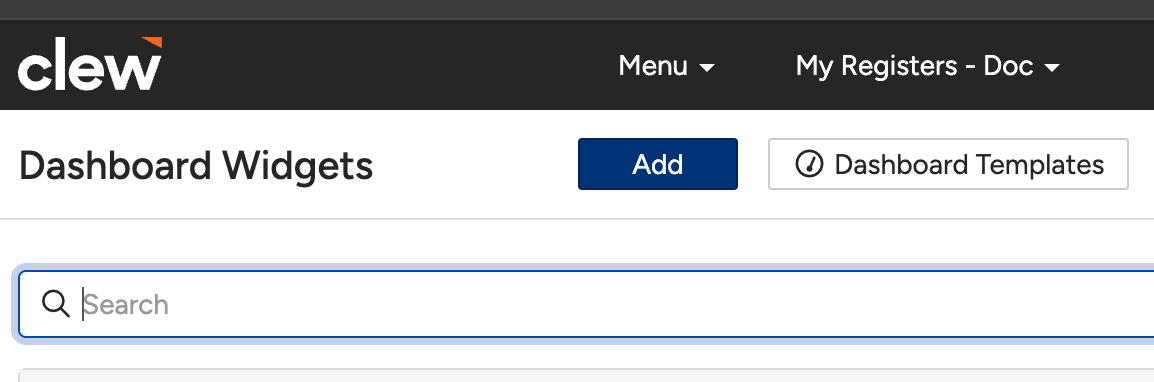
The Add Widget form showing all fields listed below.
| Field | Description |
| Title | Enter a clear, descriptive name for the widget (for example, Heatmap Risk). |
| I would like to see... | Select the data or field you want the widget to display (for example, Risk). |
| As a... | Choose the visual format for the data (for example, Pie Chart or Bar Chart). |
| In groups of... | Specify how the data should be grouped (for example, by Category or ID). |
| Filters (optional) | Add filters to narrow the data shown. These apply in addition to any filters set at the dashboard level. |
| In theme... (optional) | Choose a colour theme for the widget display (for example, green to yellow to red for heatmaps). |
- Click Save to save your widget.
Creating a New Dashboard
- Click Admin in the top navigation, then select Dashboard Manager.
- Click Add to start creating a new dashboard template.
- Enter a name in the Title field (for example, Risk Overview or Performance Tracker).
- In the Layout section, use the dropdown to search for and add existing widgets to the template. You can add up to 12 widgets per dashboard.
- If you need a widget that does not yet exist, click + Create Widget to build one from scratch without leaving the dashboard editor.
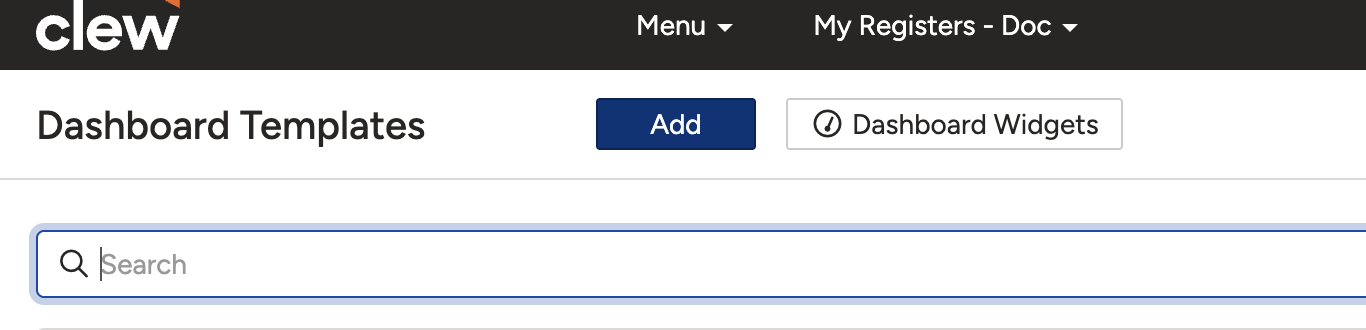
The dashboard template editor with the Title field, Layout section, and + Create Widget option.
Managing Widgets Within a Dashboard
Once widgets are added to a dashboard template, you can adjust their position, size, and visibility.
- Preview a widget: Click the pop-up arrow icon on a widget to open a preview.
- Remove a widget: Click the red circle icon to remove the widget from the current template. This does not delete the widget itself, it only removes it from this dashboard.
- Reposition widgets: Drag and drop widgets to rearrange them within the layout.
- Resize widgets: Click and drag the dark grey handle on the right side of a widget to resize it.
Setting Dashboard Filters
The Filters section of the dashboard template controls how data is filtered across all widgets in the dashboard.
- Default Filters (optional): Set filters that always apply to the dashboard regardless of what users do. For example, you might fix the dashboard to a specific location or date range.
- Enabled Quick Filters: Choose fields that users can interact with to dynamically filter the dashboard view (for example, Location, Register, or Created Date). These filters appear at the top of the dashboard when it is in use.
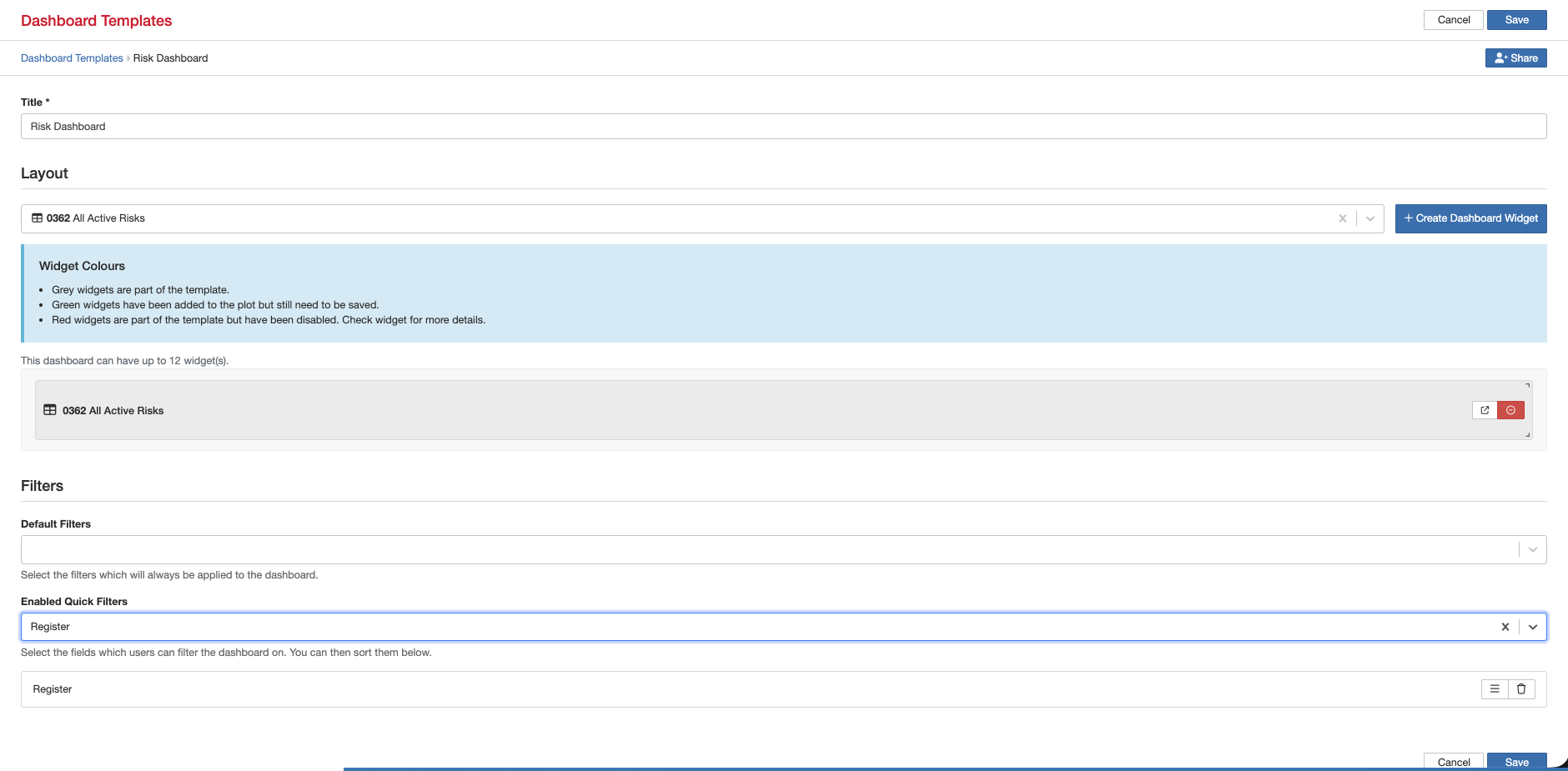
The dashboard template editor showing widget controls and the Default Filters and Enabled Quick Filters settings.
Once you have finished configuring the layout and filters, click Save to add the dashboard.
By default, dashboards are only visible to the user who created them. Use the + Share button to make a dashboard available to others.
The + Share button is available both on the Dashboard Template list and within the dashboard template edit screen.
The Dashboard Template list with the + Share button visible on each template row.
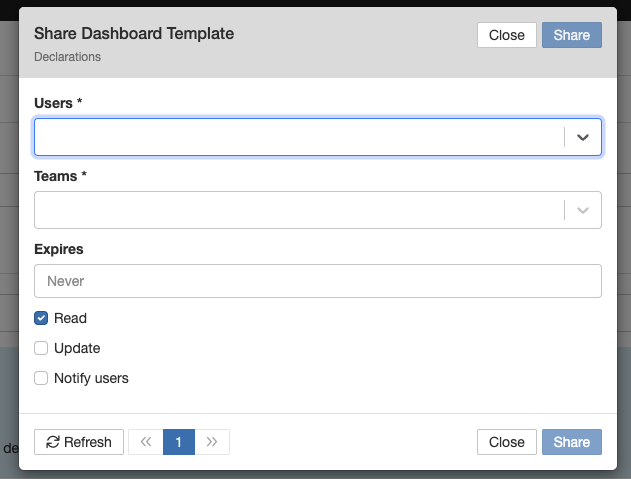
- Click + Share on the dashboard template you want to share.
- In the Users field, select the users who should have access to the template.
- Optionally, set an Expires date if you want access to end automatically. By default, access does not expire.
- Set permissions as required:
- Read: Grants view-only access. Users can see the dashboard but cannot make changes.
- Update: Grants edit access, allowing selected users to modify the dashboard template.
- Notify users: Sends a system notification to let users know the dashboard has been shared with them.
- Use Refresh/Pagination to browse through the user list if you have many users to manage.
- Click Share to apply the sharing settings. Once the confirmation preview appears, click Close to save and exit. Clicking Close before sharing will exit the dialog without saving any changes.
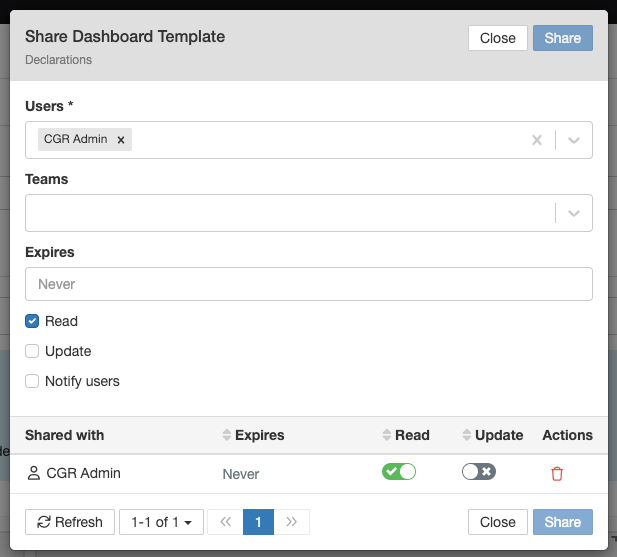
The Share dialog with the Users field, optional expiry date, and Read, Update, and Notify users permission options.
5. Common Issues & Troubleshooting
| Issue | Likely Cause | Solution |
| A widget shows no data | You may not have read access to the module or register the widget is drawing data from | Contact your administrator to confirm your access permissions for the relevant module and registers |
| A shared dashboard is not visible to the recipient | The share may not have been saved, or the recipient may not have received the notification | Reopen the sharing dialog to confirm the user is listed and the settings were saved. Reshare and tick Notify users to resend the notification |
| A widget was removed and is no longer available | The red remove icon removes the widget from the template, but the widget itself should still exist in Dashboard Widgets | Go to Dashboard Widgets and search for the widget by name. If it was deleted, you will need to recreate it |
| Dashboard filters are not working as expected | Widget-level filters and dashboard-level filters both apply. Conflicting filters can produce unexpected results | Review the filters set at both the widget level and the dashboard level to check for conflicts. Adjust or remove filters as needed |
| Cannot add more than 12 widgets to a dashboard | The platform enforces a maximum of 12 widgets per dashboard template | Create a second dashboard template for additional widgets. Use quick filters to make each dashboard flexible enough to cover multiple scenarios |
Best practices:
- Use clear, descriptive names for both widgets and dashboard templates so they are easy to identify and reuse across multiple dashboards.
- Build widgets before starting a dashboard where possible, so you can focus on the layout without interruption. You can also create widgets inline if needed.
- Use quick filters to keep dashboards flexible rather than creating separate templates for every variation of the same data.
- When sharing a dashboard, always tick Notify users so recipients know the template is available to them.
- Before sharing a dashboard with edit permissions, consider whether recipients should be able to modify the template or only view it.
Click a title to preview it here. Use the Open full article button to read the full version in a new tab.
▾Advanced Dashboard Templates Open full article »
Related article
Builds on the basics of Dashboard Manager, covering more advanced dashboard template options and configurations.
Was this article helpful?
That’s Great!
Thank you for your feedback
Sorry! We couldn't be helpful
Thank you for your feedback
Feedback sent
We appreciate your effort and will try to fix the article