How do I filter and export a dashboard report?
Including or excluding specific registers and locations from a dashboard, then exporting the filtered view
The short answer
Yes. You can include or exclude specific registers, locations, or projects from a dashboard by applying filters. Both the on-screen metrics and any report you export then show only the filtered data, and the exported report records which filters were applied. Filters can be applied to a single widget or to the entire dashboard, and you can reset them at any time to return to the full organisation-wide view.
How to filter and export a dashboard
Applying filters for reporting
- Open the relevant dashboard, for example the Incident Dashboard.
- Click the Filters button in the top-right corner of the screen.
- In the filter panel, select the Register or Location you want to include or exclude. You can select one or several (for example Project A, Project B, Operations).
- Once the filters are applied, the dashboard widgets update automatically to reflect only the filtered data.
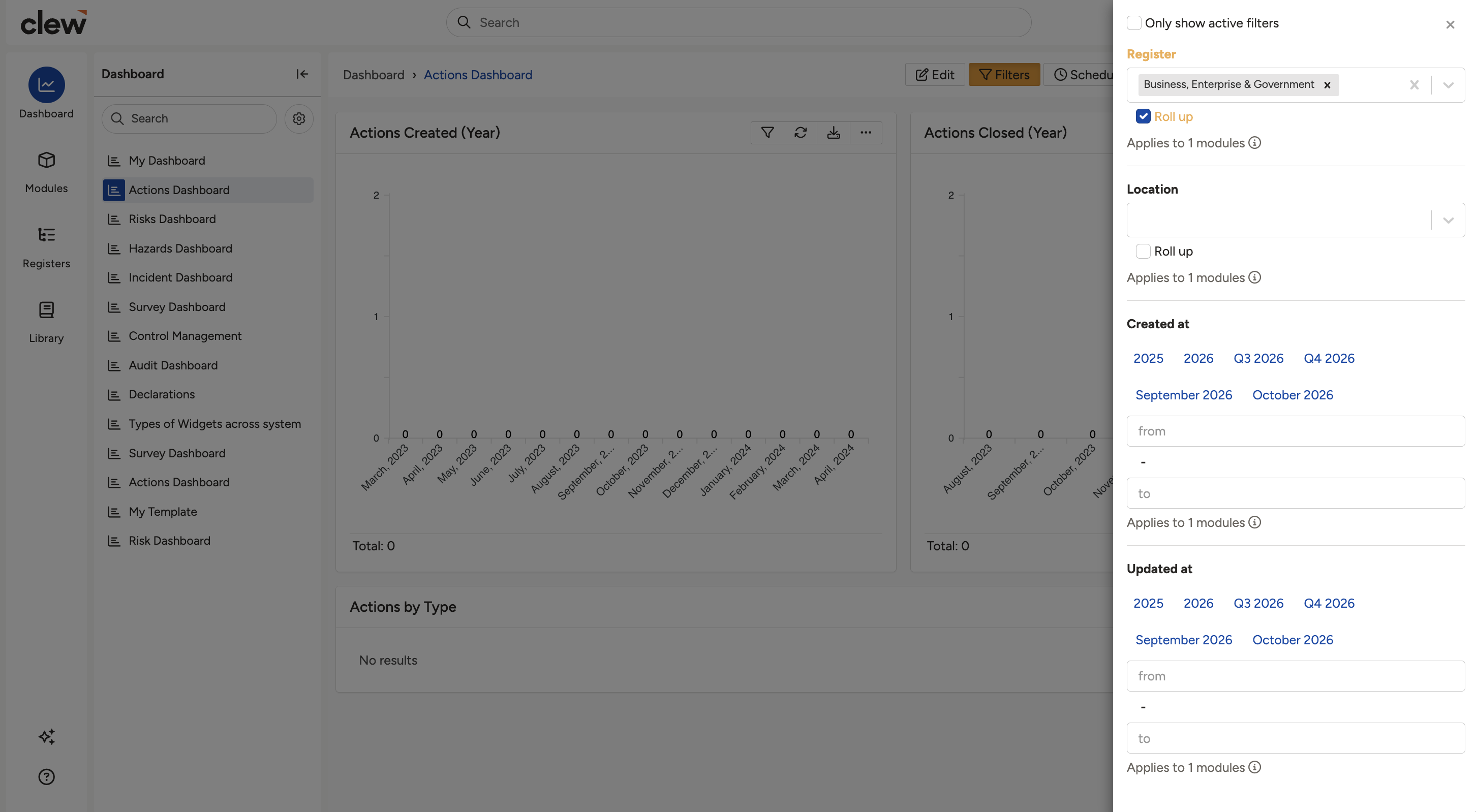
The dashboard widgets update automatically once filters are applied.
Exporting the filtered dashboard
- With the filters applied, download the dashboard as a report. The report contains only the data relevant to the filters you selected.
- Check the Filters section at the top of the report, which lists every filter that was applied. For example: Filter: Register (Rolled Up); Value: Project A; Applies to: Impact Assessment, Incident, Action. This provides a clear record that the report data has been filtered.
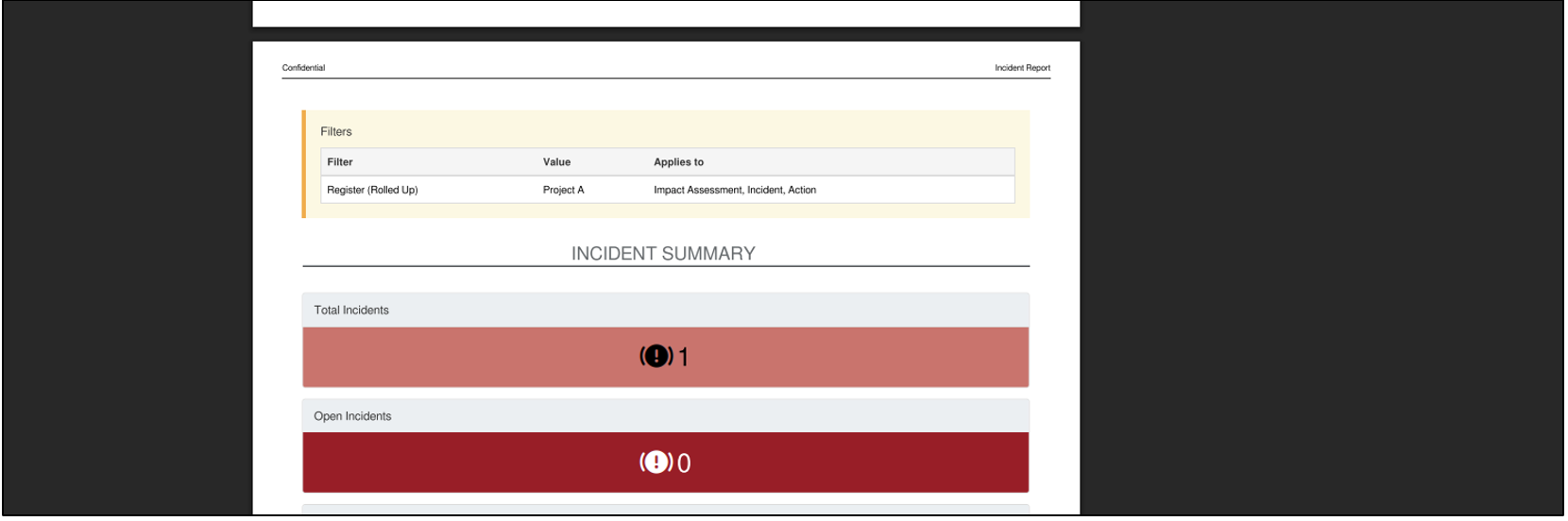
The exported report lists the applied filters in a Filters section at the top.
Click a title to preview it here. Use the Open full article button to read the full version in a new tab.
▾Using Filtered Search Reports Open full article »
Related article
How to build, filter, and reuse search reports to pull back the records you need.
▾How do I schedule a report? Open full article »
Related article
How to set a report to run and be delivered automatically on a schedule.
▾What are filters? Open full article »
Related article
An overview of what filters do across Clew and how to apply them.
Was this article helpful?
That’s Great!
Thank you for your feedback
Sorry! We couldn't be helpful
Thank you for your feedback
Feedback sent
We appreciate your effort and will try to fix the article