Advanced Dashboard Templates
How to create and configure dashboard templates, set up report themes, and upload custom background images and logos
Contents
- 1. Introduction & Context
- 2. Key Features & Functions
- 3. Requirements
- 4. Step-by-Step Guide
- 5. Common Issues & Troubleshooting
- 6. Related Articles
1. Introduction & Context
Dashboard Templates let System Administrators build, import, and share reusable dashboard layouts in the Clew Platform, and control how those dashboards look when exported as PDFs using report themes and custom branding images.
Dashboards are made up of visual elements such as charts, cards, tiles, and tables. These elements are called widgets and can be created fresh or reused from Dashboard Manager. A Dashboard Template is a saved layout of one or more widgets that forms a reusable dashboard. System Administrators create and manage these templates from Admin > Dashboard Templates, which unlocks a set of advanced configuration options not available elsewhere, including permission controls, report themes, display order, and a global view of all templates across the system.
This article also covers two related areas that extend dashboard templates: Report Themes, which control how dashboards look when exported as PDFs, and Custom Images, which let you upload your own backgrounds and logos for use in those exports. For example, an administrator preparing a monthly board report might build a Risk Overview template, apply a report theme with the company logo and colours, and export it as a branded PDF.
Who is it for? This article is for System Administrators who create and manage dashboard templates, and for anyone who needs to configure export branding through report themes and custom images.
What does it impact? Changes to dashboard templates affect all users who have access to them. Disabling a template removes it from the dashboard view for all those users. Report theme changes affect how exported PDFs look. Custom image changes affect the available options within report theme configuration.
2. Key Features & Functions
Dashboard Templates
- Create from scratch or import: build a new template using the Form tab, or import one from another server (Staging or Production) using the Import tab and a JSON export.
- Plot section: add widgets to the template using the dropdown, then drag them into your preferred layout. Use the arrow icon to preview a widget or the red remove icon to take it out of the template without deleting it.
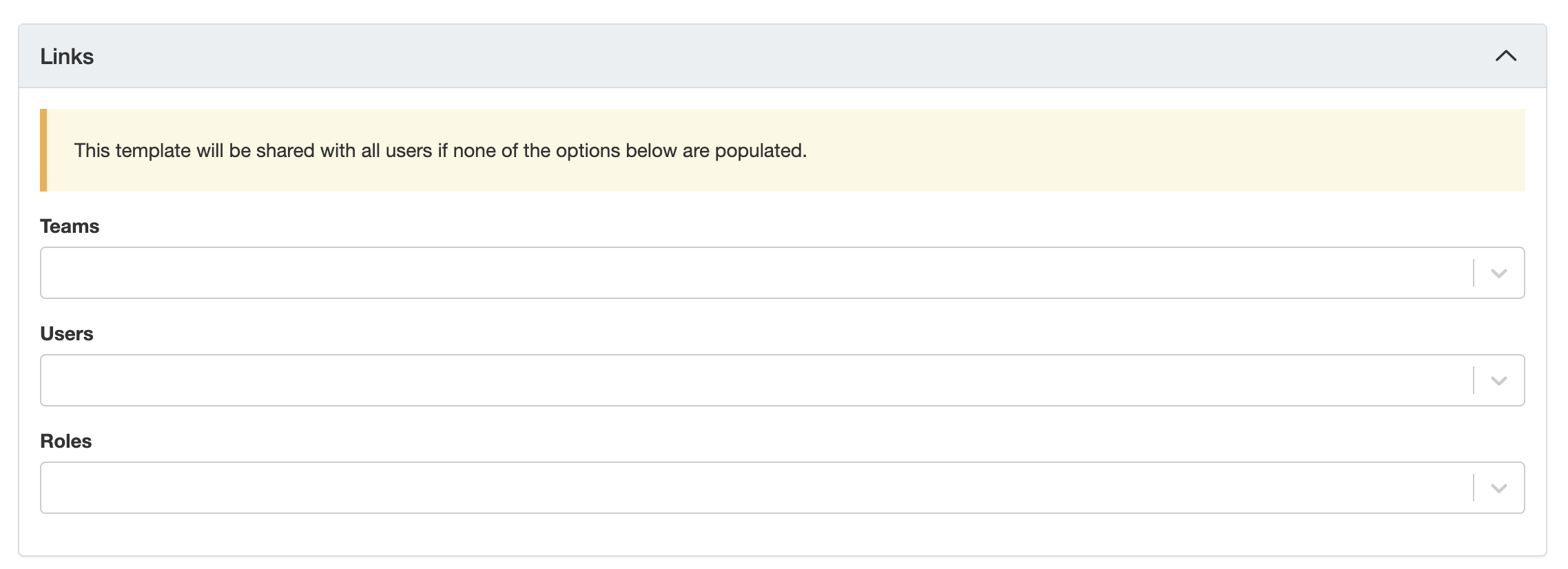
- Link / Share section: share the template with specific teams, users, or roles. If nothing is selected, the dashboard is visible to all users.
- Filters section: set Default Filters that always apply to the dashboard, and configure Enabled Quick Filters that users can interact with at the top of the dashboard view.
- Position: controls where the dashboard appears in the list when a user clicks the Clew logo in the top-left corner.
- Template actions: from the template list you can reorder, export, clone, delete, or disable any template.
Report Themes
- PDF export styling: report themes control how dashboards and widgets look when exported as PDFs via the export icon.
- Cover page: set a background, logo, logo position, colour scheme, and page orientation (portrait or landscape).
- Header and footer: define the text and colour styling for page headers and footers across the exported document.
- Scope: you can limit a theme to a specific location, project, type, or module, or leave it blank so it is available for any dashboard template.
Custom Images
- Upload your own assets: add custom PNG or JPG images for use as cover page backgrounds or logos within report themes.
- Reference tagging: optionally associate an image with a specific purpose or usage type to make it easier to find in selection lists.
- Enable/disable: set an image to enabled so it appears in the Cover Page Background and Logo dropdowns within Report Themes.
3. Requirements
- You must be a System Administrator to access Admin > Dashboard Templates, Admin > Report Themes, and Admin > Custom Images.
- Widgets must be created before you can add them to a dashboard template. If you have not created your widgets yet, go to Admin > Dashboard Manager first.
- For users to see data in a dashboard, they need Read access to the relevant modules, projects, registers, or business units. Sharing a dashboard template does not automatically grant that data access.
- To assign a Report Theme to a dashboard template, the theme must be created in Admin > Report Themes first.
- To use a custom image in a report theme, the image must be uploaded and enabled in Admin > Custom Images first.
4. Step-by-Step Guide
Creating a Dashboard Template
Step 1: Open the New Dashboard Template form
- Navigate to Admin > Dashboard Templates.
- Click the Add button. The New Dashboard Template form opens with two tabs: Form (create from scratch) and Import (import from a JSON file).
Step 2a: Create a new template using the Form tab
- Click the Form tab if it is not already selected.
- Enter a Title for the dashboard. This is the only required field.
- Optionally add Title Translations if you need multilingual support for the dashboard title.
- Optionally add a Description for internal notes or context.
- Click Save to proceed. The additional configuration sections will now appear.
Step 2b: Import a template from another server using the Import tab
Use this method to move a dashboard template between Staging and Production servers without having to rebuild it from scratch.
- On the source server (the one you are exporting from), navigate to Admin > Dashboard Templates and locate the template you want to export.
- Click the Export action for that template. The JSON code will be displayed or downloaded.

Exporting a dashboard template from the Admin > Dashboard Templates list.
- Select all the JSON code (Ctrl+A / Cmd+A) and copy it (Ctrl+C / Cmd+C).
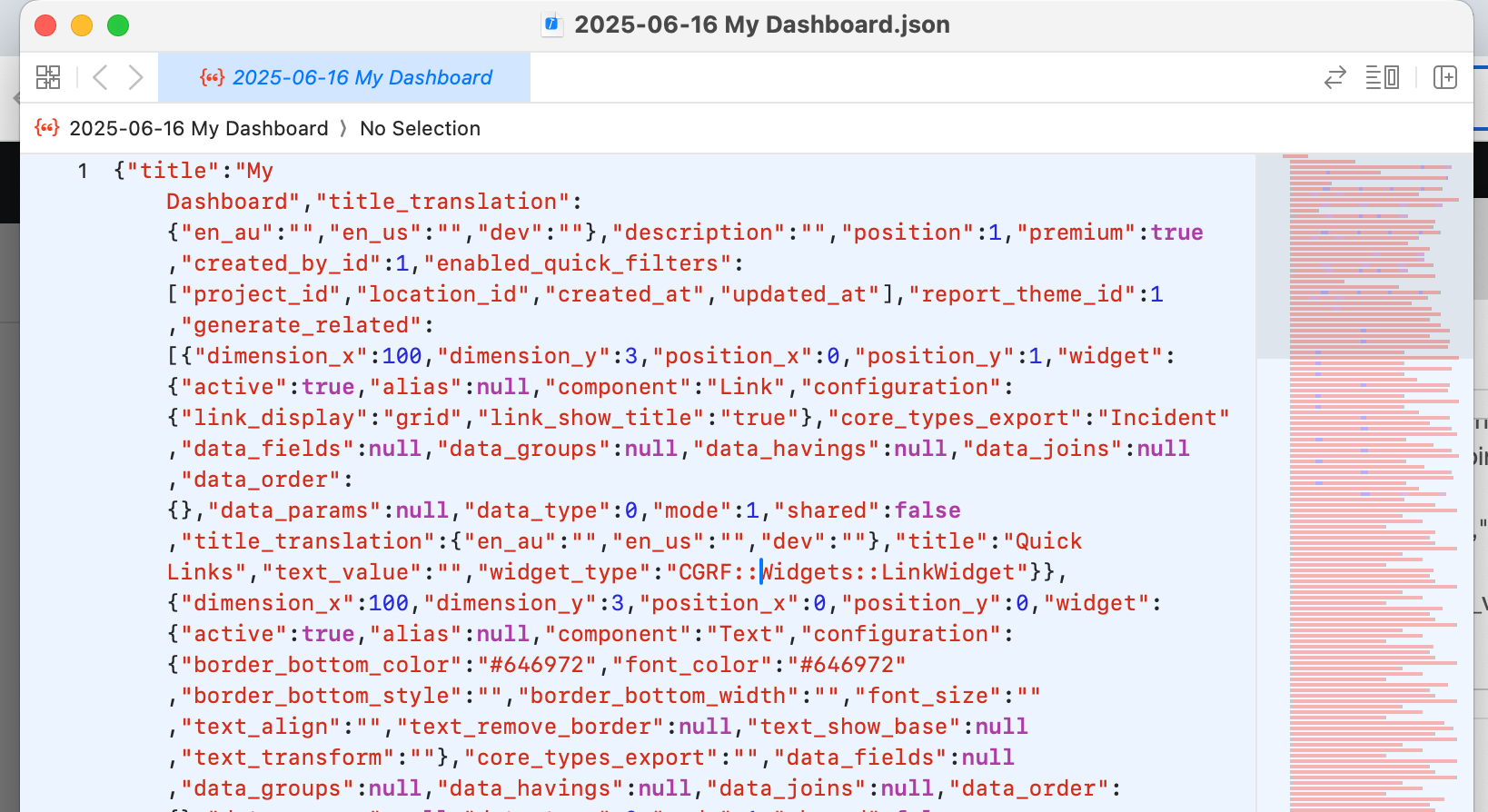
Selecting and copying the full JSON export code.
- Switch to the destination server (the one you want to import into) and navigate to Admin > Dashboard Templates.
- Click Add, then click the Import tab.
- Paste the copied JSON code into the field (Ctrl+V / Cmd+V).
- Click Save.
Step 3: Configure the template
Once the template is saved (whether from the Form or Import tab), the full configuration sections become available. Use the table below as a reference for each field.
| Field | Description |
| Core | |
| Title | Automatically populated from the title you entered when creating the template. |
| Title Translations | Add multilingual labels for the dashboard title. |
| Description | Internal notes or context for the template. |
| Position | Controls where this dashboard appears in the list when a user clicks the Clew logo in the top-left corner. |
| Report Theme (optional) | Assign a report theme to control the appearance of PDF exports from this dashboard. To create a new theme, go to Admin > Report Themes first. |
| Plot | |
| Add Widgets | Use the dropdown to search for and add existing widgets to the template. Once added, drag widgets into your preferred layout. |
| Arrow icon | Preview the widget before committing to the layout. |
| Red remove icon | Removes the widget from this template only. It does not delete the widget itself. |
| Link / Share | |
| Teams | Share the dashboard with an entire team group. |
| Users | Share the dashboard with specific individual users. |
| Roles | Share with users who hold a specific role, such as Admin or Manager. |
| Filters | |
| Default Filters | Fixed filters that always apply to the dashboard regardless of user interaction (for example, show only records from a specific project or register). |
| Enabled Quick Filters | Fields that users can interact with to filter the dashboard dynamically (for example, Location, Register, Created Date). These appear at the top of the dashboard. |
The Plot section showing widgets added to the template layout.
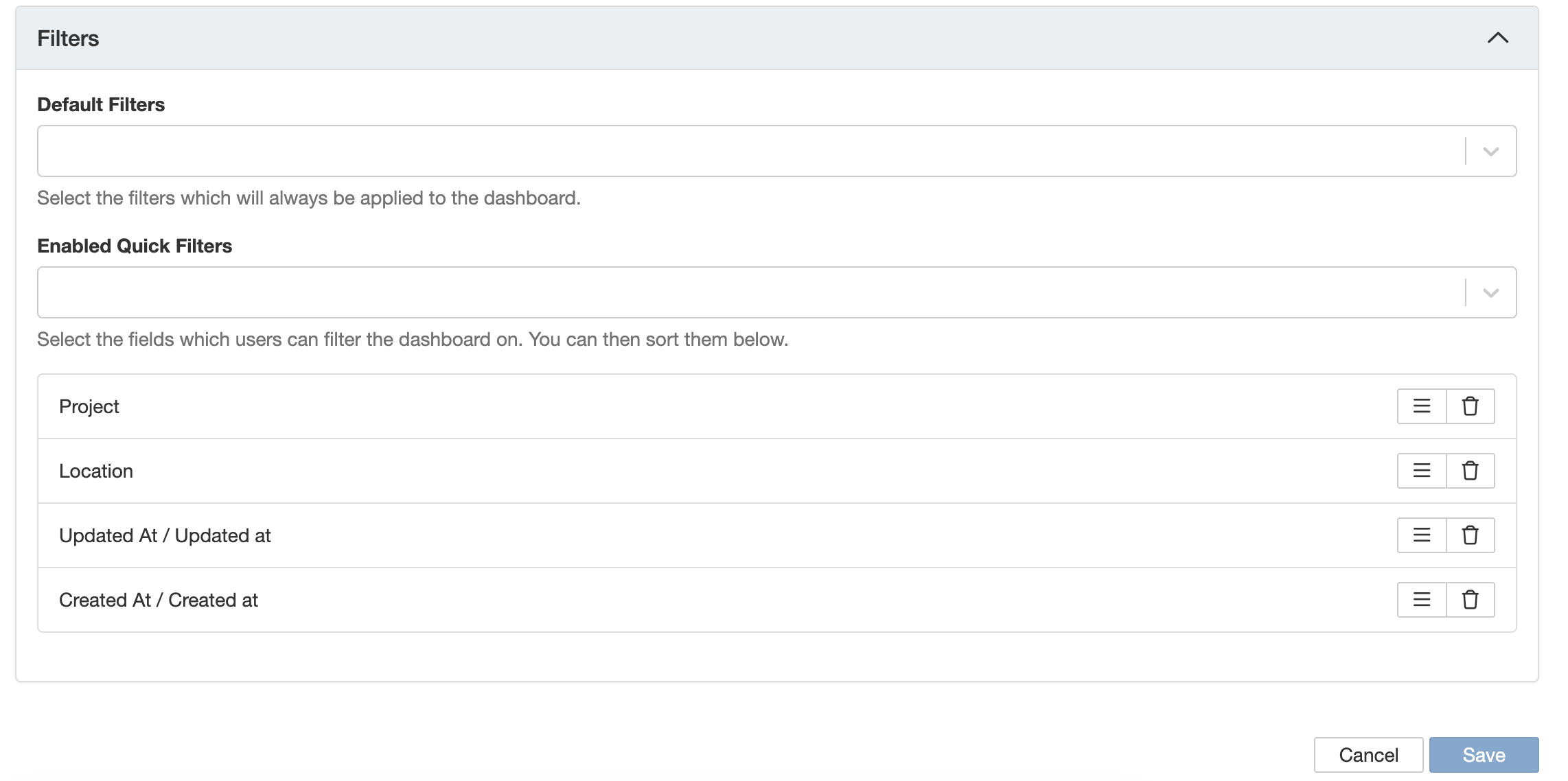
The Filters section showing Default Filters and Enabled Quick Filters.
Step 4: Save and manage your template
- Click Save to complete the template configuration.
- From the template list, you can take the following actions on any template you have permission to manage:
- Reorder: move the template up or down to adjust its position in the display order.
- Export: download the template as JSON to import it into another server.
- Clone: create a copy of the template with the same widget layout, useful for building variations.
- Delete: permanently remove the template. This option will be greyed out if the template is in use or was created by the Clew system.
- Disable: hide the template from the dashboard view without deleting it. It can be re-enabled at any time.

The Dashboard Templates list showing the available actions for each template.
Creating a Report Theme
Report Themes are applied when a dashboard or widget is exported as a PDF using the export icon. They let you control the visual appearance of the exported document, including the cover page, header, footer, colours, and logo.
The export icon is available in both the dashboard view and the individual widget view.
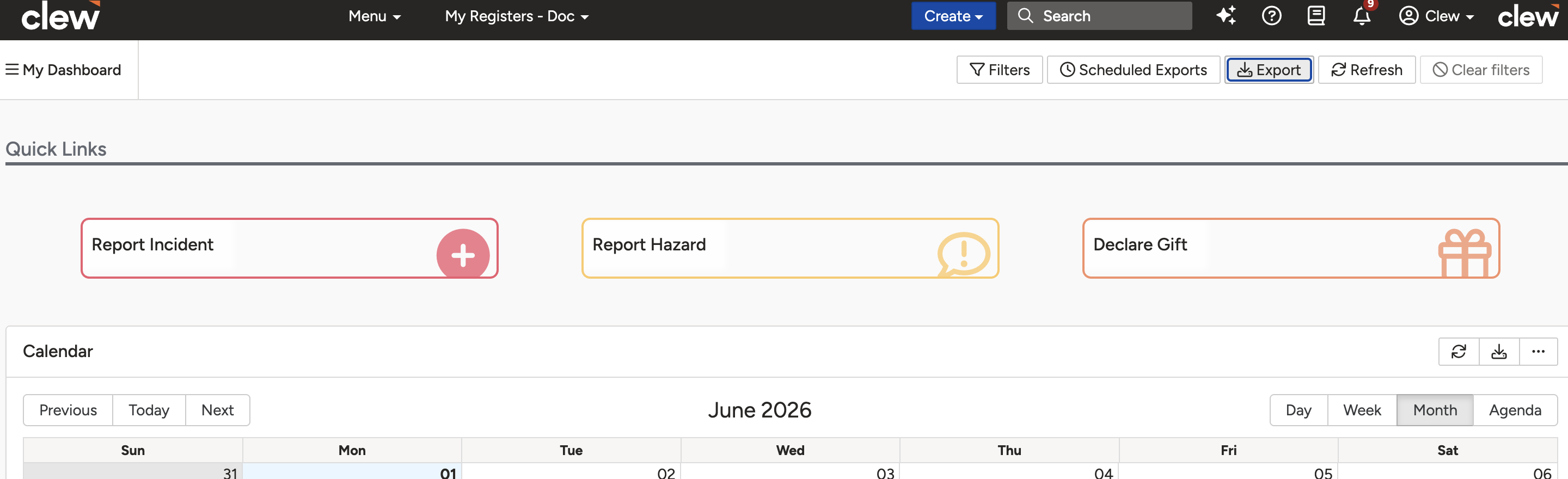
The export icon as it appears in the dashboard view.
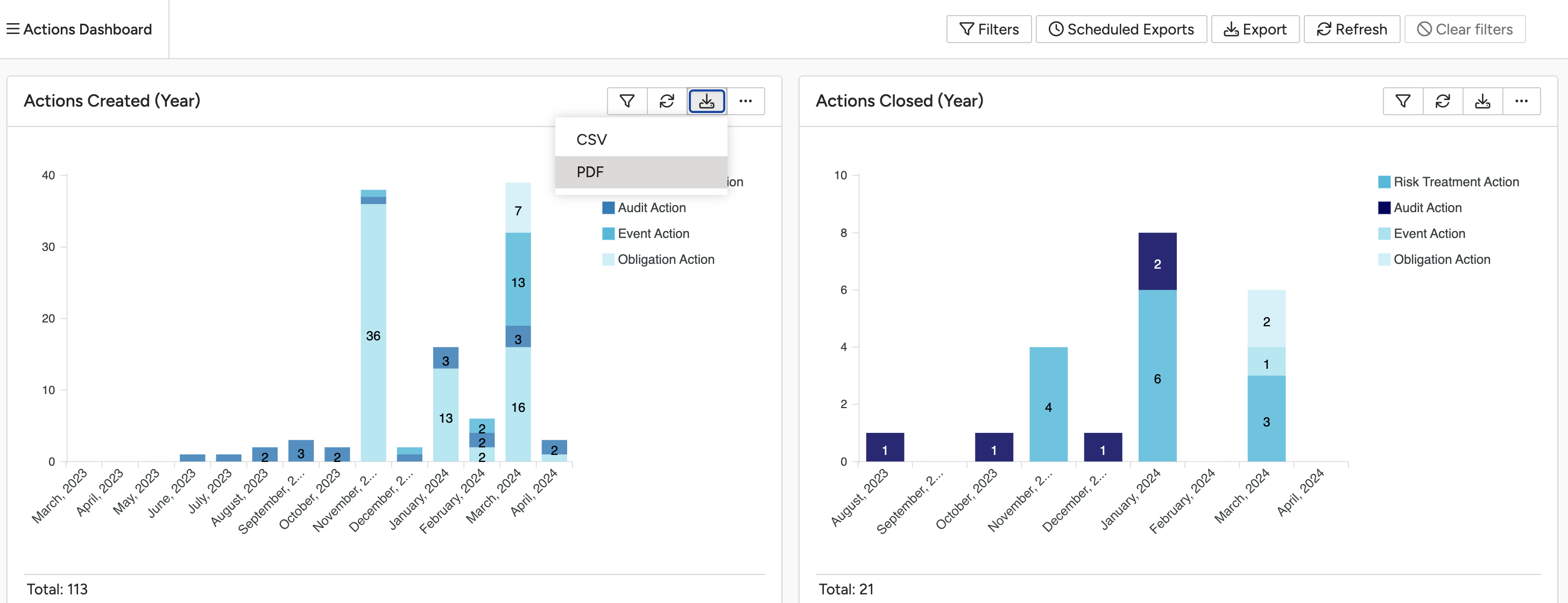
The export icon as it appears in the individual widget view.
Step 1: Create a new report theme
- Navigate to Admin > Report Themes.
- Click Add.
- Enter a Report Theme Title.
- Optionally set the Apply To field to limit the theme to a specific location, project, type, or module. If left blank, the theme will be available for any dashboard template.
Step 2: Configure the Cover Page
Use the Cover Page section to define how the first page of your exported PDF looks. The table below describes each setting.
| Cover Page Setting | Description |
| Cover Page Background | Choose from pre-designed backgrounds such as Standard Cover or None, or select an organisation-specific background. This defines the overall look of the exported report's first page. |
| Cover Page Logo | Select a logo to appear on the cover page. Logos are sourced from images predefined in the system or uploaded via Admin > Custom Images. |
| Logo Position | Set the logo alignment: Left, Centre, or Right. |
| Preview Options | Portrait: vertical layout (default). Landscape: wider horizontal layout. |
| Cover Page Title Colour, Disclaimer Text Colour, and Background Colour | Define the colour styling for text and background elements on the cover page. Options are: Simple (plain colour via colour picker), Swatches (select from predefined colours), or None (use default system styling). |
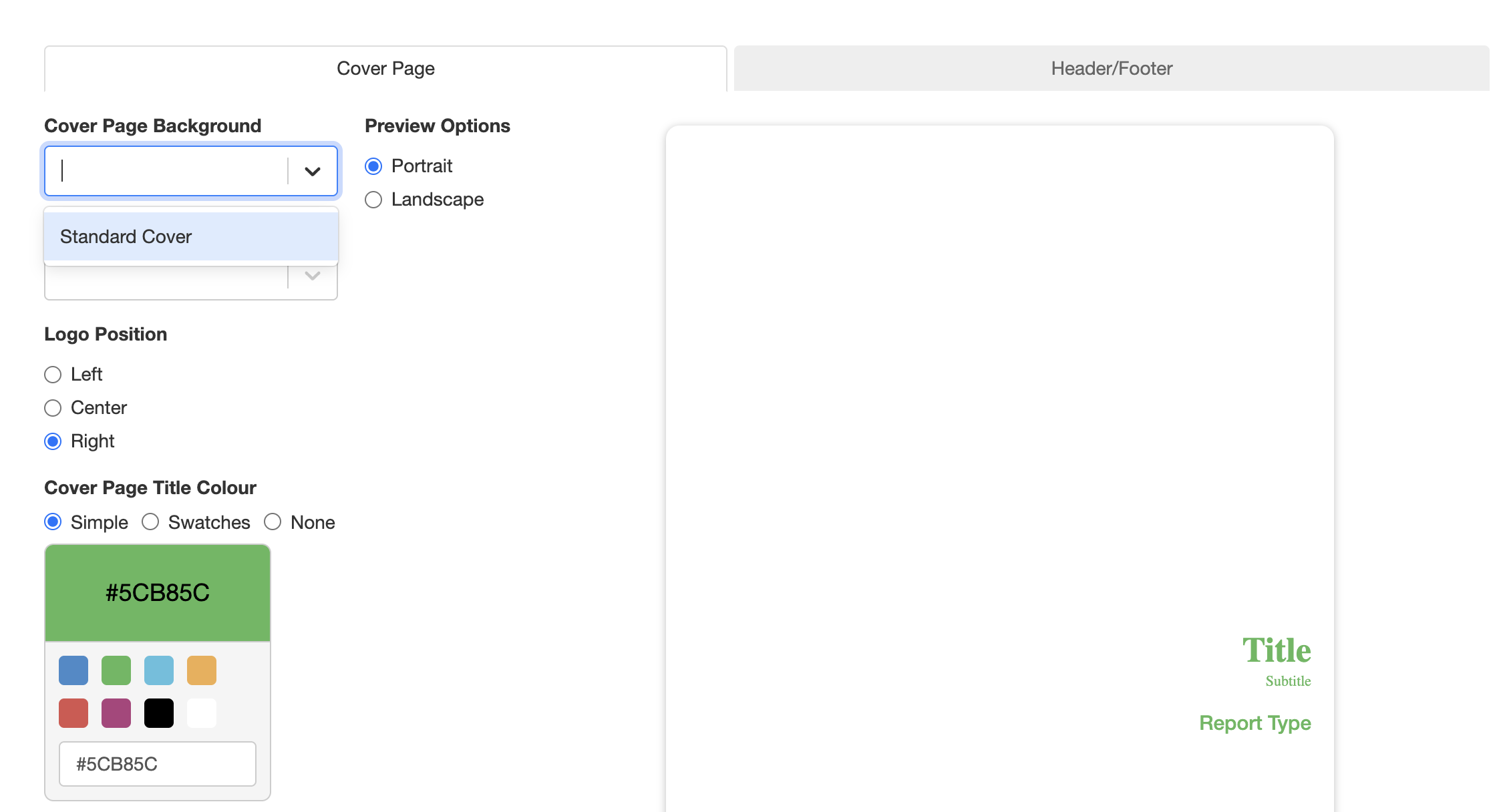
The Cover Page section of the Report Theme configuration.
Step 3: Configure the Header and Footer
Use the Header/Footer section to define what appears at the top and bottom of every page in the exported document.
| Header / Footer Setting | Description |
| Page Header Text | Enter the text you want to display in the page header on each exported page. |
| Page Header Text Colour, Header Background Colour, Footer Text Colour, and Footer Background Colour | Define the colour styling for the header and footer. Options are: Simple (plain colour via colour picker), Swatches (select from predefined colours), or None (use default system styling). |
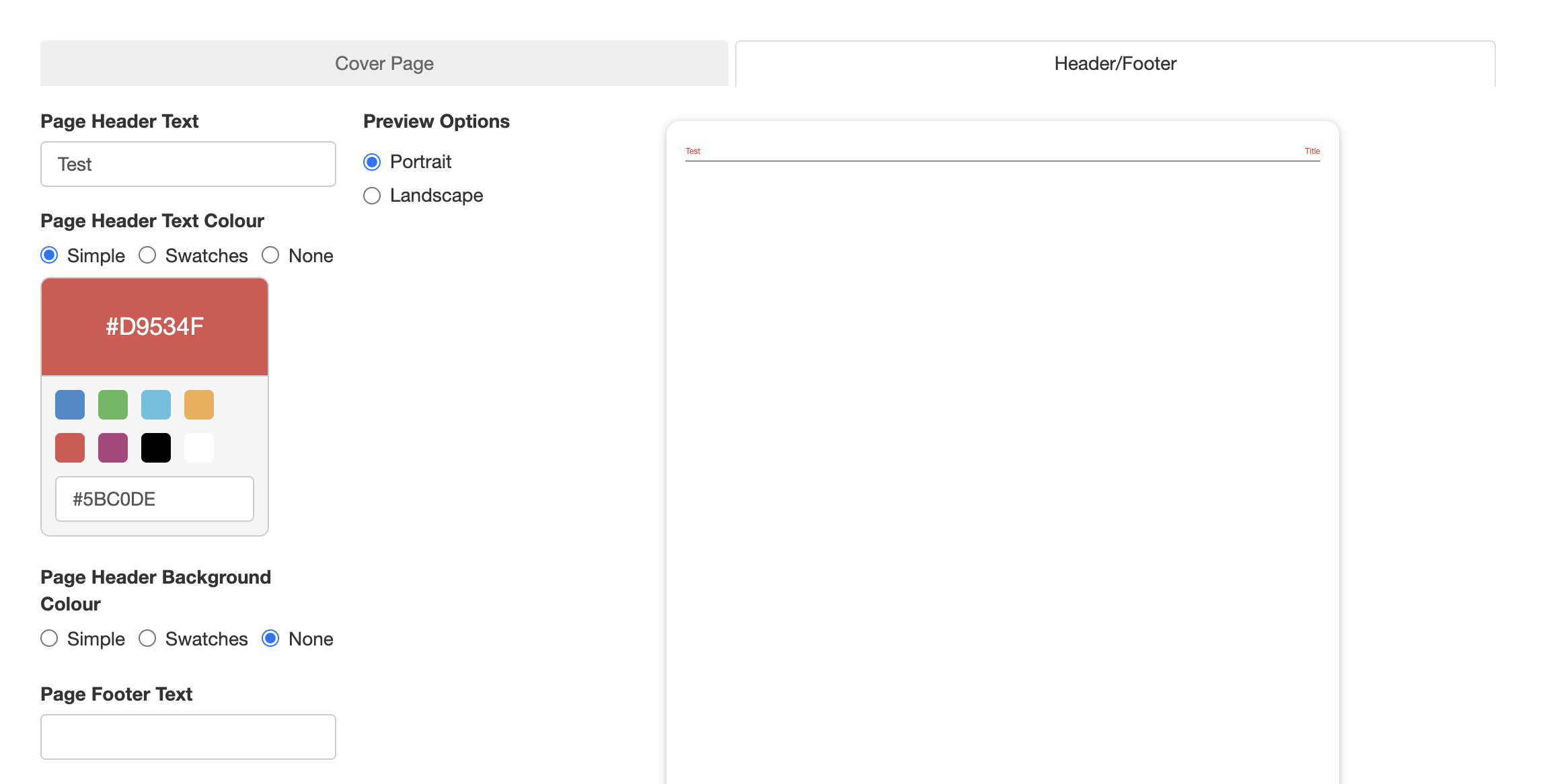
The Header/Footer section of the Report Theme configuration.
Step 4: Save the report theme
- Click Save to complete the Report Theme configuration. The theme will now be available for selection in the Report Theme field when configuring a dashboard template.
Adding a Custom Background or Logo Image
If you want to use your own background image or logo in a report theme, you need to upload it first via Admin > Custom Images. Once uploaded and enabled, the image will appear in the relevant dropdown menus within the Report Theme configuration.
- Navigate to Admin > Custom Images.
- Click the Add button.

The Admin > Custom Images list. Click Add to upload a new image.
- Fill in the following fields:
- Title: enter a name for the image so it is easy to identify in selection lists.
- File: upload the image file (PNG or JPG).
- Reference (optional): associate the image with a specific purpose or usage type. If left blank, the image remains available for manual selection.
- Enabled: select Yes to make the image available in the Cover Page Background and Logo dropdowns within Report Themes.
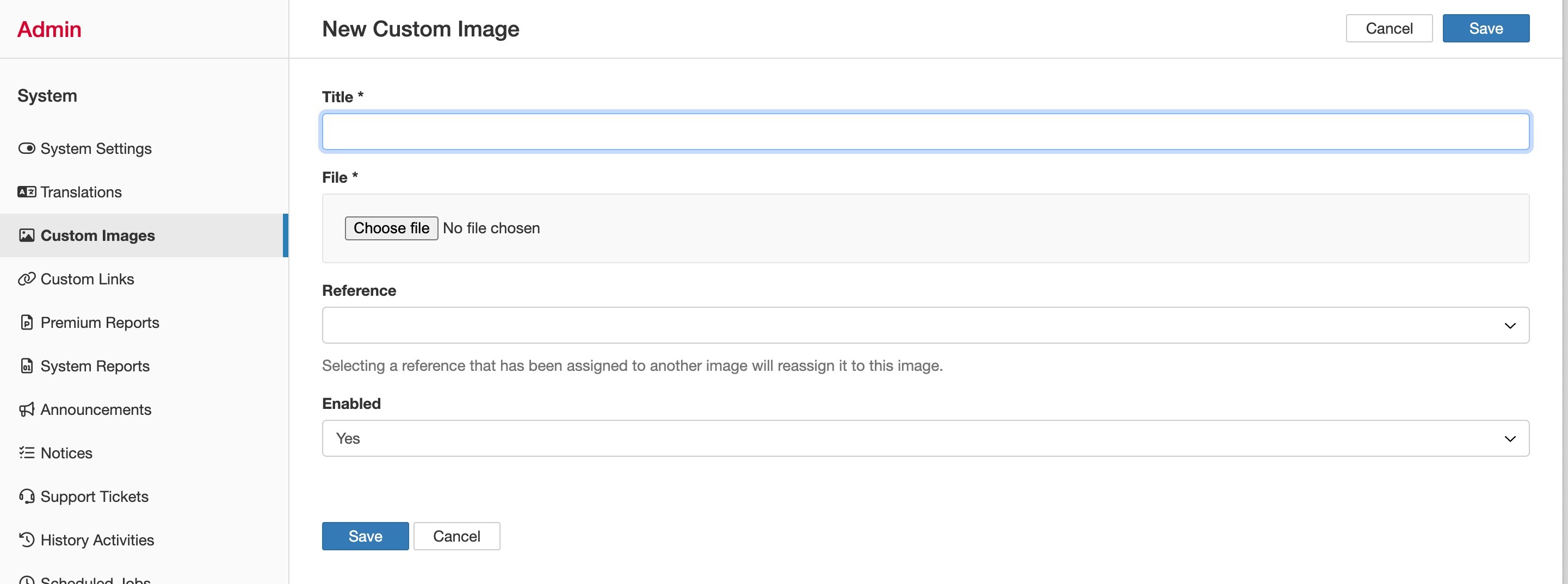
The Custom Images upload form.
- Click Save. The image will now appear in the Cover Page Background and Logo selection lists within the Report Themes configuration.
5. Common Issues & Troubleshooting
| Issue | Likely Cause | Solution |
| The delete option is greyed out for a template | The template is currently in use, or it was created by the Clew system | Disable the template instead of deleting it. If you need it removed entirely, contact your Clew system administrator |
| A widget I want to add does not appear in the Plot dropdown | The widget has not been created yet | Go to Admin > Dashboard Manager to create the widget first, then return to the dashboard template to add it |
| A user can see the dashboard but no data appears | The user does not have Read access to the underlying modules, projects, registers, or business units | Check the user's module and record-level access. Sharing a dashboard template does not grant access to the data it displays |
| Filters and permissions are missing after importing a template | Filters and user permissions are not included in the JSON export | After importing, manually configure the Filters and Link/Share sections on the destination server |
| A custom image does not appear in the Report Theme dropdown | The image was uploaded but not enabled | Go to Admin > Custom Images, open the image record, and set Enabled to Yes |
| A report theme I created does not appear in the Dashboard Template dropdown | The Apply To field on the theme may be scoped to a different module or location | Go to Admin > Report Themes and check the Apply To field. Clear it to make the theme available for all dashboard templates |
Best practices:
- Create all widgets in Dashboard Manager before starting on a dashboard template. You cannot add a widget to a template if it does not exist yet.
- Use the Import/Export feature to move tested templates from Staging to Production rather than rebuilding them manually. Remember to reconfigure filters and permissions after importing.
- Use the Clone action when you need a similar dashboard with a different widget set. It is quicker than building from scratch.
- Disable templates you no longer need rather than deleting them. This preserves the configuration in case it is needed again.
- Upload and enable custom images in Admin > Custom Images before creating report themes that rely on them.
- If sharing a dashboard with specific users, verify they also have the appropriate module and record-level access, otherwise the dashboard will display with no data.
Click a title to preview it here. Use the Open full article button to read the full version in a new tab.
▾Dashboard Manager Open full article »
Related article
Dashboard Manager lets you build custom dashboards from a library of widgets, arrange them to suit your reporting needs, and share them with other users or teams.
Was this article helpful?
That’s Great!
Thank you for your feedback
Sorry! We couldn't be helpful
Thank you for your feedback
Feedback sent
We appreciate your effort and will try to fix the article