What core fields are, and how system administrators show, hide, translate and configure them across a module
Contents
- 1. Introduction & Context
- 2. Key Features & Functions
- 3. Requirements
- 4. Step-by-Step Guide
- 5. Common Issues & Troubleshooting
- 6. Related Articles
1. Introduction & Context
Core fields are native fields that are present on every instance of the Clew platform. System administrators can show or hide core fields, and configure the values of certain core fields such as lookups.
Core fields can be of various types, similar to custom fields, for example date pickers, numbers, text fields, or lookup fields. See System Lookups for how lookups are configured. The other core fields can only be translated, hidden, or displayed.
Who is it for? System administrators who configure which fields appear on each module's forms and views.
What does it impact? Showing or hiding a core field changes what your team sees and can enter on a module's forms and detailed view, not the underlying data. Translations change the visual name given to a field, and are typically applied during the initial setup of your Clew platform or while an implementation is in progress.
2. Key Features & Functions
- Field types: core fields can be date pickers, numbers, text fields, or lookups. Lookups can be configured; the other core fields can only be translated, hidden, or displayed.
- Visibility per view: each core field can be shown or hidden independently on the New Form, Edit Form, Mass Edit Form, and Show View.
- Set per custom type: core fields are enabled or disabled via the relevant custom type, for example Risk or Opportunity.
- Control fields on the bowtie: some control core fields can be displayed on the risk bowtie. These are Control Effectiveness, Implemented (in place or not, represented by a tickbox), and Critical (represented by a pink colour and the red upward arrow).
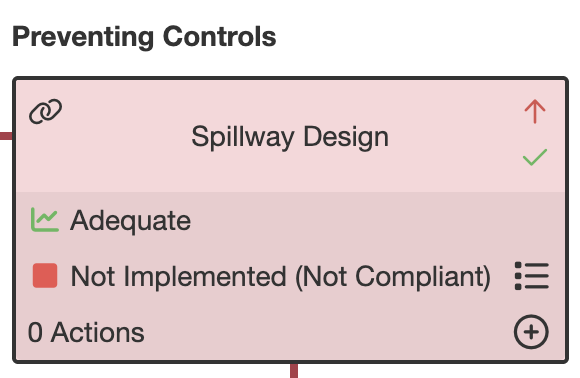
The control core fields that can be displayed on the risk bowtie.
3. Requirements
- System Administrator access, to enable or disable core fields.
- Core fields are enabled or disabled via the relevant custom type. To change a core field's visibility across a whole module, apply the change to every custom type in that module, if more than one exists.
- To translate a core field, a request to Clew support, since administrators cannot translate core fields themselves.
4. Step-by-Step Guide
Showing or Hiding a Core Field
- Go to Admin > Custom Types, then choose the custom type you want to work on. To change a core field's visibility across the entire module, apply the change to all custom types in that module, if more than one exists.
- Scroll down to Core Field Settings. Here you can change the visibility of core fields on each view. If you use Schemas for dynamic forms, hiding or showing a field here also requires you to open the schemas page and click the yellow Sync button to apply your change.
- Choose the view you want to change, then click the X icon to make a field visible, or click into the box and select a core field from the dropdown to hide it from that view.
| View | What it is |
| New Form | The form that appears when creating a new record using the Add button. |
| Edit Form | The form that appears when clicking Manage > Edit on an existing record. |
| Mass Edit Form | The form that appears when selecting multiple records on the list view and clicking Manage > Mass Edit. |
| Show View | The detailed view of a record that appears after clicking on the record. |
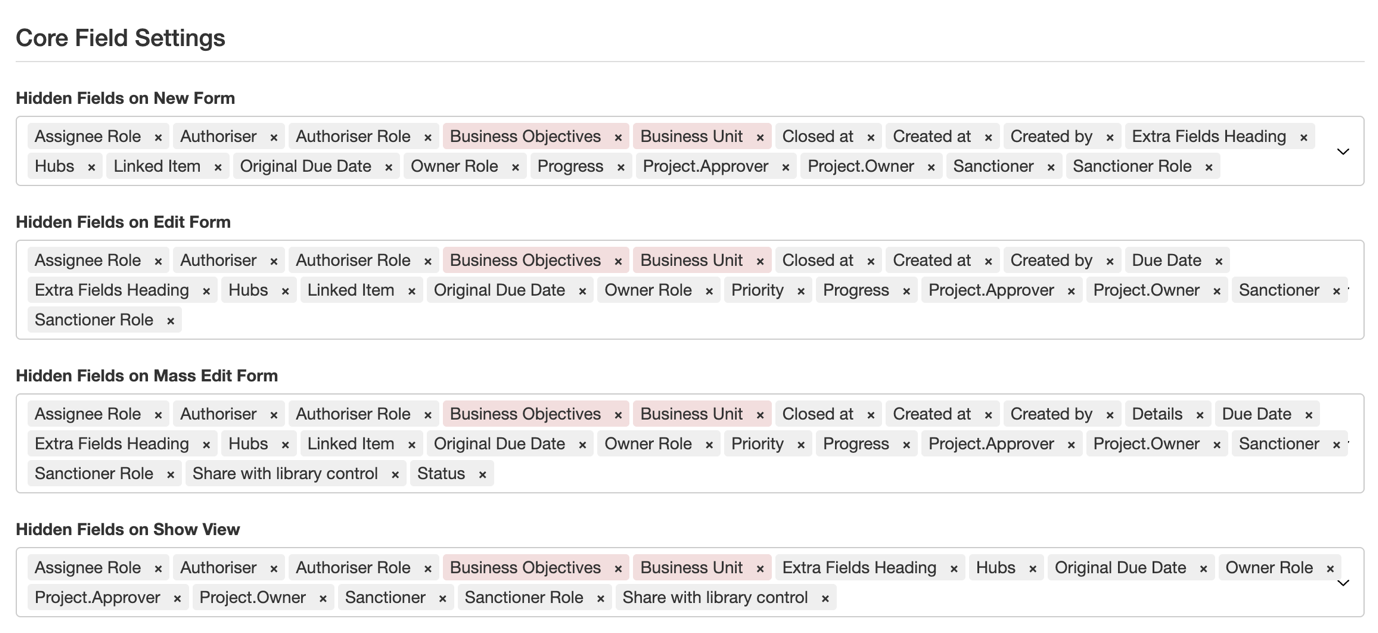
Changing a core field's visibility in Core Field Settings.
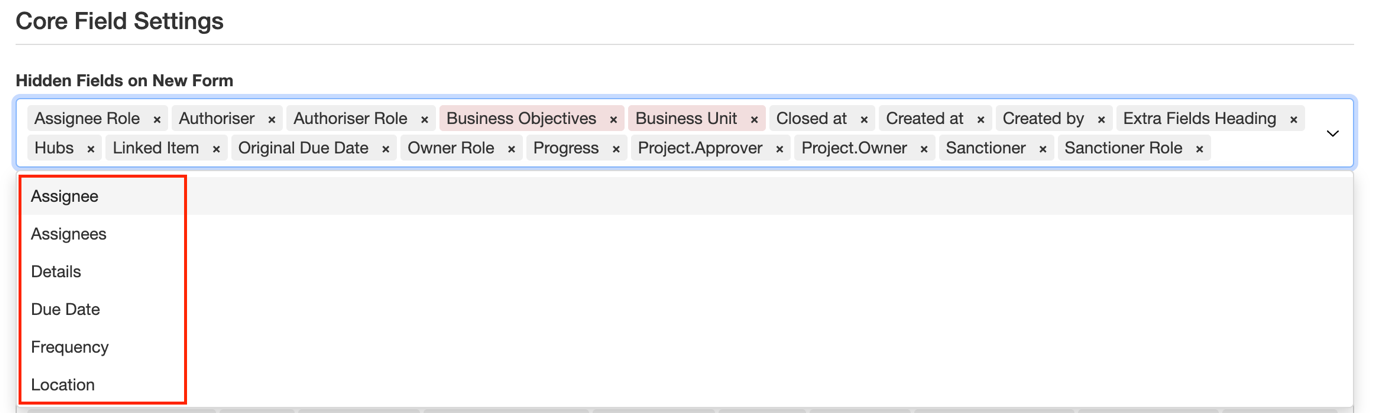
The dropdown showing the fields currently visible on a view.
5. Common Issues & Troubleshooting
| Issue | Likely Cause | Solution |
| A core field doesn't appear even though it's set to visible | The field is inactive (shown in red), or you use Schemas and the change hasn't been synced | Check the field isn't red/inactive. If you use Schemas, open the schemas page and click Sync. For an inactive core field, contact Clew support |
| A visibility change only applied to some records in a module | The module has more than one custom type and the change was made on only one | Apply the same change to every custom type in that module |
| You need a core field renamed and can't do it yourself | Core field translations can't be done by administrators | Contact Clew support with the field and the translation (label) you need |
| A core field isn't listed at all under Core Field Settings | The field has not been enabled for your organisation | Raise a request with Clew support to have the field enabled |
Best practices:
- When changing a core field across a module, remember to apply it to every custom type in that module.
- If you use Schemas, always click Sync after changing Core Field Settings, or the change won't take effect on your forms.
- Keep forms focused by hiding fields you don't use on the New and Edit forms, so records are quicker to complete.
Click a title to preview it here. Use the Open full article button to read the full version in a new tab.
▾Core Fields: Risk Open full article »
Related article
The fields available for the Risk module.
▾Core Fields: Action Open full article »
Related article
The fields available for the Action module.
▾Core Fields: Control Open full article »
Related article
The fields available for the Control module.
▾Core Fields: Library Control Open full article »
Related article
The fields available on a library control.
▾Core Fields: Audit Open full article »
Related article
The fields available for the Audit module.
▾Core Fields: Assurance Open full article »
Related article
The fields available for the Assurance module.
▾Core Fields: Change Request (Feedback) Open full article »
Related article
The fields available for the Change Request module.
▾Core Fields: Learning (Declaration) Open full article »
Related article
The fields available for the Learning module.
▾Core Fields: Incidents Open full article »
Related article
The fields available for the Incidents module.
▾Core Fields: Hazards Open full article »
Related article
The fields available for the Hazards module.
▾Core Fields: Business Objective Open full article »
Related article
The fields available for the Business Objective module.
▾Core Fields: Standard Open full article »
Related article
The fields available for the Standard module.
▾Core Fields: Performance Standard Open full article »
Related article
The fields available for the Performance Standard module.
▾Core Fields: Measurement Open full article »
Related article
The fields available for the Measurement module.
Was this article helpful?
That’s Great!
Thank you for your feedback
Sorry! We couldn't be helpful
Thank you for your feedback
Feedback sent
We appreciate your effort and will try to fix the article