Permission Sets
How to create and edit permission sets that define granular module-level access in the Clew Platform
Contents
- 1. Introduction & Context
- 2. Key Features & Functions
- 3. Requirements
- 4. Step-by-Step Guide
- 5. Common Issues & Troubleshooting
- 6. Related Articles
1. Introduction & Context
Permission sets are the foundational component for user access to data in the Clew Platform, letting you define very granular permissions per module for a group of users. For example, a group of users may be able to view incidents, view and update risks, and have full access to actions on a single register.
A permission set by itself does not grant users access to anything in the platform. It must be applied against a register through a security group, which is where user groups are configured.
Who is it for? System Administrators who configure access control in the Clew Platform.
What does it impact? Permission sets define what actions users can perform per module. Changing an existing permission set affects every user in the security groups where it is used, so changes should be made with care.
2. Key Features & Functions
- Permissions per module: permissions are granted per module in the platform, so each module can have a different level of access within the same set.
- Seven permission types: Create [C], Read [R], Update [U], Delete [D], Mass [M], Merge [M], and Share [S], described in the table below.
- Flexible configuration: set all permissions in one go, per module, or per individual permission within a module.
- Global option: one permission set may be marked as global, applying its permissions to all users and all registers.
| Permission Type | Description |
| Create [C] | Ability to create items. |
| Read [R] | Ability to read the item(s). |
| Update [U] | Ability to edit the item via Manage > Edit. |
| Delete [D] | Ability to delete. Find more information in the Deleting Records article. |
| Mass [M] | Mass works in conjunction with Update and Delete. If Mass is selected as well as Update, the permission set will grant Mass Update. |
| Merge [M] | Only relevant to Library Control, Library Cause, and Library Consequence. Ability to merge them together. |
| Share [S] | Ability to share items. Find more information in the Sharing Items article. |
3. Requirements
- System Administrator access is required to configure permission sets.
- A permission set by itself does not grant users access to anything. It requires security groups to be configured, where the permission set is applied against a register (or folder) in the platform.
- There is one exception to this rule: one (1) permission set may be marked as global, which applies the permissions to all users in the platform. A good example is allowing all users to create a declaration or an incident.
- Exercise care when changing existing permission sets, since they may be in use and changes will affect users in the groups where the permission set is applied.
4. Step-by-Step Guide
Creating or Editing a Permission Set
- Navigate to Admin > Permission Sets. This opens a list of existing permission sets.
- If creating new, select Add. If editing an existing set, select the title of the permission set and proceed to step 4.
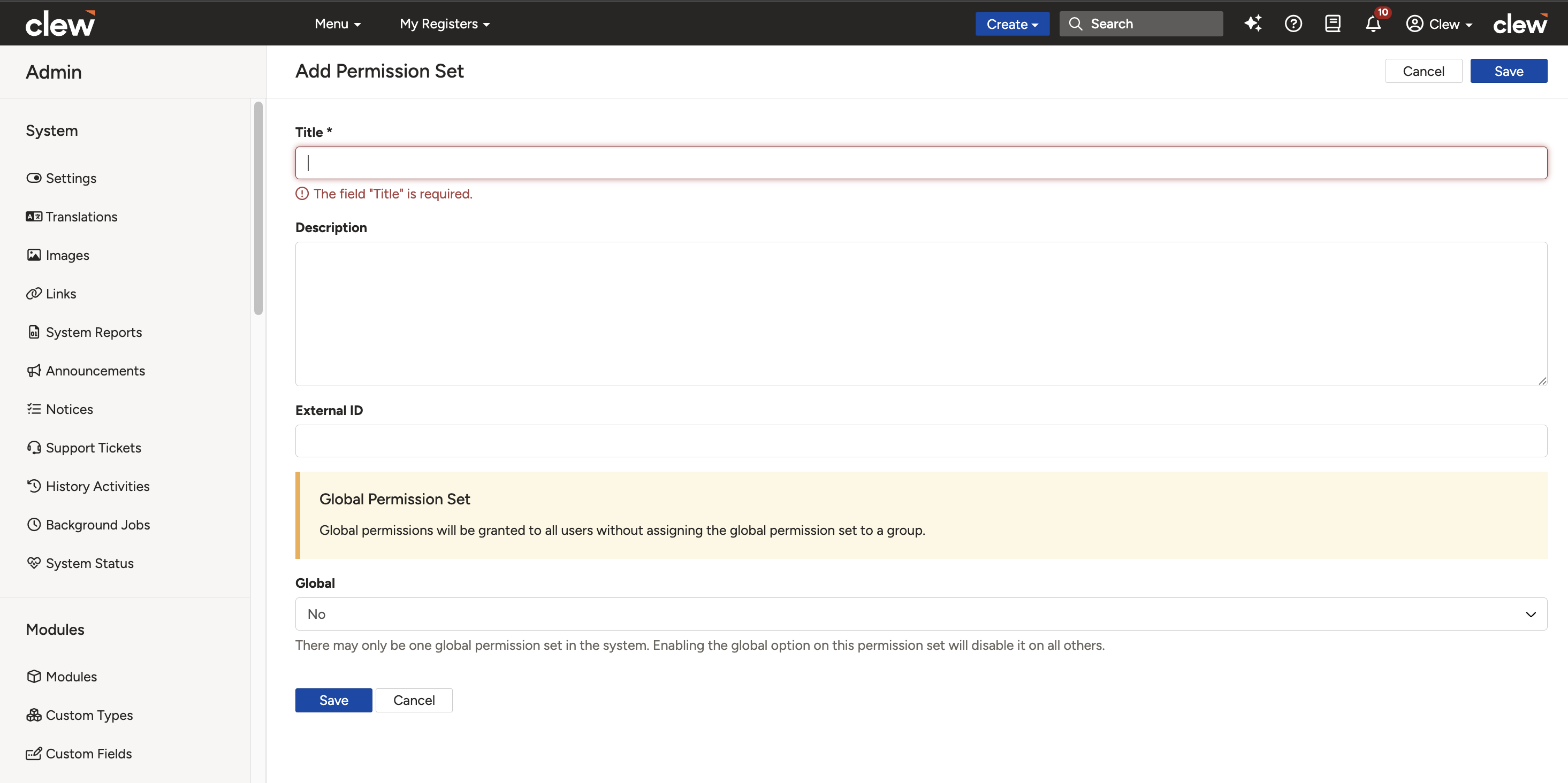
The Permission Sets list. Click Add to create new, or a title to edit.
| Field | Description |
| Title | Used to select the permission set within a group (256 character limit). |
| Details | Visible only within the Permission Set list view (25,000 character limit). |
| External ID | Used only for API integration. |
| Global | If Yes, grants the permission set to all users and all registers. Only one permission set can be global. |
- Once completed, press Save to proceed to setting the permissions up.
The permission set form with the fields described above.
Setting the Permissions
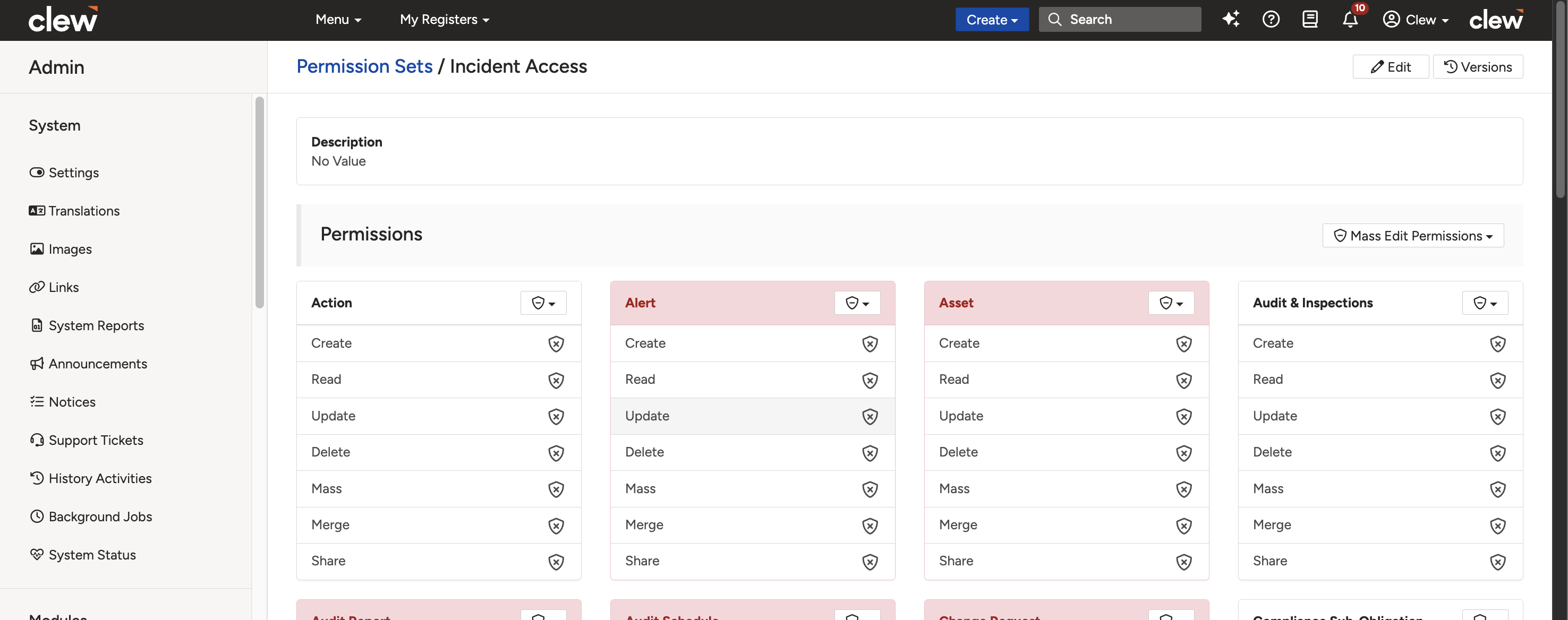
- On this page, you will see the module permission sets. Any modules available are displayed with a grey header, while any disabled modules are displayed with a pink header. You can set all permissions in one go, per module, or per permission per module.
- To set a permission for an entire module, select the shield button on the module permission set header, as shown below. This enables (or disables) all permissions in one click.
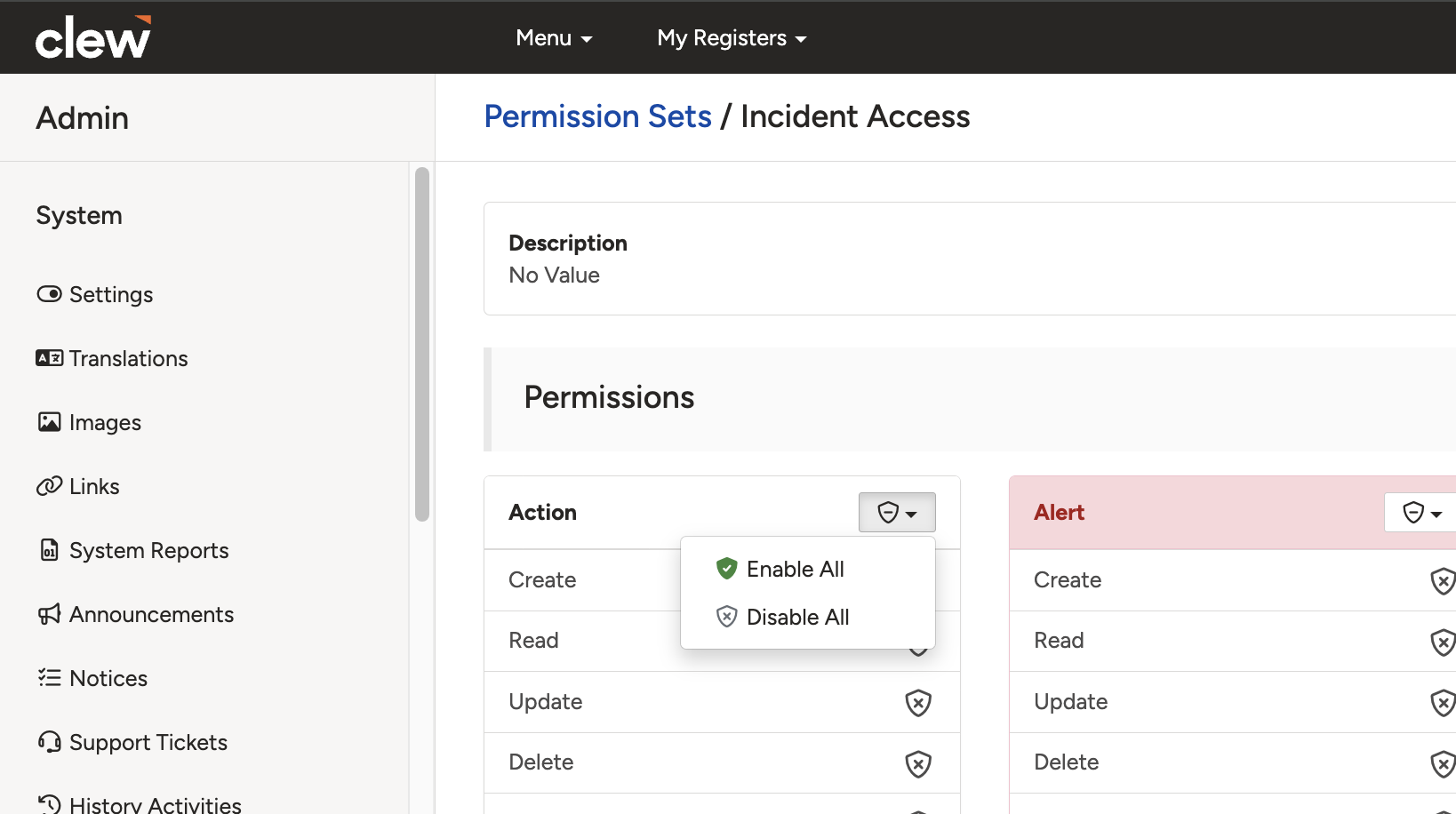
The shield button on the module header enables or disables all permissions in one click.
- Alternatively, click the shield next to an individual permission to enable that permission type only. The screenshot below shows Create, Read, and Update enabled for Actions.
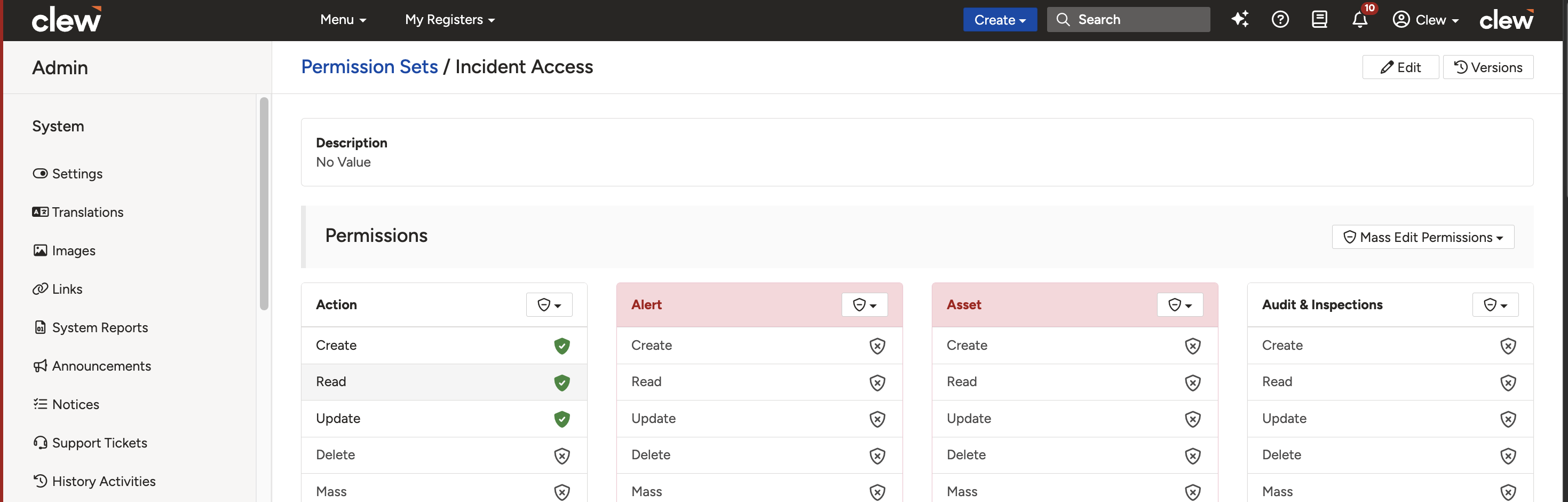
Create, Read, and Update enabled for Actions using the individual permission shields.
5. Common Issues & Troubleshooting
| Issue | Likely Cause | Solution |
| A permission set was created but users still have no access | The permission set has not been applied against a register through a security group | Configure a security group that applies the permission set to the relevant register, and assign the users to that group |
| Users unexpectedly gained or lost access after a change | An existing permission set that is in use by security groups was modified | Before changing a permission set, check which security groups use it. Consider creating a new set instead of modifying one in use |
| All users can access all registers | A permission set is marked as Global, which grants its access to all users and all registers | Review the Global permission set and limit it to only the permissions all users genuinely need, such as creating declarations or incidents |
| A module appears with a pink header | The module is disabled in your platform | This is expected. Disabled modules display with a pink header, while available modules display with a grey header |
| Mass Update is not working for users | Mass works in conjunction with Update. Mass alone does not grant Mass Update | Enable both Mass and Update on the module in the permission set |
Best practices:
- Give permission sets clear titles that describe the access they grant, so they are easy to identify when configuring security groups.
- Use the Details field to record the intended purpose of the set for future reference.
- Keep the Global permission set minimal. It applies to every user and every register, so it should only contain permissions everyone genuinely needs.
- Check which security groups use a permission set before editing it, as changes take effect for all users in those groups.
Click a title to preview it here. Use the Open full article button to read the full version in a new tab.
▾Security Groups Open full article »
Related article
How Security Groups apply a permission set against a register and assign it to users, which is what actually grants access.
▾Deleting Records Open full article »
Related article
More detail on how the Delete permission behaves when users remove records.
▾Sharing Items Open full article »
Related article
How the Share permission lets users share records with other users, roles, or teams.
Was this article helpful?
That’s Great!
Thank you for your feedback
Sorry! We couldn't be helpful
Thank you for your feedback
Feedback sent
We appreciate your effort and will try to fix the article