Context
When working with forms that contain Lookup fields (for example, Risk Appetite Rating, Finding Type, or Business Objective), you may notice that some lookup options are visible in the configuration page but cannot be selected when filling out a form.
This behaviour can occur when a lookup option is marked as Read-only in the Custom Field configuration.
Important Notes:
- Only Admin users can edit Lookup Options.
- Read-only lookup options are not editable by end users and cannot be selected in forms.
- If a Read-only option was previously used in historical records, it will remain visible in those records but unavailable for new entries.
- Use the Read-only setting carefully, it is helpful for preserving historical data or restricting the use of outdated options.
Why can’t I select a lookup option even though I can see it?
If a lookup option is configured as Read-only, users will not be able to select it during form entry, even though it appears in the list of lookup options on the configuration page.
Read-only lookup options are typically used for reference or legacy purposes. They remain visible to administrators in configuration but are not selectable by end users.
How to verify if a lookup option is Read-only?
- Go to Admin > Custom Fields.
- Use the search bar to locate the relevant custom field (for example, Risk Appetite Rating).

- Click on the custom field name (highlighted in blue) to open its configuration page.
- Scroll to the Lookup Options section.
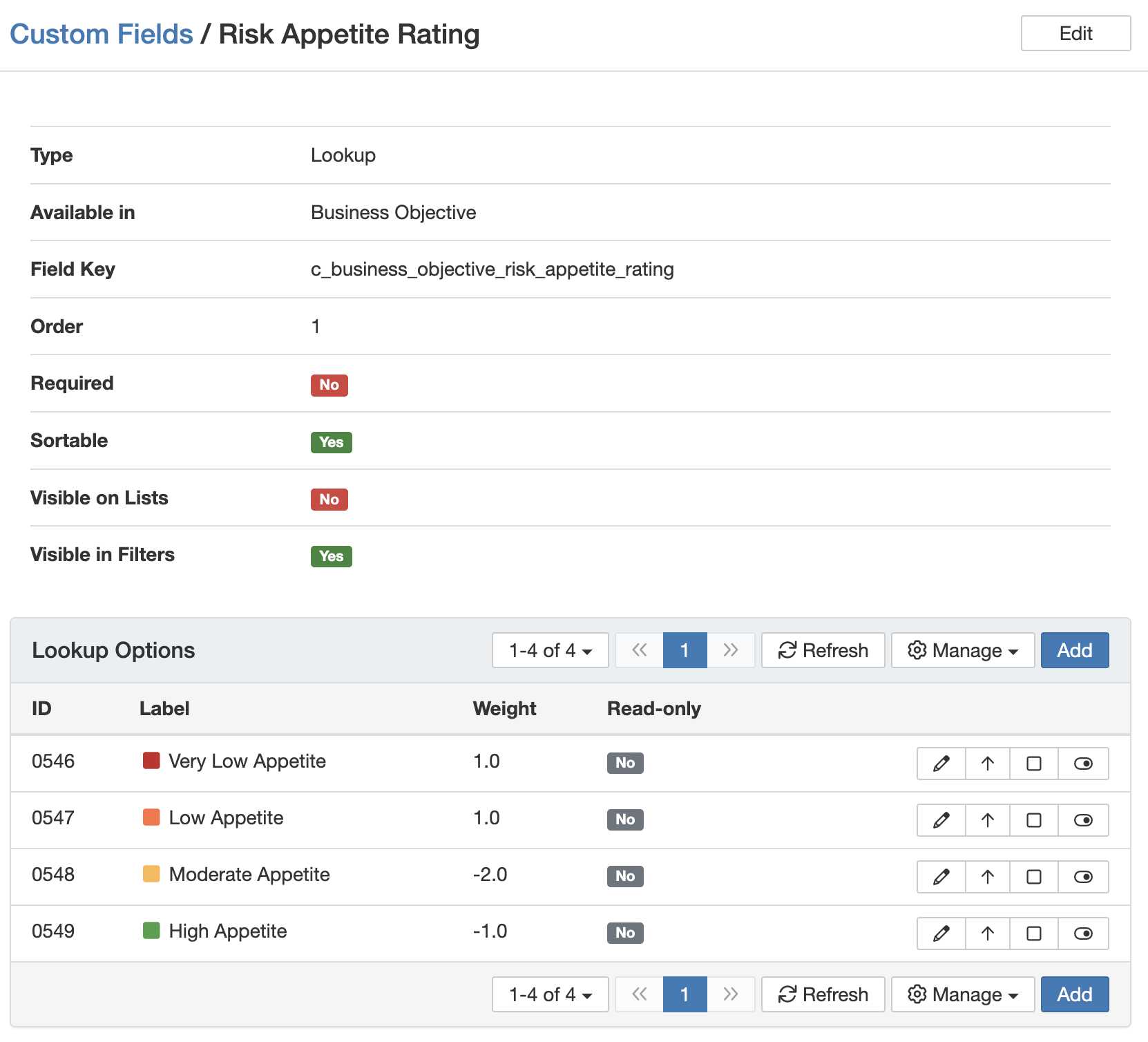
- Check the Read-only column, if it shows 'Yes', that lookup option cannot be selected in forms (e.g. The 'Low Appetite' option is read only).
How to make a lookup option selectable?
To make a lookup option selectable:
- Navigate to Admin > Custom Fields.
- Click on the custom field to open the configuration page.
- In the Lookup Options table, locate the option that is marked Read-only = Yes.
- Click pencil icon (Edit) next to that option.
- Uncheck the Read-only to make it selectable.
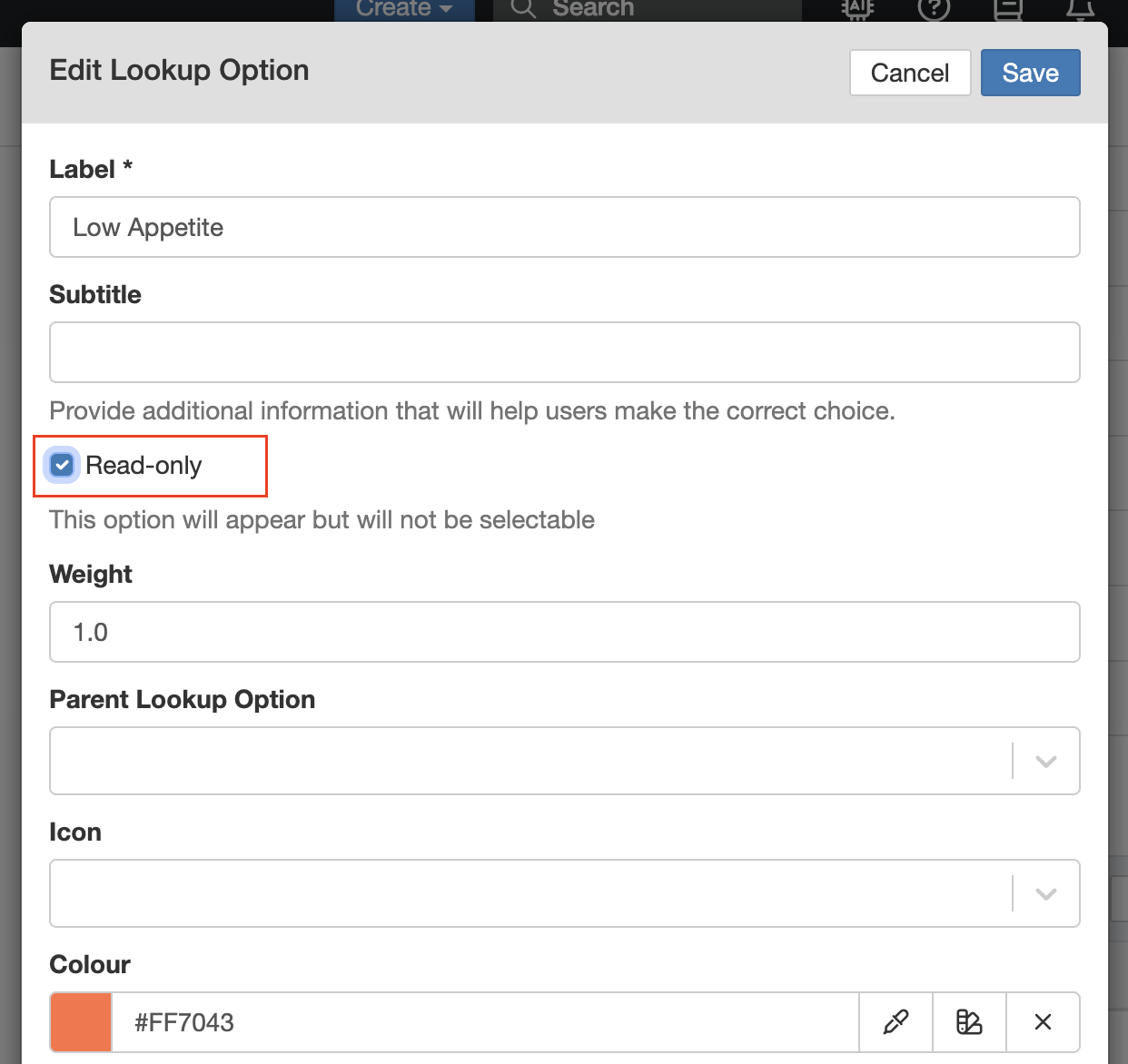
- Click Save to apply the changes.
Once this is done, the lookup option will become selectable during form completion.
Was this article helpful?
That’s Great!
Thank you for your feedback
Sorry! We couldn't be helpful
Thank you for your feedback
Feedback sent
We appreciate your effort and will try to fix the article