TABLE OF CONTENTS
Context
When managing your system setup, you may need to verify which modules (e.g., Risk, Audit, Action) are currently enabled in your environment.
This can be viewed through the Custom Types configuration in the Admin area. Each module (e.g., Risk, Audit, Incident, Control, Action, Alert, etc.) must be enabled for use across forms and records.
Important Notes
- Only Admin users can add or modify Custom Types.
- Disabled modules (pink rows) will not appear as options when creating or linking records.
- Editing or deleting custom types incorrectly may cause data mapping issues and broken references in existing records.
- Ensure you only enable types that are relevant to your organisational setup.
Q: How can I check which modules are enabled?
Enabled or active modules can be viewed from the Admin > Custom Types section.
Steps:
- Go to Admin → Custom Types.
- Scroll through the list of modules displayed under the Custom Types section.
- Each type (e.g., Risk, Audit, Action, Alert, Control) will appear with a coloured background:
- Grey (Active): The module is enabled and available for linking or use (as shown below)
- Pink (Disabled): The module is not currently enabled in your environment.

Q: How can I have a module enabled?
You must raise a support request to start the process. Before doing so, contact your system owner (System Admin) to confirm that the module should be enabled. Enabling a module involves configuration and will incur a cost. We will reach out to understand your requirements and then provide a formal quote to proceed.
Q: I see the module enabled but the custom type underneath is not?
This occurs when the main module (for example, Impact Assessment) is enabled, but one or more sub-types (e.g., Impact) are individually disabled.
Even though the parent module appears active, the system will not allow linking or recording for the disabled sub-types.
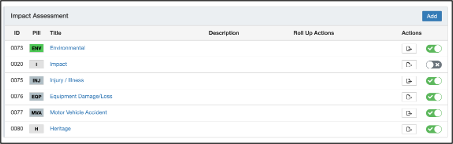
Solution:
To enable it, Click the toggle under the Actions column to switch it on (green checkmark). Once the sub-type is active, it will be available for selection in related modules and forms (for example, when recording an Impact Assessment).
Was this article helpful?
That’s Great!
Thank you for your feedback
Sorry! We couldn't be helpful
Thank you for your feedback
Feedback sent
We appreciate your effort and will try to fix the article