TABLE OF CONTENTS
Context
When creating or editing records, you may want to link an existing item (e.g., Risk, Audit, Incident, Control). This relies on the Custom Types setup.
If the required custom types are not enabled in your system configuration, you will not see them as options to link.
Learn more about Custom Types in this article.
Important Notes
- Editing custom types incorrectly may cause incorrect data mapping and missed records.
- Only Admin users will be able add or modify custom types.
How can a custom type be edited, so that it is available for linking?
- Go to Admin > Custom Types and select the item type you are looking for.
- Click on 'Edit'
- Check that the relevant type (e.g., Risk, Audit, Hazard, Action) is listed under the 'Custom Types' section and active (must not be in red – meaning the custom type is disabled).
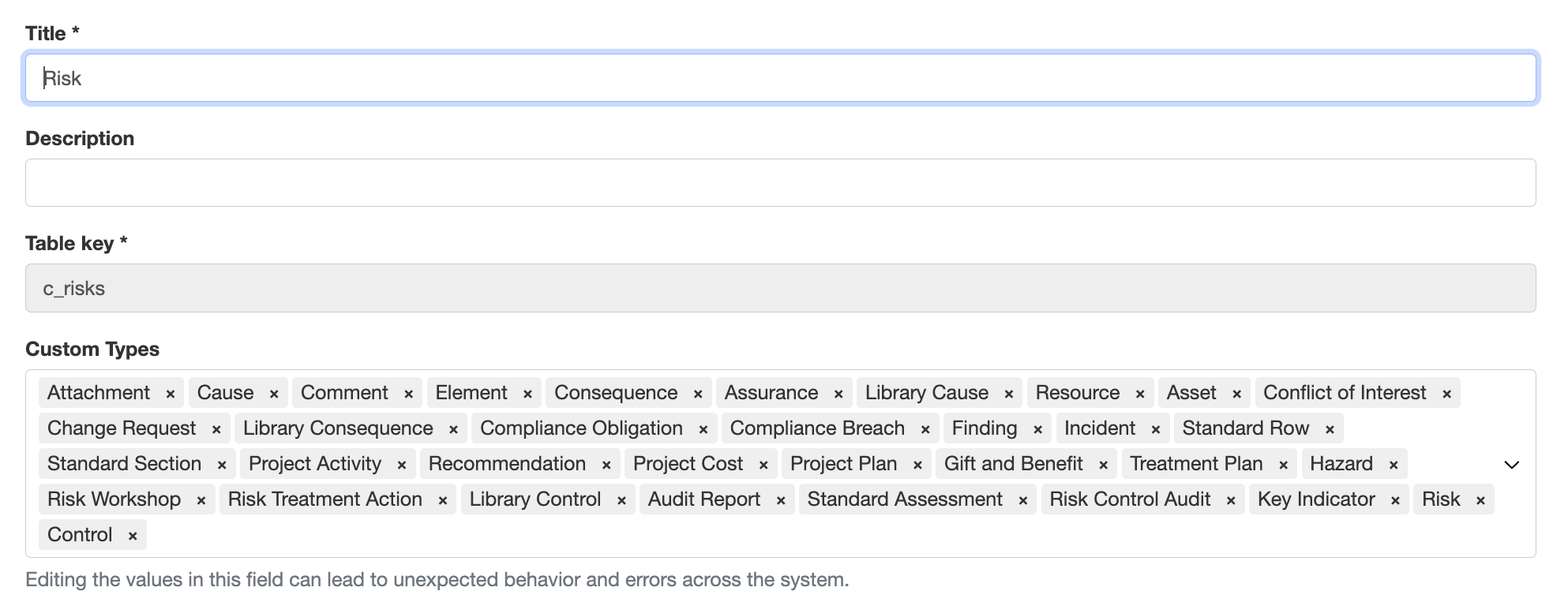
Check if the custom type that you want to link to is available in the section. If not, add the required custom type by clicking on the section, typing its name and saving it.
Note: Some modules can't be linked to all other modules and their custom types.Once enabled, you will be able to link existing items in forms
Why are some items missing from the 'Link' field?
If certain items (e.g., Hazards or Actions) don’t appear:
- The Custom Type may not be enabled.
- Confirm the type is enabled in Admin > Custom Types.
Or
- The user does not have permission to the underlying register/project.
- Check the security groups to see if the user has access to the relevant register or module.
Learn more about security groups in this article.
Was this article helpful?
That’s Great!
Thank you for your feedback
Sorry! We couldn't be helpful
Thank you for your feedback
Feedback sent
We appreciate your effort and will try to fix the article