Context
The CGR Platform allows customer created fields [custom fields] to be displayed on tables [typically called lists in CGR terminology]. The lists can be found when navigating through the menu dropdown.
This article does not cover dashboard table widgets, for a comprehensive guide on this, please go to this article.
Important Notes
- You need to be a system administrator to be able to perform the steps below.
- When making any fields available [or hiding them] please ensure that you have considered the impact of this change. The most common impact is the amount of space on the screen, which will activate the sideways scrolling.
- For any CGR Core fields, at the time of this writing, they can only be enabled and disabled by CGR Admins.
How to display a custom field in lists as a column?
Please follow these steps:
- Navigate to Admin > Custom Fields.
- Find the field that you want to enable on a list. For our FAQ, we are making changes to the Obligation module, field 'Obligation Type'. Click the pencil [edit] button for the field you want to enable/disable from a list.
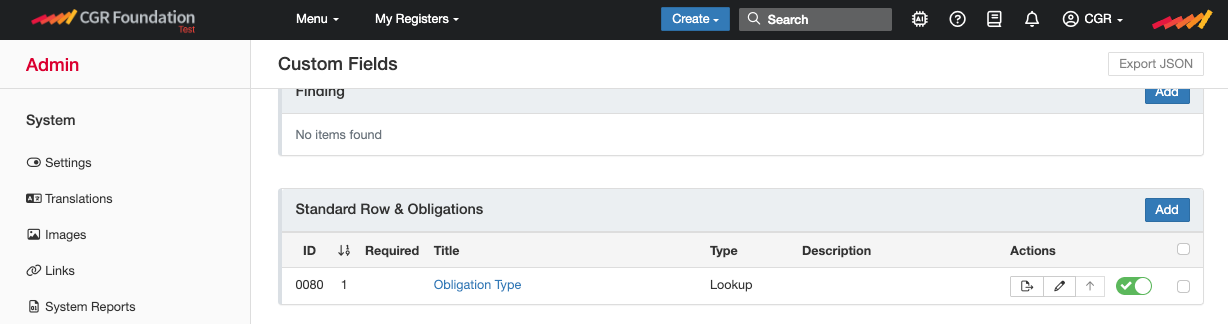
- Once the page loads, scroll down to 'Properties'. For more information about this page, please go to this article.
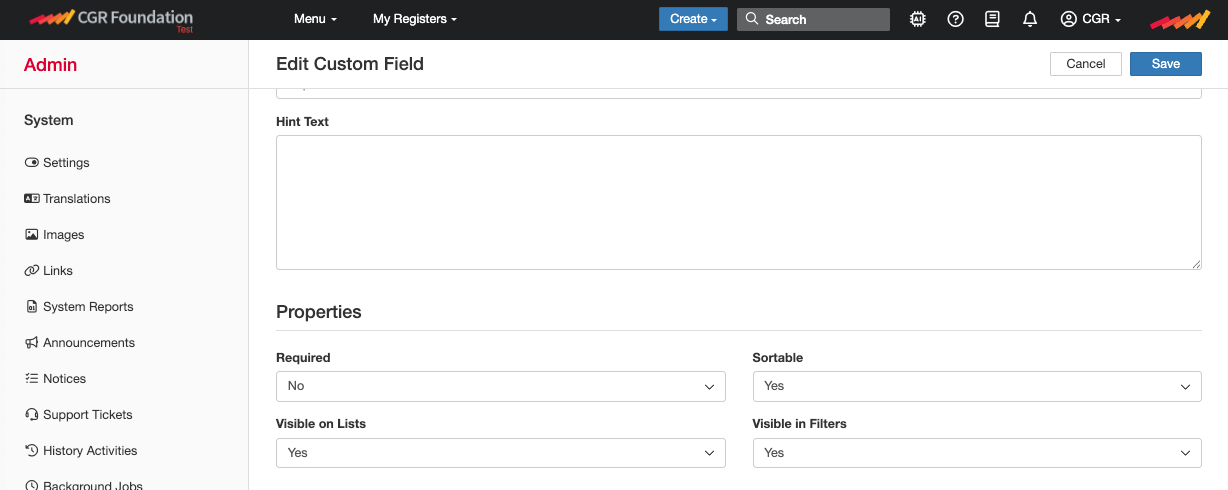
- Please enable or disable the 'Visible on lists' field and click save.
Was this article helpful?
That’s Great!
Thank you for your feedback
Sorry! We couldn't be helpful
Thank you for your feedback
Feedback sent
We appreciate your effort and will try to fix the article