Creating, Editing, and Deleting Records
How to add, update, and remove records within a register in the Clew Platform
Contents
- 1. Introduction & Context
- 2. Key Features & Functions
- 3. Requirements
- 4. Step-by-Step Guide
- 5. Common Issues & Troubleshooting
- 6. Related Articles
1. Introduction & Context
Records are the core data objects in the Clew Platform, letting you log, track, and manage items such as risks, actions, compliance obligations, and audit findings within a register. This article explains how to create, edit, and delete records so your registers stay accurate and your data remains reliable.
Who is this for? Any Clew Platform user who needs to manage records within a register. The specific actions available to you depend on your assigned permission set.
What does it impact? Creating and editing records directly affects the data held in your registers. Deleting a record removes it from view, though deleted records can be recovered from the Admin section if needed.
2. Key Features & Functions
- Create records: Add new records to any register using the Add button. The creation form is configurable, so the fields you see may vary depending on how your organisation has set up Clew.
- Edit records: Update the details of any existing record using the Edit button in the record toolbar. All changes are tracked and can be reviewed under Versions.
- Delete records: Remove records you no longer need. A reason is always required when deleting, and deleted records can be recovered from the Admin section.
- Version history: Every edit to a record is logged. You can review the full change history for any record under the Versions tab.
- Configurable forms: Both the creation form and the edit form can be tailored to your organisation's needs. Fields, layout, and required values can all be adjusted by an administrator.
3. Requirements
- You must have a Clew Platform account with an active login.
- Your permission set must include the relevant create, edit, or delete permissions for the register you are working in. If you are unsure what permissions you have, contact your system administrator.
- At least one register must be configured and accessible to you within the platform.
4. Step-by-Step Guide
Creating a Record
- Navigate to the appropriate register using the Menu dropdown and select the register and record type you want to work with (for example, a risk or an action).
- Click the blue Add button.
- If multiple record types are available, select the applicable type from the options presented.
- Complete the creation form with the required details and click Save to create the record.

The Add button dropdown showing available record types within a register.
Editing a Record
- Open the record you want to update.
- Click the Edit button in the record toolbar.
- Make the necessary changes in the edit form.
- Click Save to apply your changes.
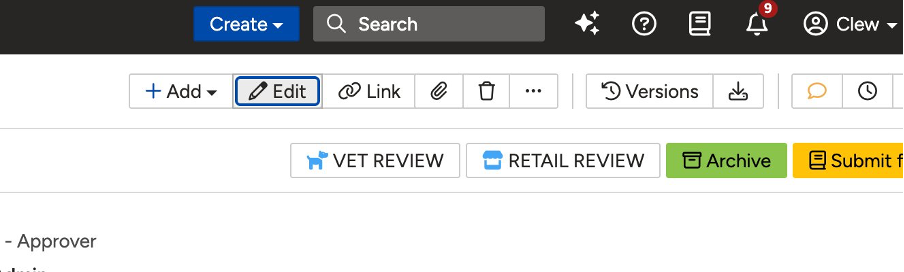
The record toolbar with the Edit button highlighted.
Deleting a Record
- Open the record you want to delete.
- Click the Delete (bin) icon in the record toolbar.
- Enter a reason for deleting the record. A reason is always required.
- Confirm the deletion to remove the record from the register.
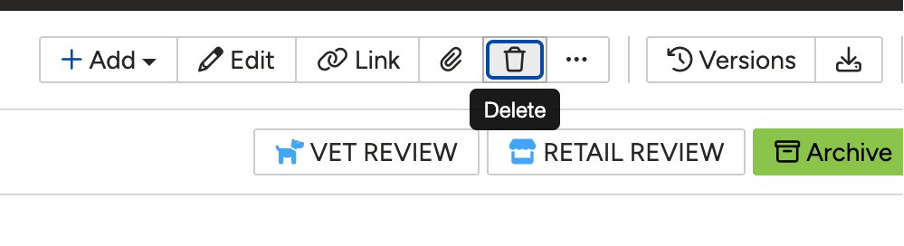
The record toolbar with the Delete bin icon highlighted.
5. Common Issues & Troubleshooting
| Issue | Likely Cause | Solution |
| The Add button is not visible | Your permission set does not include create access for this register | Contact your system administrator to review your permissions |
| The Edit button is not visible in the toolbar | Your permission set does not include edit access for this record or register | Contact your system administrator to review your permissions |
| The Delete icon is not visible in the toolbar | Your permission set does not include delete access for this record or register | Contact your system administrator to review your permissions |
| The creation form does not show the expected fields | The form has been configured for your organisation and may differ from the default | Contact your system administrator or refer to the form configuration article to review the current field setup |
| A deleted record needs to be recovered | The record was deleted but is still needed | Navigate to the Admin section to locate and restore the deleted record. Refer to the recovering deleted records article for full steps. |
Best practices:
- Always complete all relevant fields when creating a record, even those that are not mandatory. More complete records make reporting and analysis more reliable.
- Use the Versions tab to review the change history of a record before making further edits, so you have full context of what has already changed.
- Provide a meaningful reason when deleting a record. This helps administrators understand the context if recovery is ever needed.
- If you are unsure whether to delete a record or simply archive or close it, check with your system administrator. Deletion should be used only when the record is no longer needed in any context.
Click a title to preview it here. Use the Open full article button to read the full version in a new tab.
▾Configuring Record Creation Form Fields Open full article »
Related article
Explains how to change which fields appear on a record's creation form for your organisation.
▾Configuring the Record Form Layout Open full article »
Related article
Explains how to adjust the layout of a record form, including how fields are arranged and grouped.
▾Recovering Deleted Records Open full article »
Related article
Explains how to locate and restore deleted records from the Admin section of the Clew Platform.
Was this article helpful?
That’s Great!
Thank you for your feedback
Sorry! We couldn't be helpful
Thank you for your feedback
Feedback sent
We appreciate your effort and will try to fix the article