TABLE OF CONTENTS
Context
The Add Note button allows users to record comments or updates directly within a record helping teams document discussions or progress without editing fields on the record. It can be enabled for a custom type or specifically through a workflow status.
This functionality can be enabled by a System Administrator following the steps outlined below.
How to enable the 'Add Note' functionality?
Option 1 – Enable via Custom Type Settings
- Go to the Admin > Custom Type.
- Select the relevant type (e.g. Action).
- In the Settings section under Properties, ensure Enable Add Note Button is toggled on.

When enabled, the 'Add Note' button will be available for all users with update access, provided there is no active workflow associated with that custom type.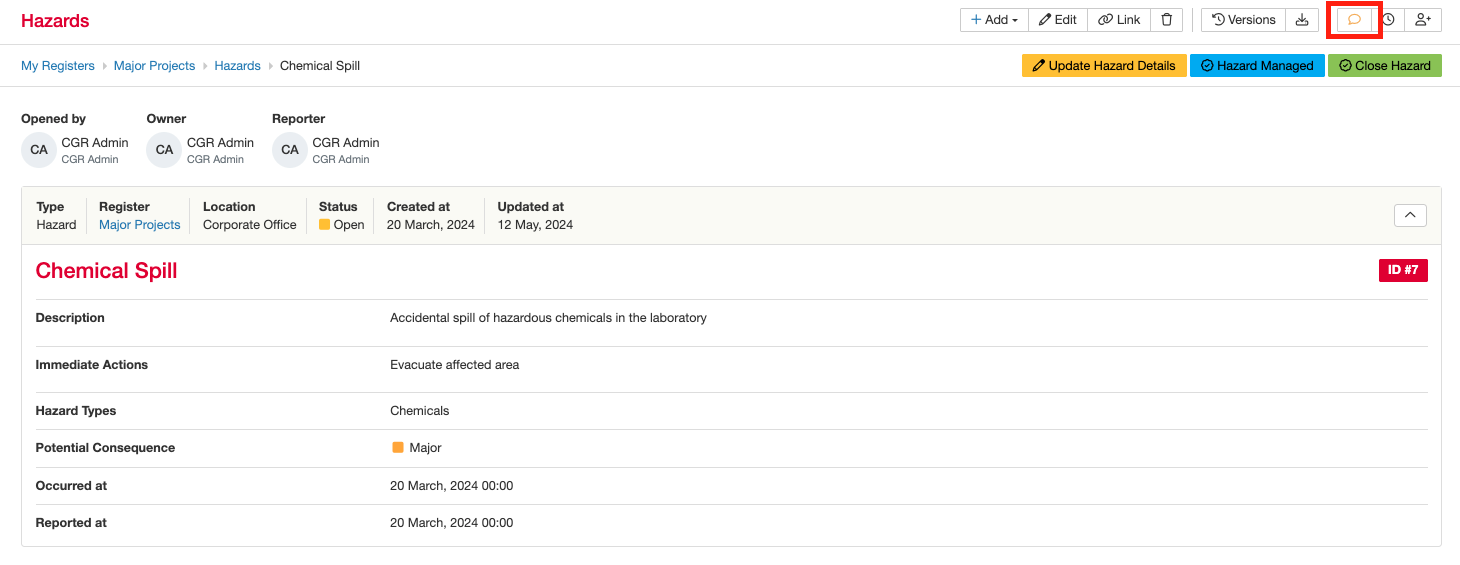
Option 2 – Enable via Workflow Settings
- Go to the Admin > Workflow.
- Open the relevant workflow type (e.g. Hazard) and select the transition where you want to enable the 'Notes' functionality.
- Scroll down to the confirmation section and set 'Confirm Transition' to 'Yes'. Then you will be able to select if the 'Notes' field should show in the workflow transition. It can be marked as 'Required', 'Optional' or 'Disabled'.
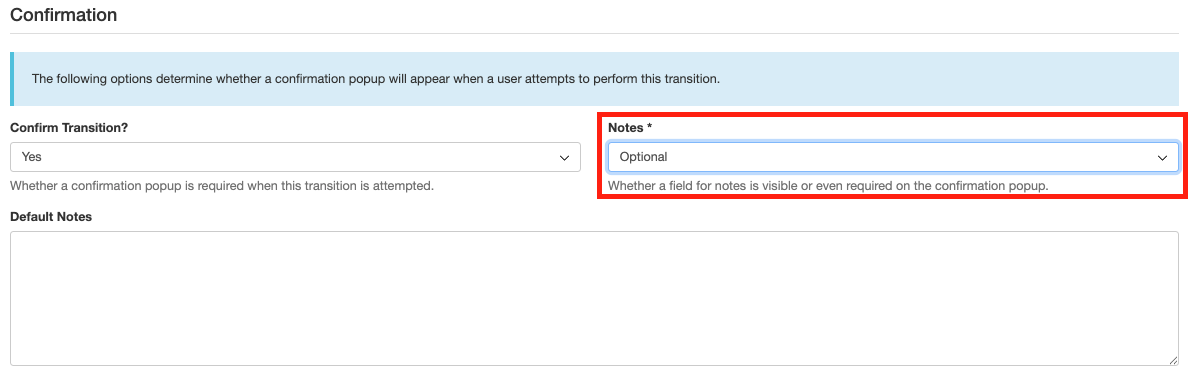
When enabled the 'Notes' field will capture notes/ comments from a workflow transition and add it to the activity stream.
You can customise your activity stream by following the steps outlined in this article.
Email Notification Settings
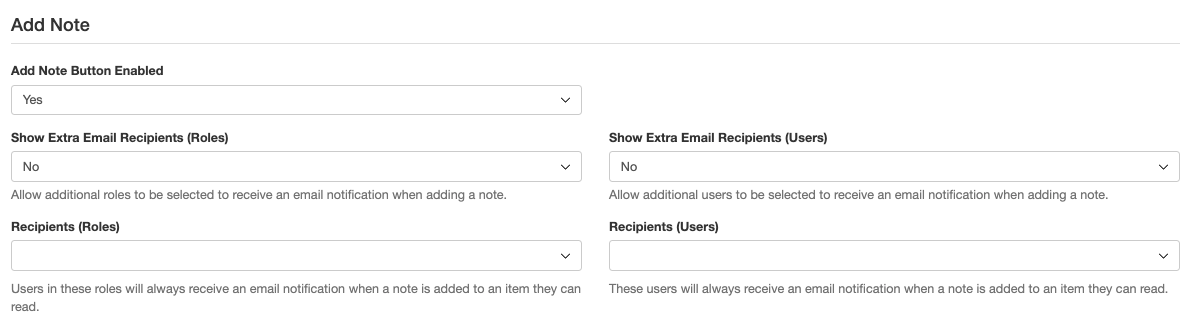
You can configure who receives email notifications when a note is added:
- Show Extra Email Recipients (Roles): Allows roles to select additional roles to notify.
- Show Extra Email Recipients (Users): Allows users to select additional roles to notify.
- Recipients (Roles): Automatically notifies all users in the listed roles when a note is added to an item they can view.
- Recipients (Users): Automatically notifies the listed users when a note is added to an item they can view.
Option 1 - Enable Recipients through the Custom Type:
- Navigate to Admin > Custom Types.
- Select the relevant Custom Type and scroll to 'Add Note' section.
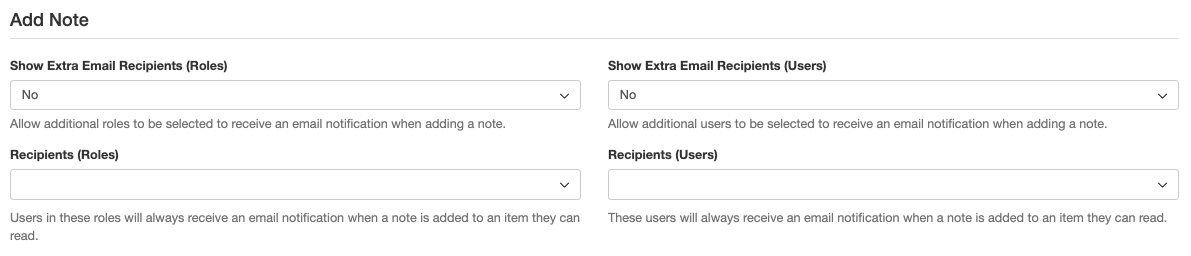
- Select the relevant recipients for the notes and hit 'save'.
Option 2 - Enable Recipients through the Workflow:
- Navigate to Admin > Workflows.
- Select relevant workflow and click on the hyperlinked Status Title to set up recipients for a specific workflow status.
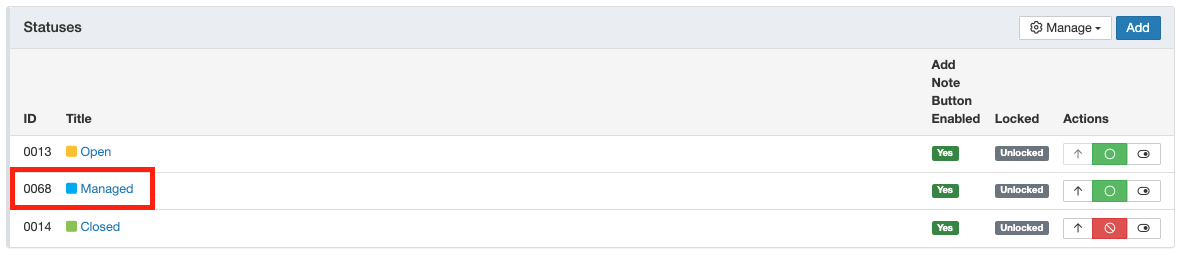
- Select the relevant recipients for the notes and hit 'save'.
Was this article helpful?
That’s Great!
Thank you for your feedback
Sorry! We couldn't be helpful
Thank you for your feedback
Feedback sent
We appreciate your effort and will try to fix the article