TABLE OF CONTENTS
Context
If a user is receiving email or triggered notifications, a System Administrator can identify the source by reviewing the notification configuration.
Important Notes
You need to be a system administrator to access and review notifications in Admin > Notices.
Steps to investigate notification recipients
1. Navigate to Notices
Go to Admin > Notices.
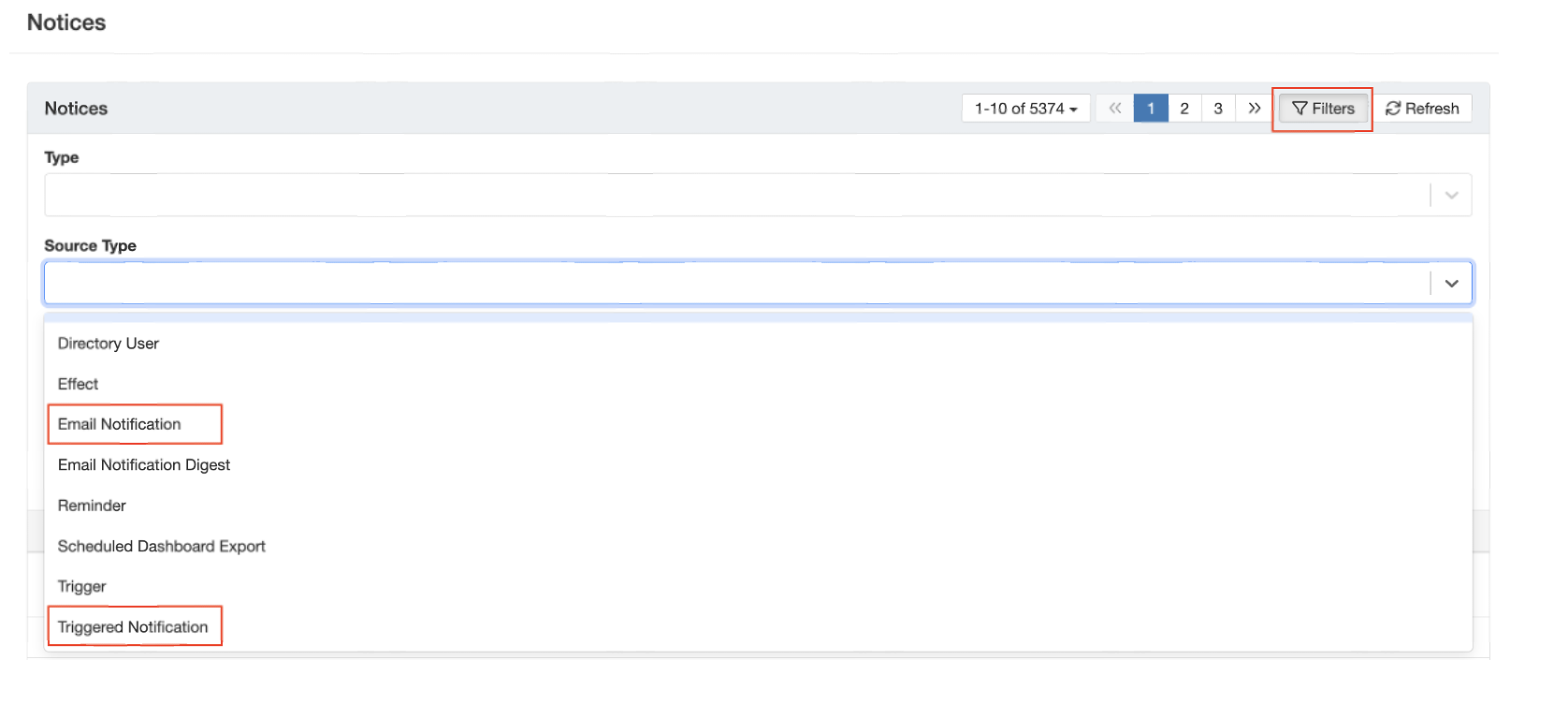
Click the Filters icon, then search for and select the applicable option, in this case;
2. Filter by notification type
Under Source Type, select one or both of the following, as applicable:
Email Notification
Triggered Notification
3. Refine by date
Use the Created At field to narrow the results to the date the notification was received.

4. Open the notification
Click the hyperlinked title of the notification to open it.
Select Edit in the top-right corner to view or update the list of recipients.
5. Review recipients
Check the Responsible Users and Roles fields to see who the notification is sent to.

Tip
If the user is not listed directly as a responsible user or role, check any teams referenced in the notification.
The user may be receiving the notification through team membership.
Was this article helpful?
That’s Great!
Thank you for your feedback
Sorry! We couldn't be helpful
Thank you for your feedback
Feedback sent
We appreciate your effort and will try to fix the article