TABLE OF CONTENTS
How to update recipients on an email notification (including triggered notifications)?
Triggered notifications and email notifications are located in the admin area, only system admins can apply changes.
You can also read the following articles:
- 'Email Notification', which explains how to set up email notifications;
- 'Email Digest', which explains how email digests work;
- 'Triggers Configuration', which explains how to set up triggers.
How to update recipients on Email Notification?
- Navigate to Admin > Email notifications and select the specific email notification you want to update.
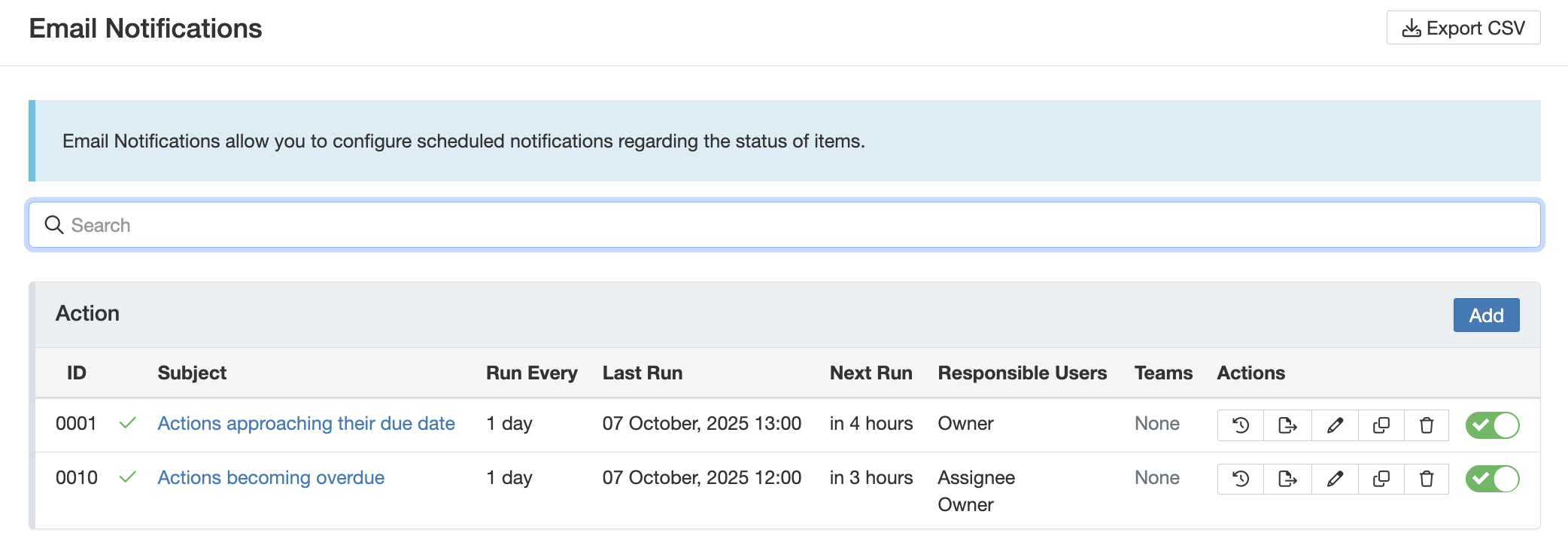
- Click on the pencil icon at the end of the row to edit the notification.
- Scroll down to the 'Recipients' section, where you can add or update responsible users, roles and teams who should receive the email notification.
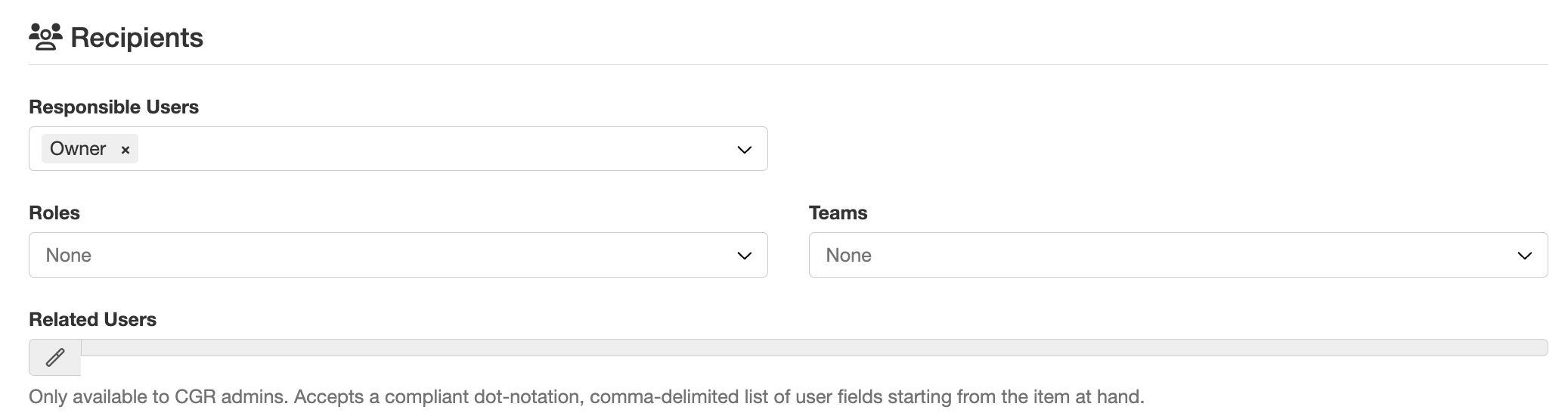
- After applying the changes, click on 'Save'.
How to update recipients on Trigger Notification?
- Navigate to Admin > Triggers and select the relevant trigger you want to update. Click on the hyperlinked title to open the trigger.
Note: Triggered notifications can be recognised through the email icon in the 'Event Handlers' column.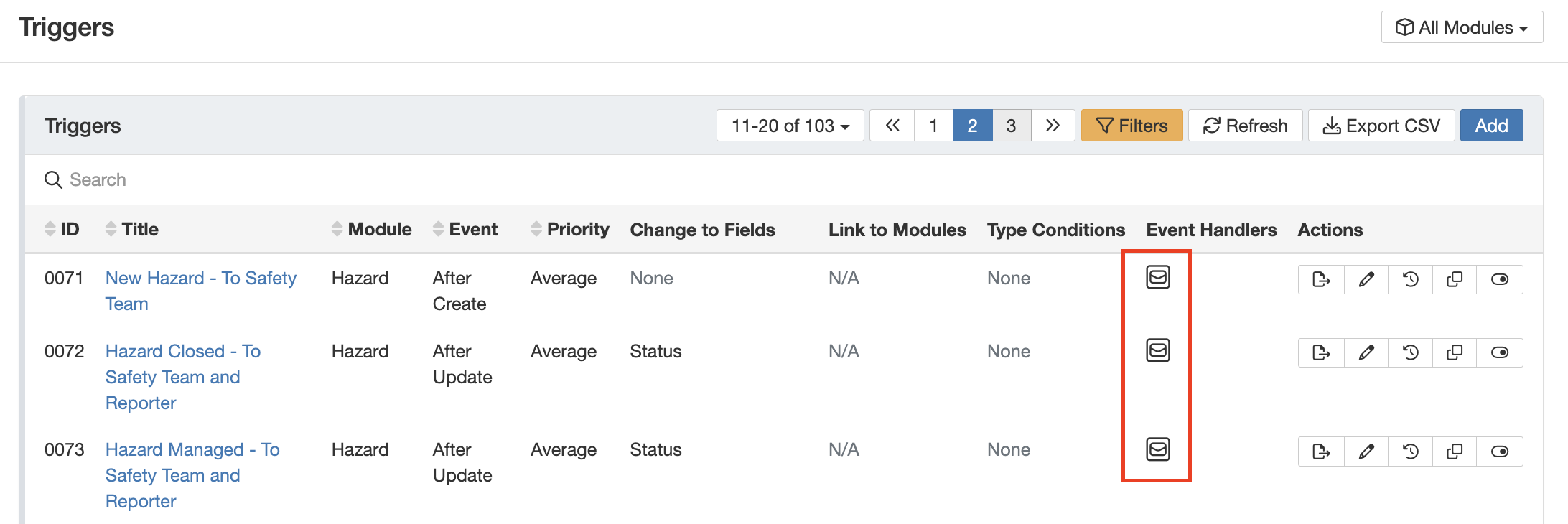
- Go to 'Triggered Notification' section and click on the pencil icon at the end of the row to edit the notification.
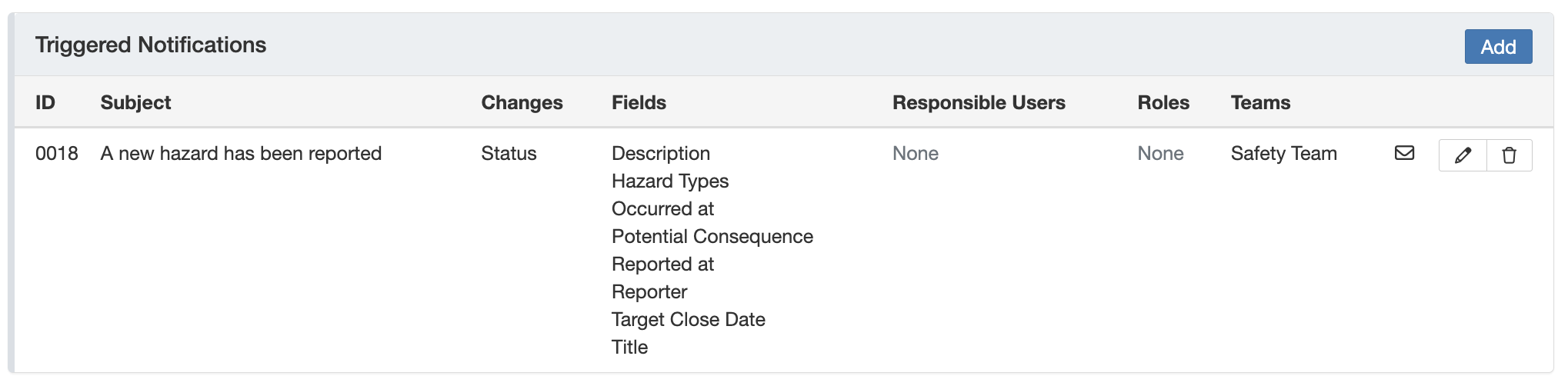
- Navigate to the 'Recipients' section, where you can add or update responsible users, roles and teams who should receive the email notification.

- After applying your updates, click on 'Save'.
Was this article helpful?
That’s Great!
Thank you for your feedback
Sorry! We couldn't be helpful
Thank you for your feedback
Feedback sent
We appreciate your effort and will try to fix the article