Linking Indicators to Business Objectives
How to link indicators to business objectives and view outcome pills and relationships
Contents
4. Step-by-Step Guide ▸
5. Common Issues & Troubleshooting
1. Introduction & Context
Linking indicators to business objectives lets you see, at a glance, how the indicators you track are performing against the strategic objectives they support, using colour-coded outcome pills shown directly on the business objective.
Who is it for? Anyone who owns or reports on business objectives and wants to track the indicators that measure progress against them, and anyone managing indicators who needs to connect them to the strategic goals they inform.
What does it impact? Linking creates a relationship between a business objective and one or more indicators. It does not change the underlying indicator data, only which objectives it is connected to and what is displayed against each one.
2. Key Features & Functions
- Many-to-many linking: a business objective can have multiple indicators linked to it, and a single indicator can be linked to multiple business objectives.
- Create an indicator from a business objective: add a new indicator directly from the Indicators subpanel on a business objective.
- Link existing indicators: use Manage Mass Link on a business objective to attach one or more pre-existing indicators at once.
- Link a business objective from an indicator: when the Business Objectives field is enabled on the indicator's custom type, select business objectives directly from the indicator's add or edit form.
- Outcome pills: once indicators are linked, the business objective displays a pill for each outcome configured in your system, such as Red, Amber or Green, showing the latest value for the linked indicators sitting at that outcome.
- Relationships view: review parent and child business objective relationships alongside their linked indicators, either for a single business objective or across the whole library.
3. Requirements
- The Business Objectives module must be enabled for your system.
- The Indicators module must be enabled for your system.
- The Business Objectives field must be enabled on the Indicators custom type, to link a business objective directly from an indicator's add or edit form.
- Edit access to Business Objectives and Indicators, to create and link records.
4. Step-by-Step Guide
Linking Indicators from a Business Objective
- Go to the Business Objectives library in Modules.
- Open the business objective you want to link indicators to.
- To create a new indicator directly from this business objective, go to the Indicators subpanel and click Add.
- To link an existing indicator instead, click Manage Mass Link, then select the key indicator or indicators you want to link. A business objective can have multiple indicators linked to it, since the relationship is many-to-many.
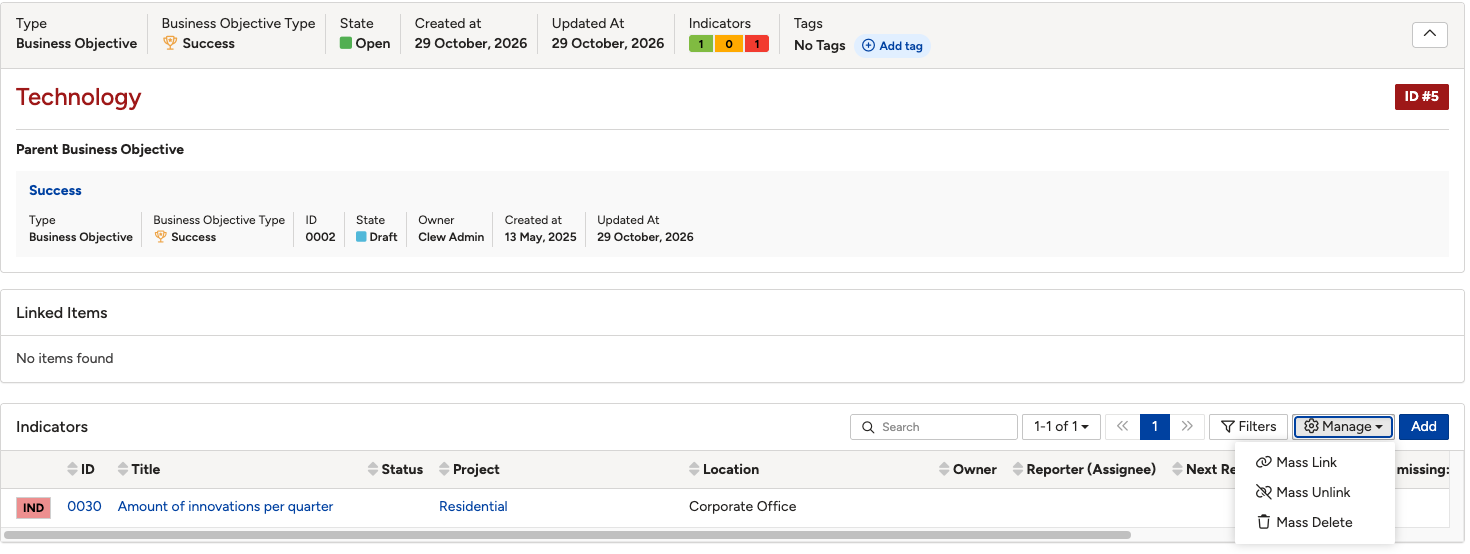
The Indicators subpanel on a business objective, with Add and Manage Mass Link options for linking indicators.
Viewing Outcome Pills
- Once indicators are linked, outcome pills appear at the top of the business objective, one for each outcome configured in your system, for example Red, Amber and Green.
- Each pill shows the latest value for the linked indicators currently sitting at that outcome. For example, if one linked indicator is currently Green and another is currently Red, you will see a value of 1 against each of those pills.

The outcome pills at the top of a business objective, showing the latest indicator values for the Red, Amber and Green outcomes.
Linking a Business Objective from an Indicator
- Go to the Indicators module.
- Add a new indicator, or open an existing indicator's edit form.
- If the Business Objectives field is enabled on this indicator's custom type, select one or more business objectives from the list of those available in your system. This relationship is many-to-many, so an indicator can be linked to multiple business objectives.
- Click Save.
On the indicator's view, its linked business objectives appear in the top panel. You can also see the full list under Linked Items further down, where you can click through to each business objective.

The top panel of an indicator showing its linked business objectives, with the full list available under Linked Items.
Reviewing Relationships
- On a business objective, click the relationships icon in the top right to open the relationships view. This shows the business objective's outcome pills alongside its parent and child business objectives, where these are configured, and their linked indicators.
- To see relationships across all business objectives at once, go to the Business Objectives library and open the relationships view from there. This gives a higher-level view, with outcome pills shown in a list alongside each business objective.
- Use the scroll and zoom controls in the relationships view to move in and out of the diagram.
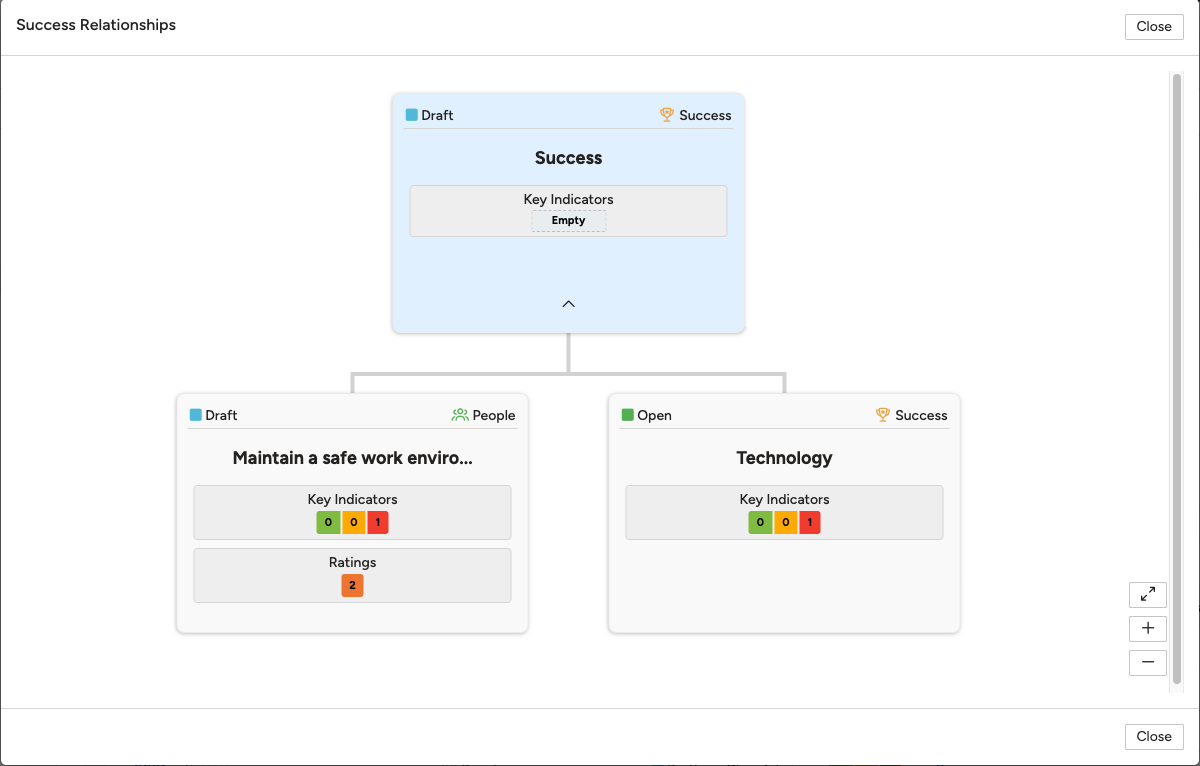
The relationships view for a business objective, showing parent and child objectives and their linked indicators.
5. Common Issues & Troubleshooting
| Issue | Likely Cause | Solution |
| Can't find a Business Objectives field when adding or editing an indicator | The Business Objectives field is not enabled on this indicator's custom type | Ask a system administrator to enable the Business Objectives field on the Indicators custom type |
| Outcome pills don't appear on a business objective | No indicators are linked yet, or the linked indicators have not yet received a response | Link at least one indicator and make sure it has a submitted response, so an outcome can be calculated |
| Can't link an existing indicator to a business objective | Missing edit access to the business objective, or no indicators exist yet to link | Request edit access to Business Objectives, or create the indicator first |
| Business Objectives or Indicators modules aren't visible at all | The Business Objectives module, the Indicators module, or both, are not enabled for your system | Ask a system administrator to enable the Business Objectives and Indicators modules |
Best practices:
- Link indicators to business objectives as you create them, so outcome pills reflect progress from day one.
- Use the relationships view to check for parent and child business objectives and their linked indicators before reporting on a programme.
- Since the relationship is many-to-many, periodically review the full list of links to make sure indicators are not linked to the wrong objective.
▾Get Started with Indicators Open full article »
Related article
How to create and configure an indicator before linking it to a business objective.
▾How do I set up thresholds and outcomes for an indicator? Open full article »
Related article
How to set threshold ranges and assign outcomes such as Red, Amber, or Green.
▾How do I manage Business Objectives in Clew? Open full article »
Related article
How business objectives work, including their relationships and linked indicators.
Was this article helpful?
That’s Great!
Thank you for your feedback
Sorry! We couldn't be helpful
Thank you for your feedback
Feedback sent
We appreciate your effort and will try to fix the article