Universal Imports and Exports
How to transfer data securely between two Clew instances, such as test and production
Contents
- 1. Introduction & Context
- 2. Key Features & Functions
- 3. Requirements
- 4. Step-by-Step Guide
- 5. Common Issues & Troubleshooting
- 6. Related Articles
1. Introduction & Context
Universal Imports and Exports let you transfer data securely between two Clew instances, for example moving data from a test or staging environment into production. This article explains how to set up the encryption key, export data from one instance, and import it into another.
Who is it for? System administrators who need to move data between separate Clew instances, such as promoting configuration or records from test to production.
What does it impact? The feature transfers selected data from one instance to another and encrypts it so it can only be opened by the intended instance. On import, you map the incoming data to the fields in the receiving instance, so it is important to review the mappings before importing.

Transferring data between two Clew instances.
2. Key Features & Functions
- Instance-to-instance transfer: move data between separate Clew instances, for example from test or staging into production.
- Encrypted transfer: data is encrypted with a universal key so it can only be opened by the intended receiving instance.
- Selective export: choose which modules, custom types, and registers to export, and apply filters to narrow the data further.
- Guided field mapping: on import, Clew matches and maps as many fields as it can, and highlights which mappings are required.
3. Requirements
- System Administrator access is required to perform exports and imports through the admin area.
- This feature is only applicable between Clew instances.
- A universal key (encryption key), which can only be downloaded from Clew. Download it from the instance that will receive the data (the importer), and install it into the instance that is exporting the data (the exporter).
- Both instances must be on the same Clew version.
4. Step-by-Step Guide
The example below assumes you have two Clew instances, production and staging or test, and you want to bring Risk data from Test (the exporter) into Production (the importer).
Setting Up Universal Keys
- In the importer instance (the one receiving the data), go to Admin, then Universal Keys. This opens a list of any keys already imported into the instance. To download this instance's key, click the download button. This is the key you use to bring data into this instance.
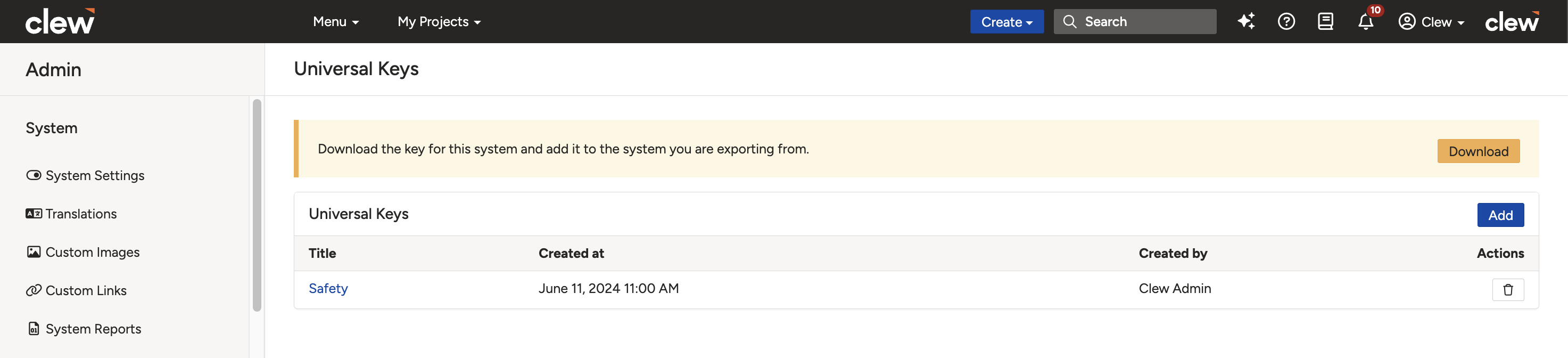
The Universal Keys page in the importer instance.
- Once you have the key downloaded (a .pem file), go to the exporter instance (the one you want to export from). Open the same Admin, then Universal Keys page, and this time click Add.
- Give the key a Title. We suggest naming it after the instance the key is from, for example Clew Production (the importer). Drag and drop the key or choose a file to upload, then click Save.
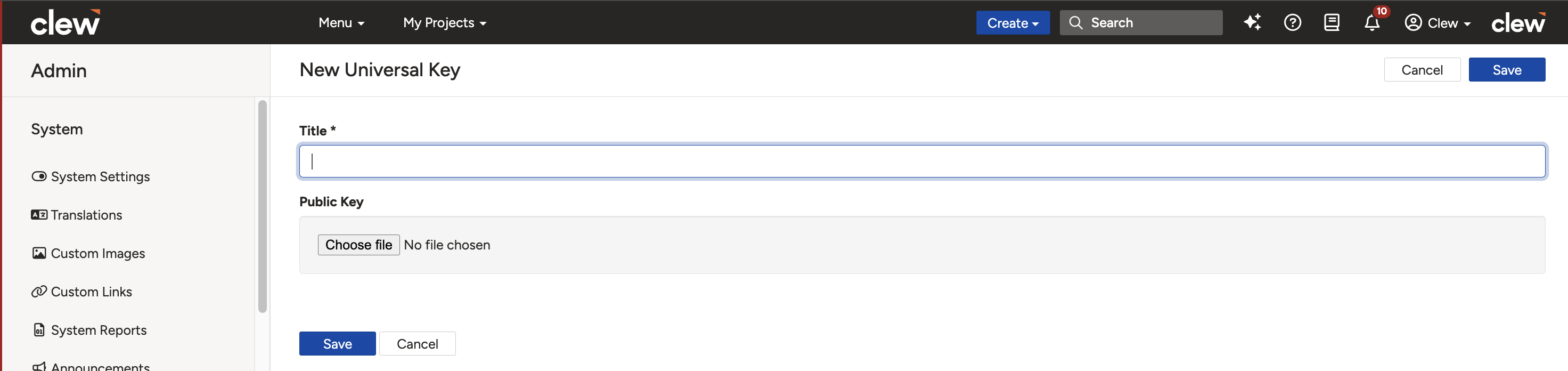
Adding the importer's key into the exporter instance.
- With the key in place, you are ready to export the data.
Exporting Data
Perform these steps in the exporter instance.
- Go to Admin, then Universal Exports.
- This page shows any data already exported from this instance. If you have already exported data, click the title of an export and then download the file. When you click download, Clew displays all the key names uploaded into this instance, for example "Safety". Selecting a key name exports the data and encrypts it so it can only be opened by the instance that key belongs to.
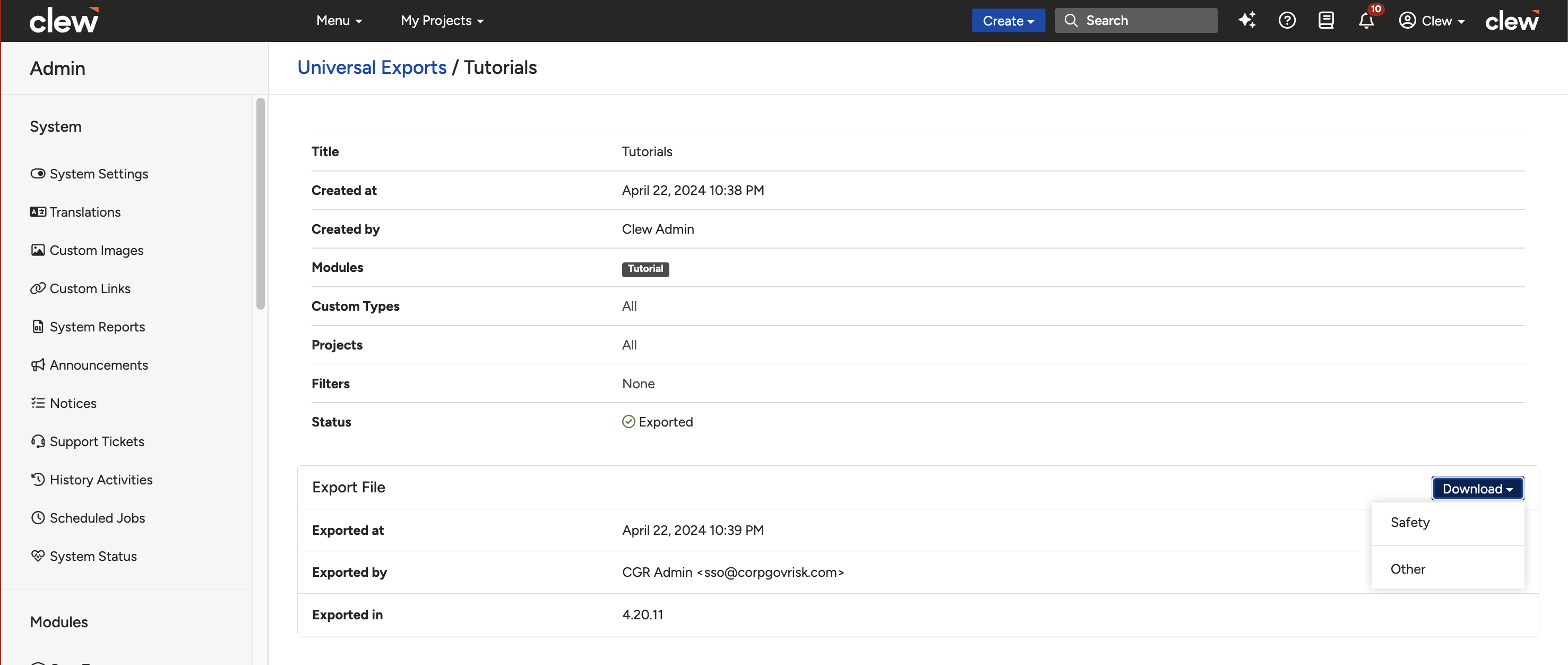
The Universal Exports page, showing available key names on download.
- If you have not exported the data yet, click Add.
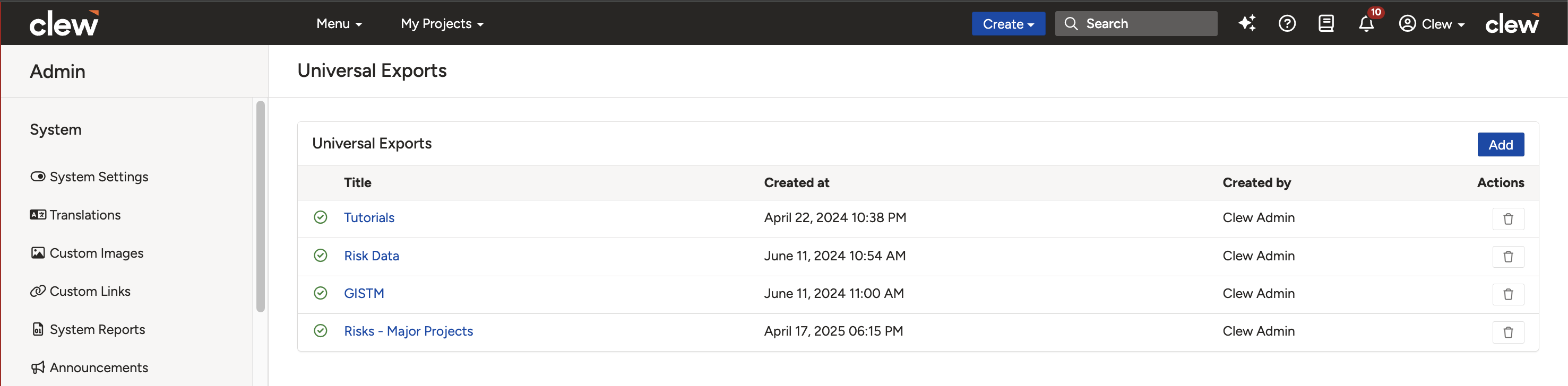
Starting a new export.
- Give the export a Titlethat refers to the data being exported, for example "Risks: Major Projects". Then set the following:
- Modules to be exported: choose the modules you want the data for. To exclude a module, leave it out of the selection. Leave this blank to export all modules.
- Custom Types to be exported: choose the custom types to include, for example risks but not opportunities. Leave this blank for all.
- Registers (sometimes called projects) to be exported: select which registers to export data from, for example Major Projects.
- Filters to be used: apply any existing filter to narrow the data further, for example only risks with the status "Active".
- Click Save. After the page reloads, you will see the export details.
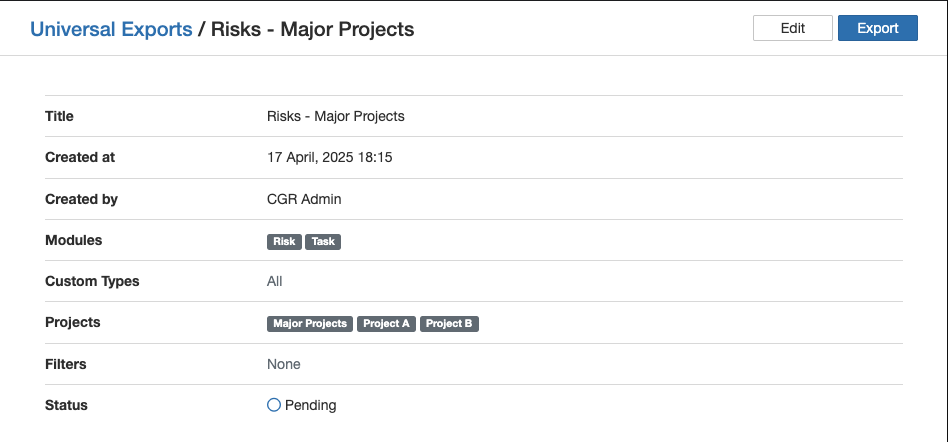
The saved export, showing a pending status.
The status shows Pending, which means the data is ready to export but has not been exported yet. To make changes, click Edit and follow step 4 again. When ready, click Export. Exporting takes time, and the status changes to Exporting to keep you updated. Depending on how much data is being exported, this can take a few minutes. When it is finished, the status shows Exported, meaning the data is ready to download with the key encryption.
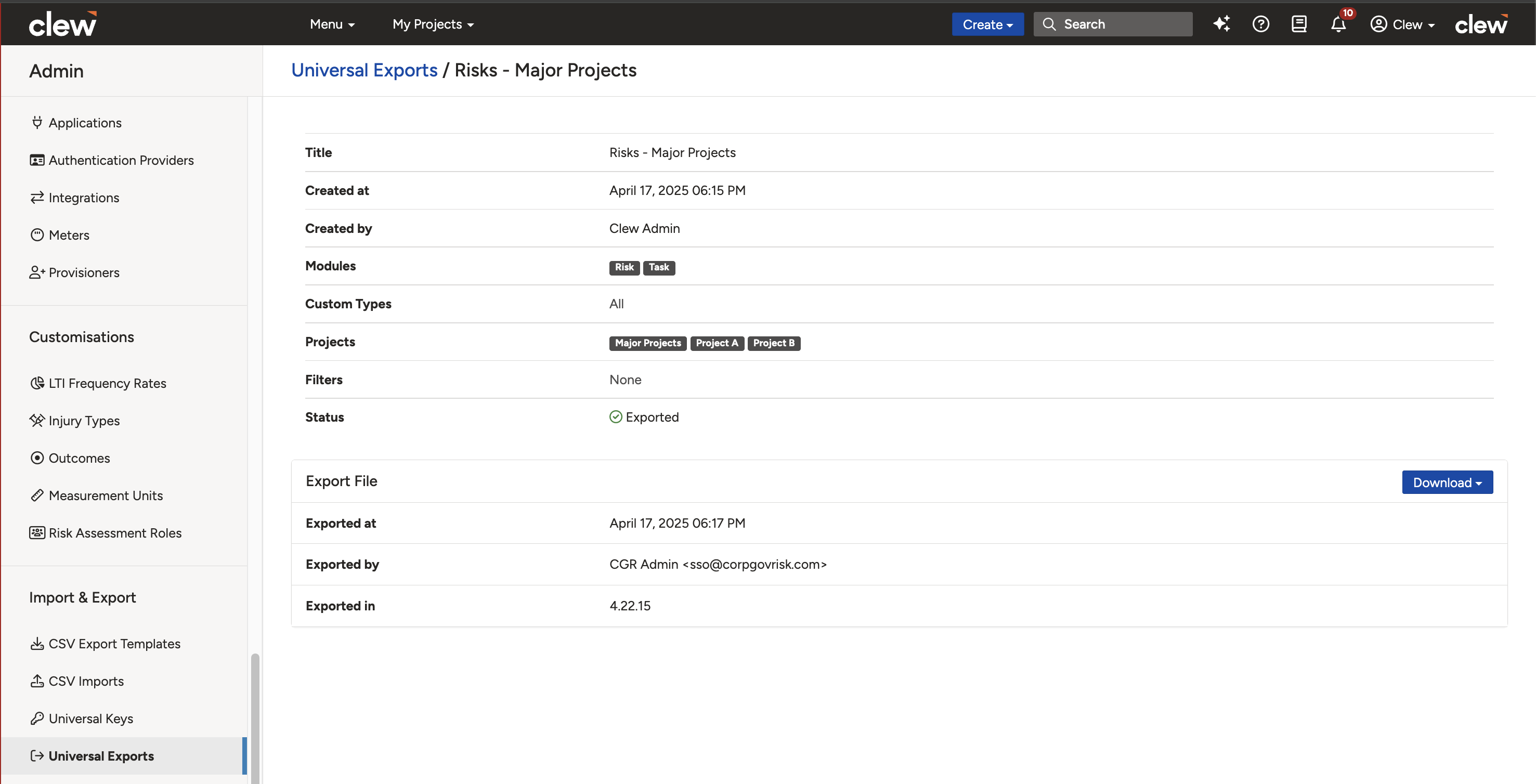
The export with an Exported status, ready to download.
- Click Download and select the key name (typically the instance the key came from). This downloads a .zip file ready to be imported into the importer instance.
Importing Data
Perform these steps in the importer instance.
- With the .zip file ready, go to Admin, then Universal Imports, and click Add.
- Give the import a Title and upload the .zip file.
- A mapping page opens, where you map the fields from the exported data to the fields in this instance. Clew matches and maps as much as it can for you.
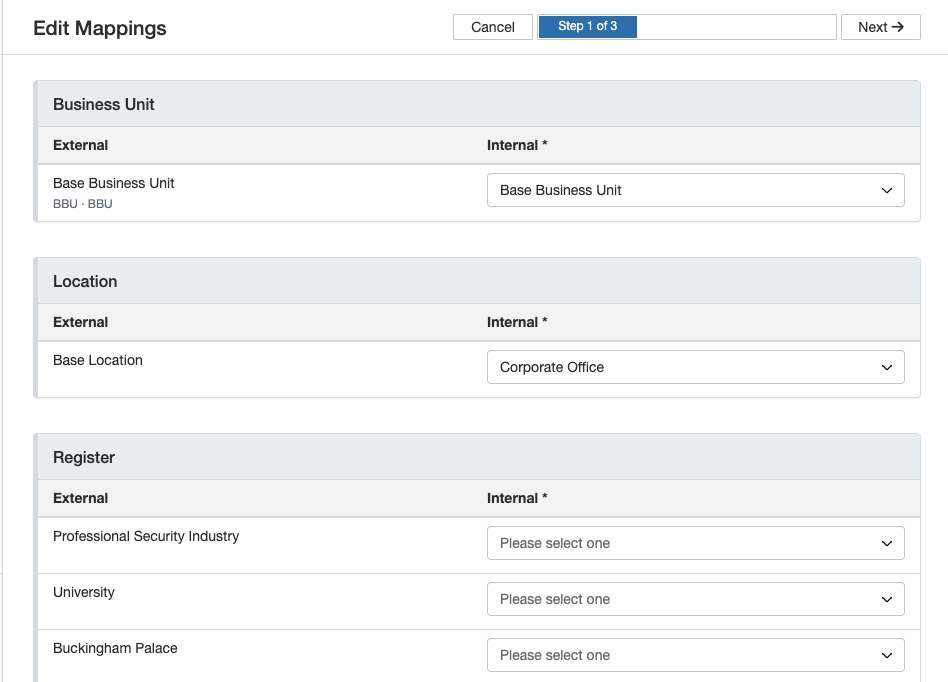
The import field mapping page.
- Mapping is done in three steps: fields, organisational fields, and users; custom types, workflows, and lookup options; and status.
- Any mapping shown as "Please select one" that has an asterisk (*) in the Internal column is required and must be mapped. If a field is not marked with an asterisk, it can be left blank, in which case that data point will not be imported.
- Map your data, then click Next in the top-right corner to move through each step until you reach the last step, where the button shows Finish.
- Click Finish. The page reloads and displays the options to Edit Mappings or Import. Click Import when ready. The status changes to Importing.
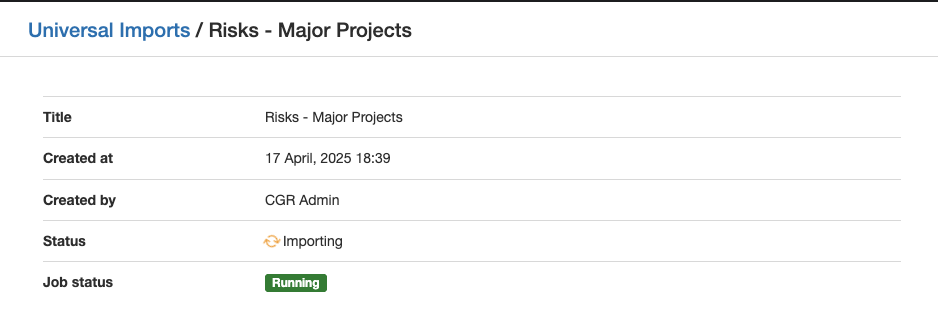
The import in progress, showing an Importing status.
- When the import is complete, the status shows Imported. This may take several minutes depending on the amount of data being transferred.
5. Common Issues & Troubleshooting
| Issue | Likely Cause | Solution |
| The import fails or the file cannot be opened | The key was set up the wrong way round, so the data is encrypted for a different instance. | Download the key from the importer (receiver) and install it into the exporter (sender), then re-export using that key name. |
| The transfer is rejected or behaves unexpectedly | The two instances are on different Clew versions. | Confirm both instances are on the same Clew version before exporting. |
| Cannot proceed past the mapping page | A required mapping (marked with an asterisk) has been left as "Please select one". | Map every field marked with an asterisk in the Internal column, then continue. |
| Some data did not import | Optional fields were left blank in the mapping, so those data points were skipped. | Re-run the import and map the optional fields you want to bring across. |
| The export stays on Pending | The export was saved but the Export action was not started. | Open the export and click Export. Wait for the status to change to Exported before downloading. |
Best practices:
- Remember the direction: the key comes from the importer and goes into the exporter, and the data flows from exporter to importer.
- Confirm both instances are on the same Clew version before starting.
- Use clear export titles that describe the data, so exports are easy to identify later.
- Review the mapping page carefully and complete all required fields before importing.
Click a title to preview it here. Use the Open full article button to read the full version in a new tab.
▾Creating Custom Filters As A System Administrator Open full article »
Related article
How to build custom filters, used here to narrow which records are included in a universal export.
▾CSV Imports Open full article »
Related article
How to bulk import and update records via CSV, an alternative when moving data into a single instance.
▾System Overview & Requirements Open full article »
Related article
An overview of the platform and its requirements, helpful for confirming both instances meet the same version prerequisites.
Was this article helpful?
That’s Great!
Thank you for your feedback
Sorry! We couldn't be helpful
Thank you for your feedback
Feedback sent
We appreciate your effort and will try to fix the article