Why can't I select a lookup option I can see?
Why a visible lookup option may not be selectable, and how to make it selectable
Contents
- 1. Introduction & Context
- 2. Key Features & Functions
- 3. Requirements
- 4. Step-by-Step Guide
- 5. Common Issues & Troubleshooting
- 6. Related Articles
1. Introduction & Context
When working with forms that contain Lookup fields (for example, Risk Appetite Rating, Finding Type, or Business Objective), you may notice that some lookup options are visible on the configuration page but cannot be selected when filling out a form. This happens when a lookup option is marked as Read-only in the Custom Field configuration.
Who is it for? Administrators who manage lookup options, and users who cannot select an option they can see.
What does it impact? A Read-only option stays visible for reference but cannot be chosen on new records.
2. Key Features & Functions
If a lookup option is configured as Read-only, users cannot select it during form entry, even though it appears in the list of lookup options on the configuration page. Read-only options are typically used for reference or legacy purposes: they stay visible to administrators in configuration but are not selectable by end users.
- Only Admin users can edit lookup options.
- Read-only lookup options are not editable by end users and cannot be selected in forms.
- If a Read-only option was previously used in historical records, it remains visible in those records but is unavailable for new entries.
- Use the Read-only setting carefully. It is helpful for preserving historical data or restricting the use of outdated options.
3. Requirements
- Admin access to edit lookup options under Custom Fields.
4. Step-by-Step Guide
Verify if a lookup option is Read-only
- Go to Admin > Custom Fields.
- Use the search bar to locate the relevant custom field (for example, Risk Appetite Rating).

Finding the custom field in Custom Fields.
- Click the custom field name (highlighted in blue) to open its configuration page.
- Scroll to the Lookup Options section.
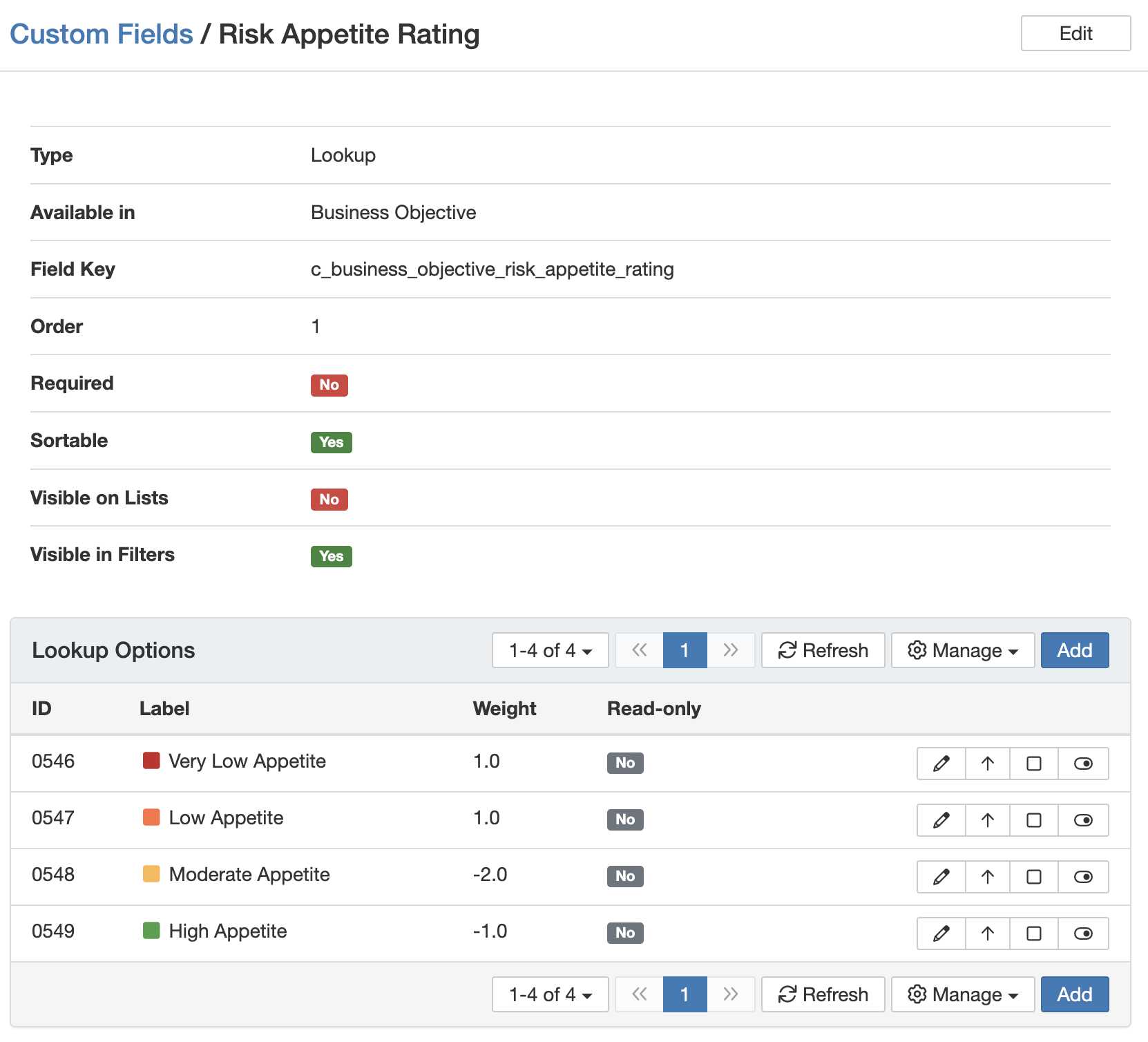
The Lookup Options section, including the Read-only column.
- Check the Read-only column. If it shows Yes, that lookup option cannot be selected in forms (for example, the Low Appetite option is read-only).
Make a lookup option selectable
- Navigate to Admin > Custom Fields.
- Click the custom field to open the configuration page.
- In the Lookup Options table, locate the option marked Read-only = Yes.
- Click the pencil icon (Edit) next to that option.
- Uncheck Read-only to make it selectable.
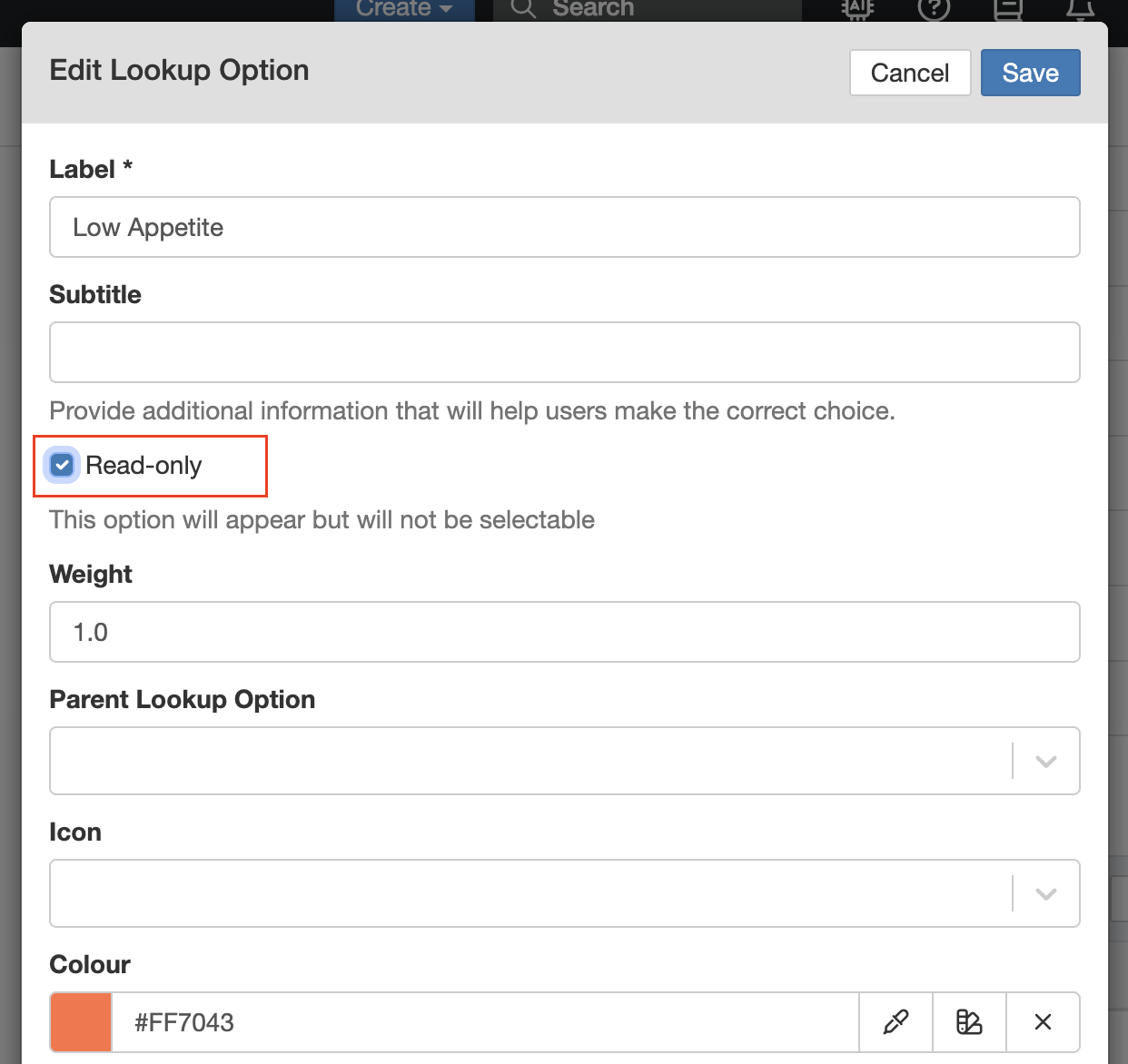
Unchecking Read-only on a lookup option.
- Click Save to apply the changes. The lookup option will then be selectable during form completion.
5. Common Issues & Troubleshooting
| Issue | Likely Cause | Solution |
| You can see an option but cannot select it | The option is marked Read-only. | An admin can edit the option and uncheck Read-only to make it selectable. |
| An old record shows an option not available for new records | The option was made Read-only after being used. | This is expected. Read-only options stay on historical records but are unavailable for new entries. |
| A default lookup option is missing entirely | This is a different issue from Read-only. | See the related article on why default lookup options may not appear. |
Click a title to preview it here. Use the Open full article button to read the full version in a new tab.
▾Lookups Open full article »
Related article
How lookups work, including their options and settings.
▾Why don't default lookup options appear? Open full article »
Related article
Why default lookup options may not appear at all.
Was this article helpful?
That’s Great!
Thank you for your feedback
Sorry! We couldn't be helpful
Thank you for your feedback
Feedback sent
We appreciate your effort and will try to fix the article