TABLE OF CONTENTS
Why can’t I see a workflow transition button?
If you can’t see a workflow transition button, it means the button has been restricted.
Transition buttons can be restricted based on a field, role, team, or a condition that has not yet been met.
To view workflow transition settings, you must be a System Administrator.
How to check workflow transition restrictions?
- Navigate to Admin > Workflows. Open the relevant workflow.
- Scroll down to the section ‘Restrictions’.
Note: If all restriction fields are blank, it means the transition (button) can be seen and used by anyone with update access to the record.
When the required conditions are met, the button will automatically appear for the specified users, roles, or teams.
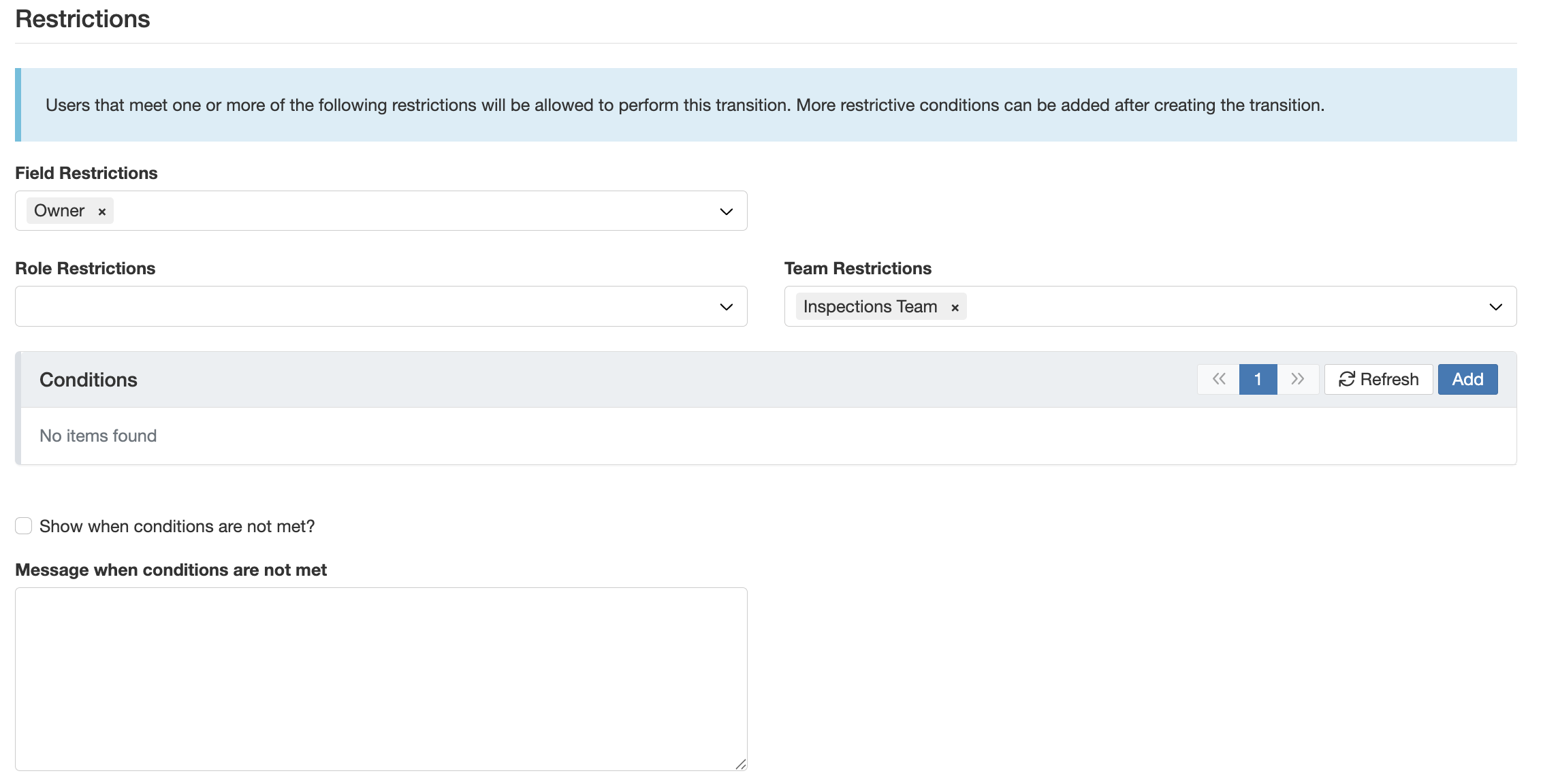
Example
| Field | Description |
| Field Restrictions | Transition is visible to users who are referenced in a specific field on the record, e.g. Owner or Assignee. |
| Role Restrictions | Transition is visible to users with a specific role, e.g. WHS Manager. |
| Teams Restrictions | Transition is visible only to specific teams, e.g. Inspection Team. |
Tip:
In the workflow transitions list view, a System Administrator can see which users, roles, or teams have access to each button.
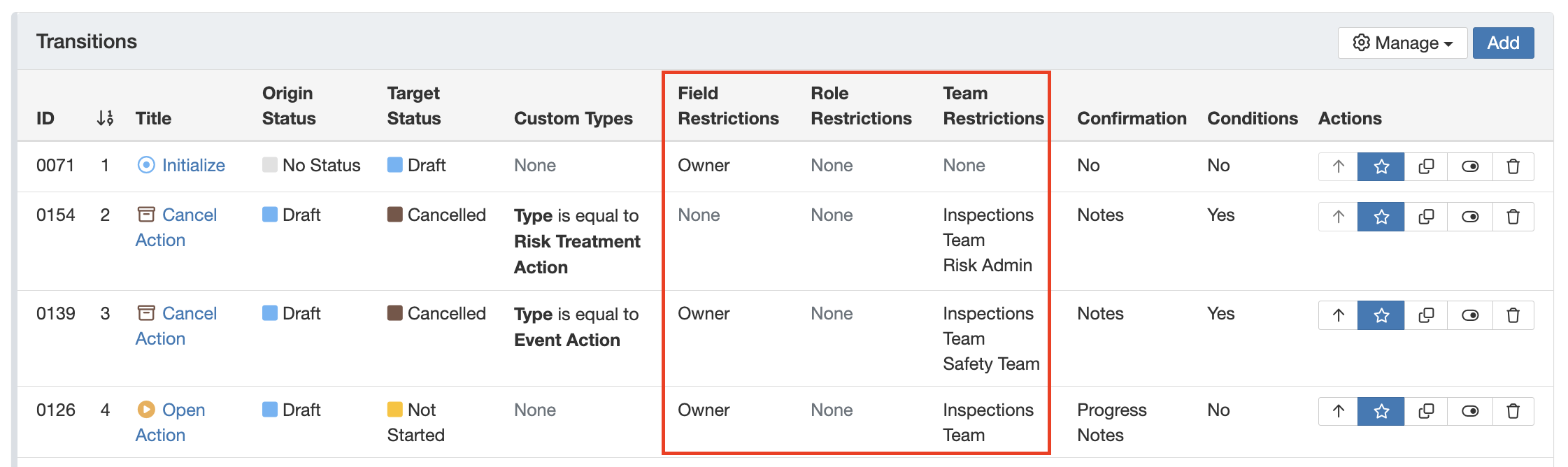
For more information, refer to related articles on Roles, Teams, Workflows and Workflow Transitions.
Was this article helpful?
That’s Great!
Thank you for your feedback
Sorry! We couldn't be helpful
Thank you for your feedback
Feedback sent
We appreciate your effort and will try to fix the article