Surveys
How to build, score, activate and review a survey in the Clew Platform
Contents
- 1. Introduction & Context
- 2. Key Features & Functions
- 3. Requirements
- 4. Step-by-Step Guide
- 5. Common Issues & Troubleshooting
- 6. Related Articles
1. Introduction & Context
A survey lets you build your own set of questions, publish it to your users, score their answers automatically and review every response in one place. You design the questions in the Builder, decide whether and how responses are scored, then move the survey through your workflow so people can complete it.
A worked example: you need a monthly site inspection completed by supervisors. You build a survey with multiple choice questions, mark two of them as critical so the whole inspection fails if either is failed, activate it, and then review each submitted response against the site it relates to.
Who is it for? Surveys can be created and edited by both standard users and system administrators, provided they have the required permissions. Anyone with access to the relevant register can respond to an active survey.
What does it impact? A survey can only be edited while it is in Draft status, so changes to an active survey mean moving it back to Draft first. Scoring rules determine the outcome recorded against every response, so test them before you collect real data.
2. Key Features & Functions
- Ten field types: attachment, date, multiple choice, number, range, text, system field, role and user, so most question formats are covered without custom work.
- Flexible scoring: fail the whole survey if a critical question is failed, pass on a total score, or score against thresholds that produce outcomes such as low, medium and high risk.
- Sections and rules: group related questions into sections, and use rules to reveal fields only after a particular answer is selected.
- Instructions: add non-selectable guidance text to help respondents answer correctly.
- Copy and reorder fields: duplicate a configured question with the clipboard icon, then drag it into position.
- Export and import templates: export a survey template from the Builder as a .json file and import it into another environment, so you can build and test in staging and then move it to production.
- Response controls: limit users to one response each, and notify the survey owner automatically when a new response is submitted.
- Linked items: link a system item to a question so the response also appears on that linked item.
3. Requirements
- Version 4.22 or later.
- Permission to create and edit surveys. Standard users can hold this permission, it is not restricted to system administrators.
- The Add option must be visible on the custom type. If it has been hidden, a system administrator can enable it.
- Scoring must be switched on for the survey by selecting Score responses when you create it.
- Threshold-based scoring must be enabled once in System Settings by Clew before it is available to you.
- Role fields apply only to configurations that use role-based assignment.
4. Step-by-Step Guide
Building a survey
- Navigate in the menu dropdown to Survey. To create a new survey, click Add in the top right corner.
- Complete the form to create your survey. The available fields may differ depending on your organisation's setup. See the table below.
- Click Build in the top right corner to start designing your survey.

The Survey list, with the Add button in the top right corner.
| Field | Description |
| Title | Give the survey a distinct title. |
| Limit to 1 response per user | Select this if you want to limit users to only one response each. |
| Notify owner of new response | Select this if the owner of the survey should be notified automatically once a new submission has been made. |
| Score responses | Select this if you want to score the survey. You then have the option to define outcomes, for example low, medium and high risk, or pass and fail. |
| Description | Enter a suitable description explaining what this survey is used for. |
| Owner | Assign an owner to the survey. |
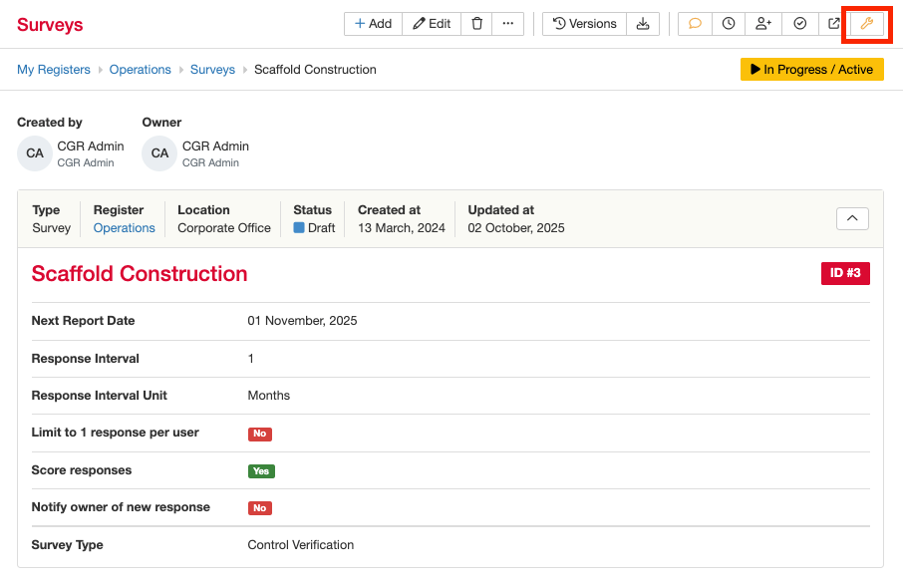
Click Build to open the Builder and start designing the survey.
Adding fields to a survey
- To add a new field to the survey, click Add field at the bottom of the survey.
- Complete the field settings and choose a field type, using the tables below.
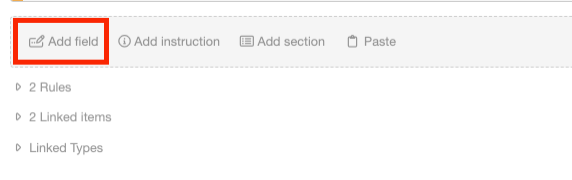
Add field, at the bottom of the survey in the Builder.
Field settings
| Setting | Description |
| Label | Field title. |
| Description | Appears under the label. |
| Help Text | Appears in grey below the field. |
| Hidden | Hides the field. Useful when you want certain fields to appear only after a specific answer has been selected, which is configured by setting up a rule. |
| Required | Makes the field mandatory before submission. |
Field types
| Field type | What it does |
| Attachment | Allows file uploads. |
| Date | Date or date-time picker. |
| Multiple Choice | Single or multiple selections from predefined options. |
| Number | Accepts numeric input. Ranges can be defined. |
| Range | Defines a scale with minimum and maximum values. |
| Text | Single or multi-line text input. |
| System Field | Pulls data from a system field (Register or Location). |
| Role | Allows selection from available roles, and can allow multiple. Applicable to configurations which use role-based assignment. |
| User | Allows selection from active users, and can allow multiple. |
Adding instructions and sections
- To add instructions, a non-selectable field that provides guidance to respondents, click Add Instructions in the bottom panel and complete the form.
- To group related fields together, create a section. Entire sections can be hidden if needed.
Copying a field
- Click the Clipboard icon next to the field you want to copy.
- Click Paste, either in the bottom panel or within a section.
- Drag and drop the copied field to place it in the order you want.
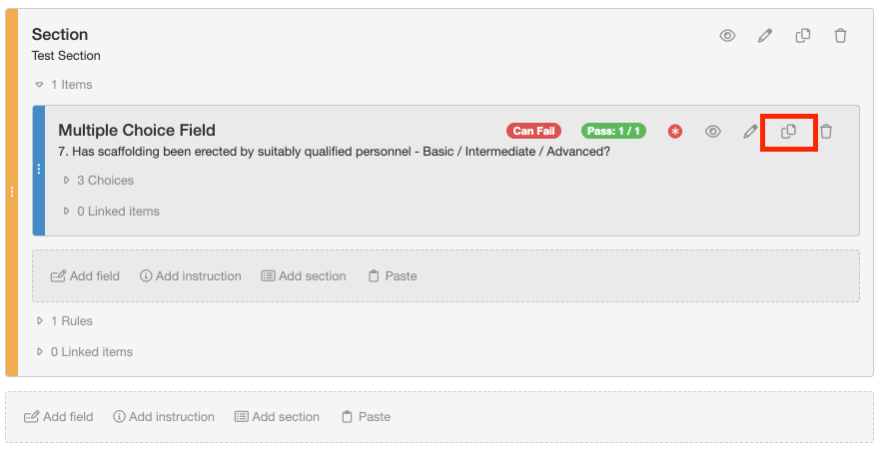
The Clipboard icon copies a field, including its scoring and choice settings.
Defining scoring
Survey scoring is flexible. You can set different outcome rules:
- Fail if any children fail.
- Pass or fail based on total score.
- Score based on thresholds, customisable per section.
- Click the pencil icon to configure scoring for the entire survey.
- Select your applicable scoring method, using the table below.
- Once the scoring has been defined, save and move the survey to Active or Open so you can test it.
- If any changes are needed to the survey or the scoring, move the survey back to Draft first.
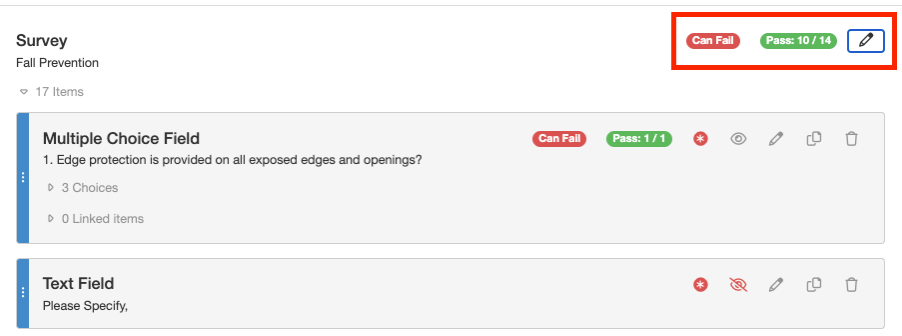
The pencil icon opens scoring configuration for the whole survey.
| Scoring method | Explanation |
| Fail if any children fail | The entire survey fails if one critical question is failed (score = 0). Set this at the top of the survey and assign the failing answers. A pass mark must also be defined. |
| Pass mark | Assign a minimum score to pass, for example 10 out of 14. Leave the other boxes blank to use only score-based logic. |
| Score based on thresholds | Define score ranges and the outcome for each. The upper limit refers to the defined maximum value, while the lower limit is inclusive. For example, a range of 0 to 2 means responses scoring 0 and 1 are marked red, while scores of 2, 3, 4 and 5 are marked amber, and so on. This option must be enabled once in System Settings by Clew. |
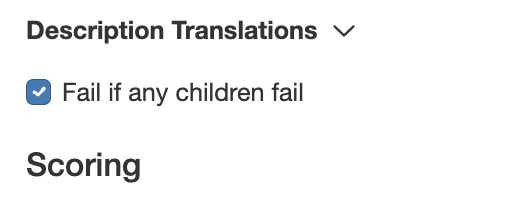
Fail if any children fail: one failed critical question fails the whole survey.
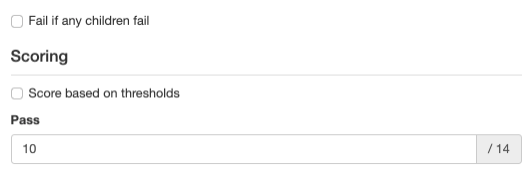
Pass mark: a minimum total score to pass.
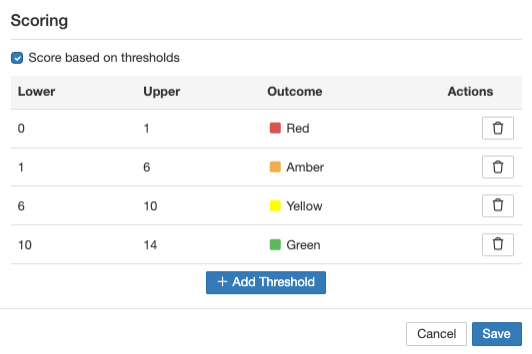
Score based on thresholds: each score range produces its own outcome.
Activating the survey
- Click the survey you want to move to Active or Open.
- Click the workflow button. Its colour and wording may differ based on your organisation's setup.
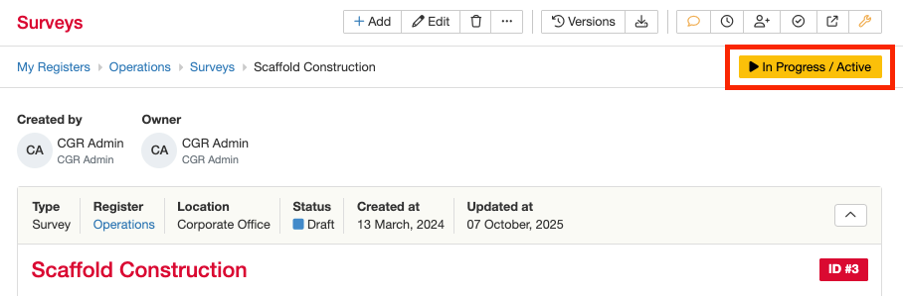
The workflow button moves the survey into its next state.
Responding to a survey
- Navigate to the relevant register, select Survey from the menu dropdown, and click the green Respond button next to the survey you wish to complete.
- Complete the survey and click Submit to record your response.
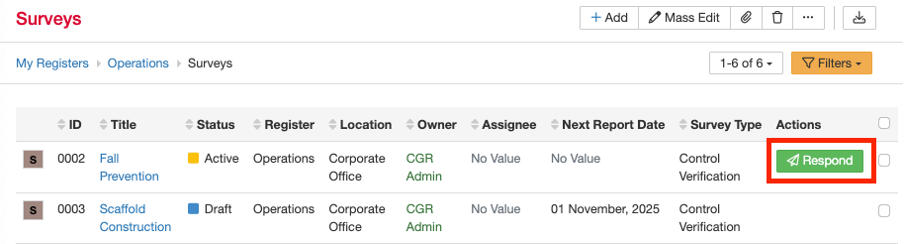
The green Respond button beside an active survey.
Making changes to an active survey
Edits can only be made to surveys in Draft status.
- Click the survey you want to move to Draft.
- In the top right corner, click the appropriate workflow button to move it back to Draft.
- Select the Builder icon, apply the necessary changes and save the survey.
- Reactivate it by progressing it through the correct workflow state.
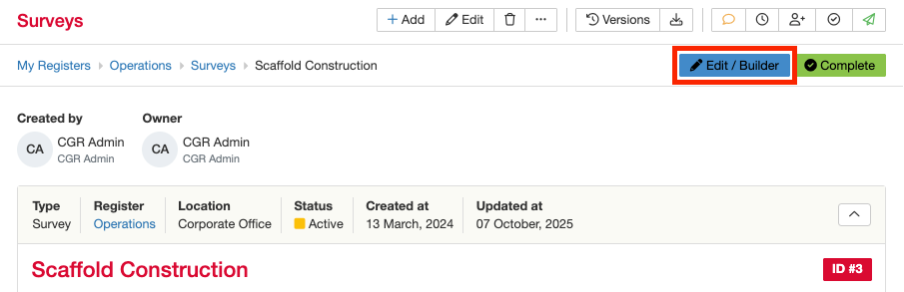
Move the survey back to Draft, then open the Builder to edit it.
Viewing survey responses
- Click the survey whose responses you want to view.
- Scroll down to the Survey Response sub-panel, where you can see all responses from users.
- Click the hyperlinked ID to see all details from that response.
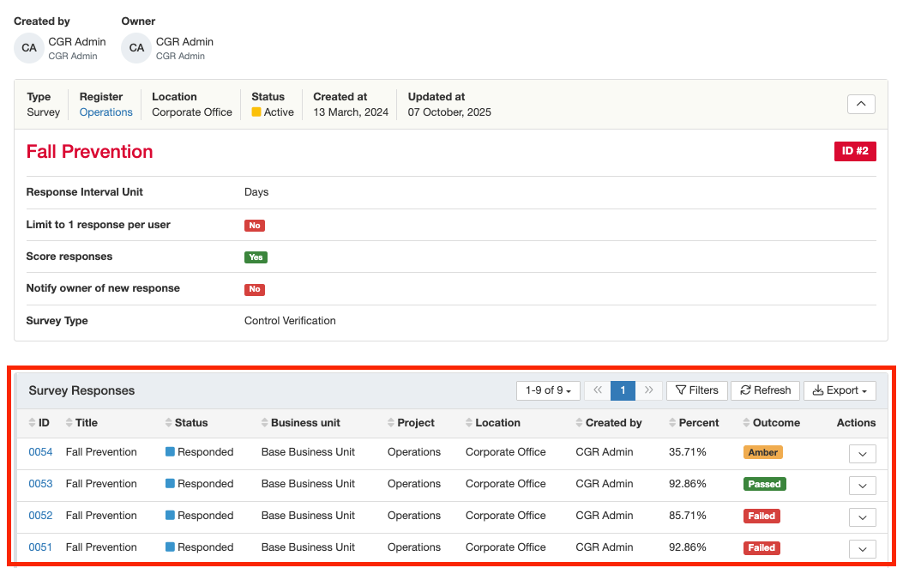
The Survey Response sub-panel. Click an ID to open the full response.
5. Common Issues & Troubleshooting
| Issue | Likely Cause | Solution |
| The Add button is greyed out | The option to add a new survey has been hidden in the custom type | Ask your system administrator to enable it on the custom type. |
| Clicking Add returns "the user is not authorised" | Your account does not hold permission to create a survey | Ask your system administrator to grant the create permission, or to build the survey for you. |
| You cannot edit the survey | The survey is not in Draft status. Active and open surveys are locked | Use the workflow button to move it back to Draft, make the change, then progress it forward again. |
| Threshold scoring is not available | Threshold-based scoring has not been enabled in System Settings | Raise a request with Clew to have the option enabled once for your system. |
| A copied field has lost its scoring or colours | The field was copied before scoring, answer scores and colour and icon settings were assigned | Configure the original field fully, then copy it again. Set these under the Edit icon or Choices. |
| A rule is not showing or hiding fields as expected | The rule was set at survey level, and survey-level rules exclude sections and their fields | Set the rule within the section that contains the fields you want it to control. |
| A user cannot submit a second response | Limit to 1 response per user is selected on the survey | Move the survey to Draft and clear that option if multiple responses are needed. |
Best practices:
- Build and test on staging first, then export the template as a .json file and import it into production.
- Submit at least one test response before going live, to confirm the scoring produces the outcome you expect.
- Finish configuring a field, including scoring and colours, before you copy it.
- Use sections to group related questions, and keep rules inside the section they affect.
- Add a clear description and instructions so respondents understand what the survey is for.
- Assign an owner and enable new response notifications so submissions are not missed.
Click a title to preview it here. Use the Open full article button to read the full version in a new tab.
▾Schemas Open full article »
Related article
How schemas define the fields and behaviour of a form, including the Form Type and Builder used to set up an external form.
Was this article helpful?
That’s Great!
Thank you for your feedback
Sorry! We couldn't be helpful
Thank you for your feedback
Feedback sent
We appreciate your effort and will try to fix the article