Business Objectives
How to view, manage, and link Business Objectives in the Clew Platform
Contents
- 1. Introduction & Context
- 2. Key Features & Functions
- 3. Requirements
- 4. Step-by-Step Guide
- 5. Common Issues & Troubleshooting
- 6. Related Articles
1. Introduction & Context
Business Objectives let you define and visualise your organisation's strategic goals in the Clew Platform, linking them to records across any module so you can see how risks, actions, indicators, and other items relate to each objective.
Business Objectives are hierarchical, with a parent-child relationship between them. A single business objective can be linked to multiple records across different modules, for example risks, actions, and incidents, giving you a complete picture of how your operations connect to strategic goals.
Who is this for? All Clew Platform users can view the Business Objectives hierarchy. Users whose Team has business objectives management enabled can also create and edit objectives.
What does it impact? Linking objectives to records affects how your data maps to strategic goals and what appears in objective summaries. Editing or adding objectives changes the hierarchy visible to all users across the platform.
2. Key Features & Functions
- Hierarchical tree view: Visualise the parent-child relationships between objectives in an interactive tree. Scroll, zoom, and click individual objectives to explore the structure.
- Cross-module linking: Link any business objective to records across any module in the platform, including risks, actions, indicators, and incidents. One objective can be linked to multiple records across different modules.
- Indicator summary: The tree view displays a summary of indicators linked to each objective, so you can quickly assess performance at a glance.
- Risk summary: The objective show view displays a summary of risks linked to that objective.
- Permission-controlled editing: Viewing objectives is open to all users. Creating and editing objectives is restricted to users in Teams where business objectives management has been enabled, keeping governance clean.
3. Requirements
- You must have an active Clew Platform account.
- The Business Objectives feature must be enabled in your Clew Platform configuration. If you cannot see Business Objectives in the Library menu, contact your system administrator.
- All users can view the Business Objectives hierarchy. Visibility cannot be restricted through security groups.
- To create or edit Business Objectives, your Team must have Can manage business objectives set to Yes. Contact your system administrator if you need this access.
- To link a business objective to a record, you need edit access for that record.
4. Step-by-Step Guide
Accessing the Business Objectives View
- Click the Library menu button (the book icon in the top navigation bar) to open the Library menu.
- Select Business Objectives from the menu. This will open the Business Objectives list.
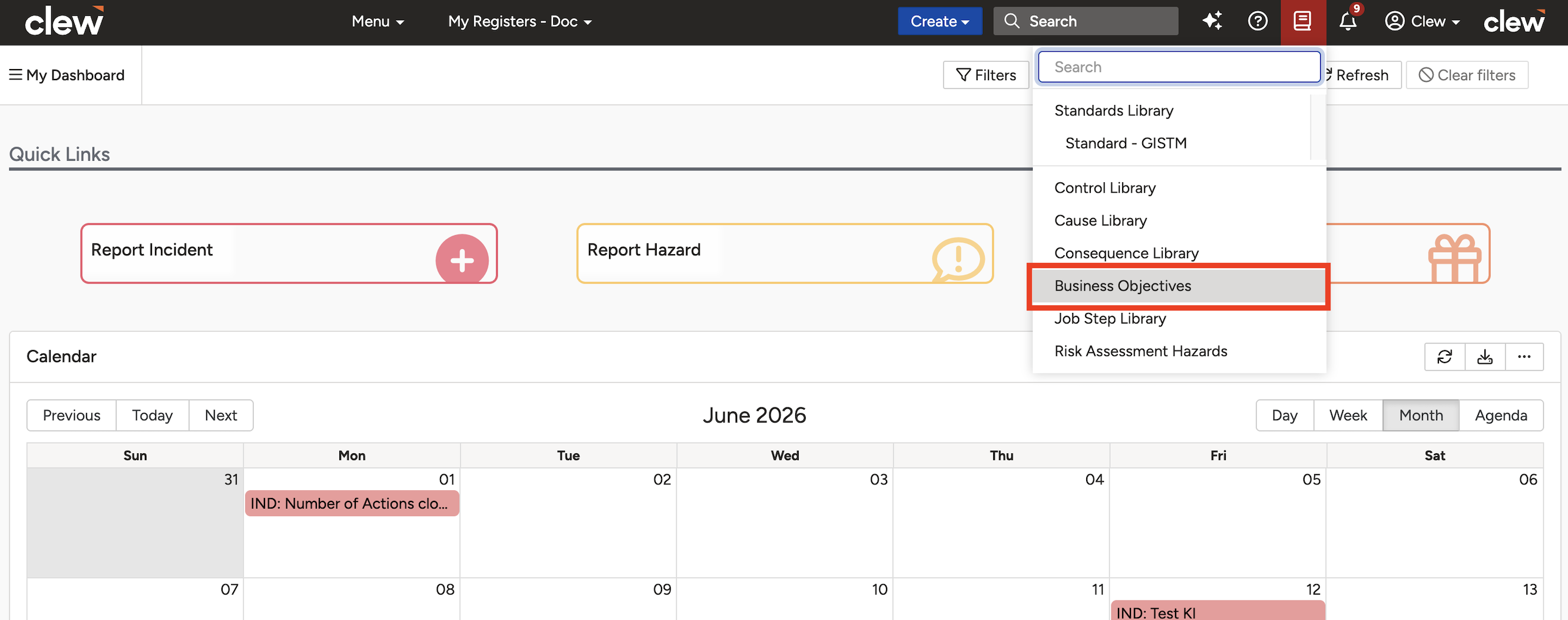
The Library menu in the top navigation bar, used to access Business Objectives.
- From the Business Objectives list, you can add new objectives (if your Team permissions allow it) or click the hyperlinked ID of an existing objective to view or edit it.
- To see the hierarchical tree view, click the tree view button on the right side of any objective's row in the list.
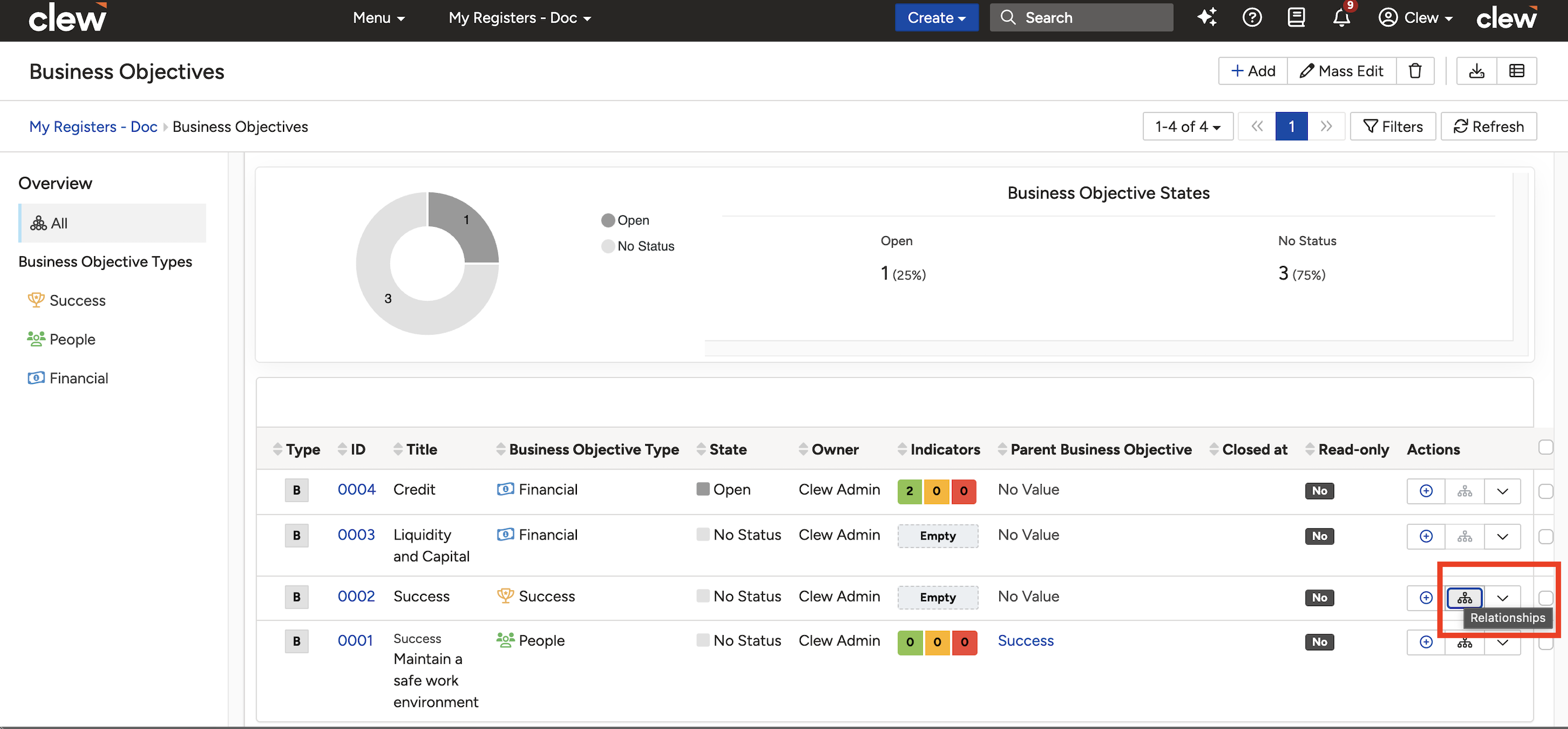
The tree view button on the right side of each row in the Business Objectives list.
Once in the tree view, you can:
- Scroll up and down to move around the view.
- Zoom in and out using the scroll wheel.
- Click an objective's title to view it individually.
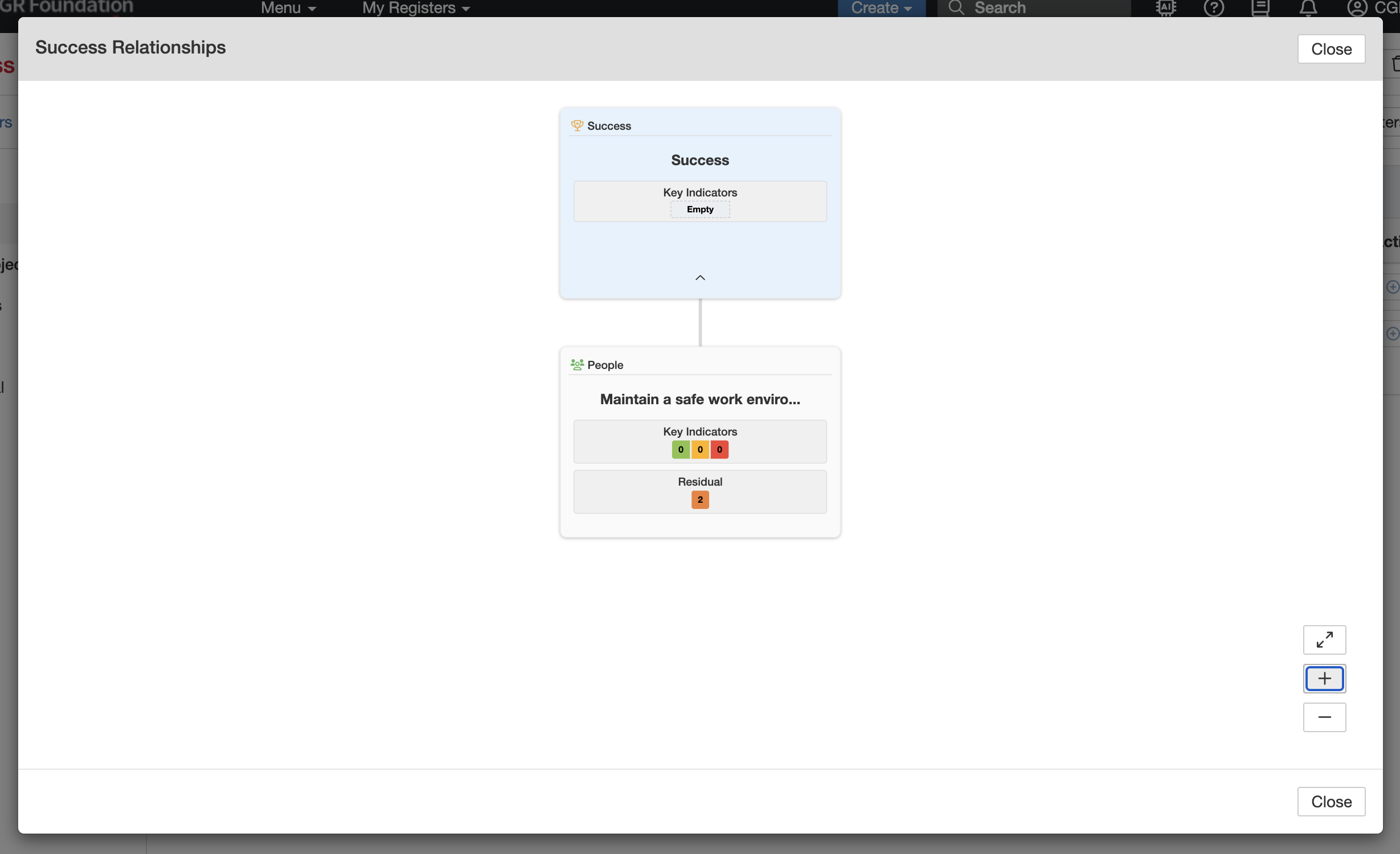
The hierarchical tree view showing the parent-child relationships between Business Objectives.
The tree view also shows a summary of indicators linked to each objective. On the objective show view, you will find a summary of risks linked to that objective.
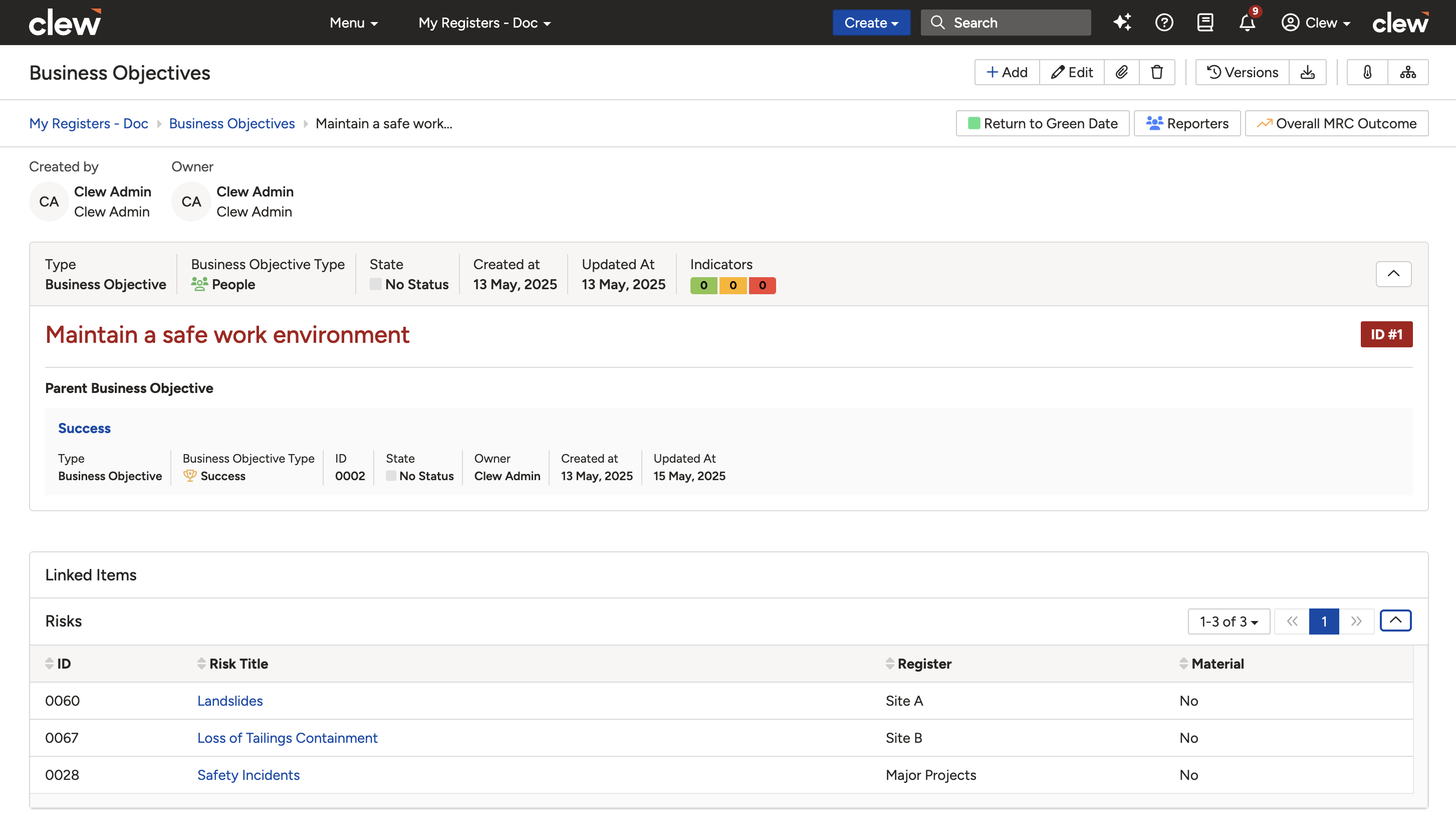
The objective show view, displaying a summary of linked indicators and risks.
Linking Indicators to Business Objectives
There are two ways to link an indicator to one or more Business Objectives. Both are done from the Indicator record.
Method 1: Via the Edit form
- Open the indicator you want to link.
- Click Edit. In the edit form, select one or more objectives in the Business Objectives field, then click Save.
The Business Objectives field in the Indicator edit form.
Method 2: Via the Link button
- Open the indicator you want to link.
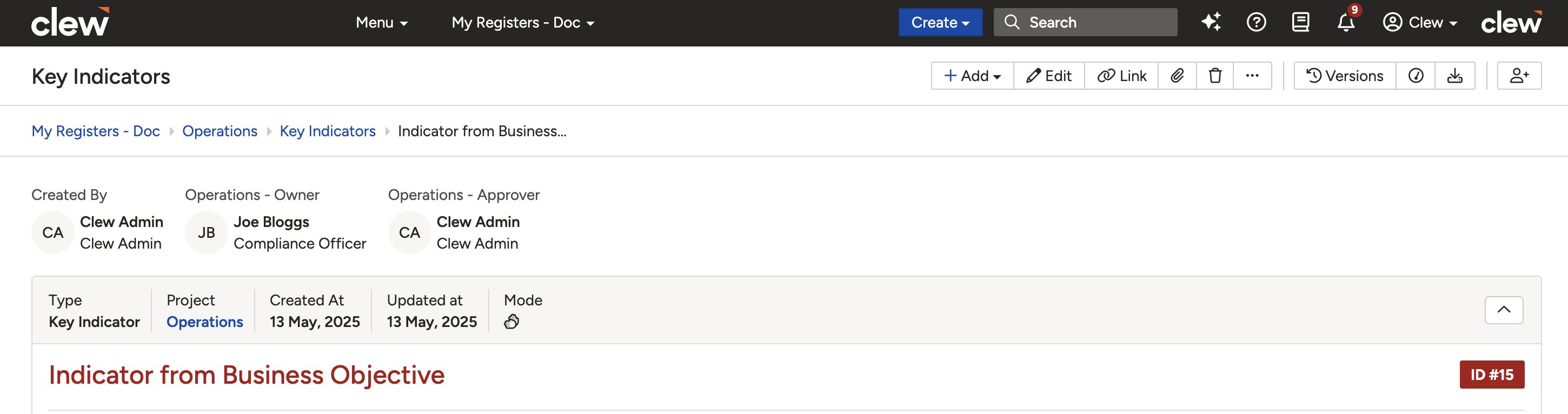
- Click the Link button in the record toolbar.
- A pop-up window will open. In the Link to field, select Business Objectives. A new field will appear for you to choose one or more objectives.
- Click Link to save.
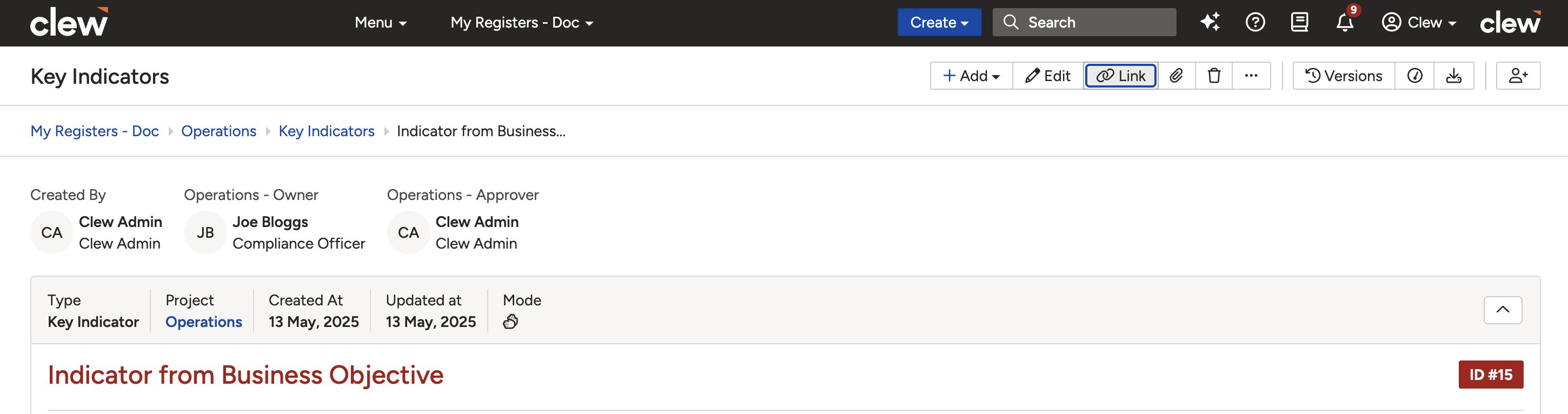
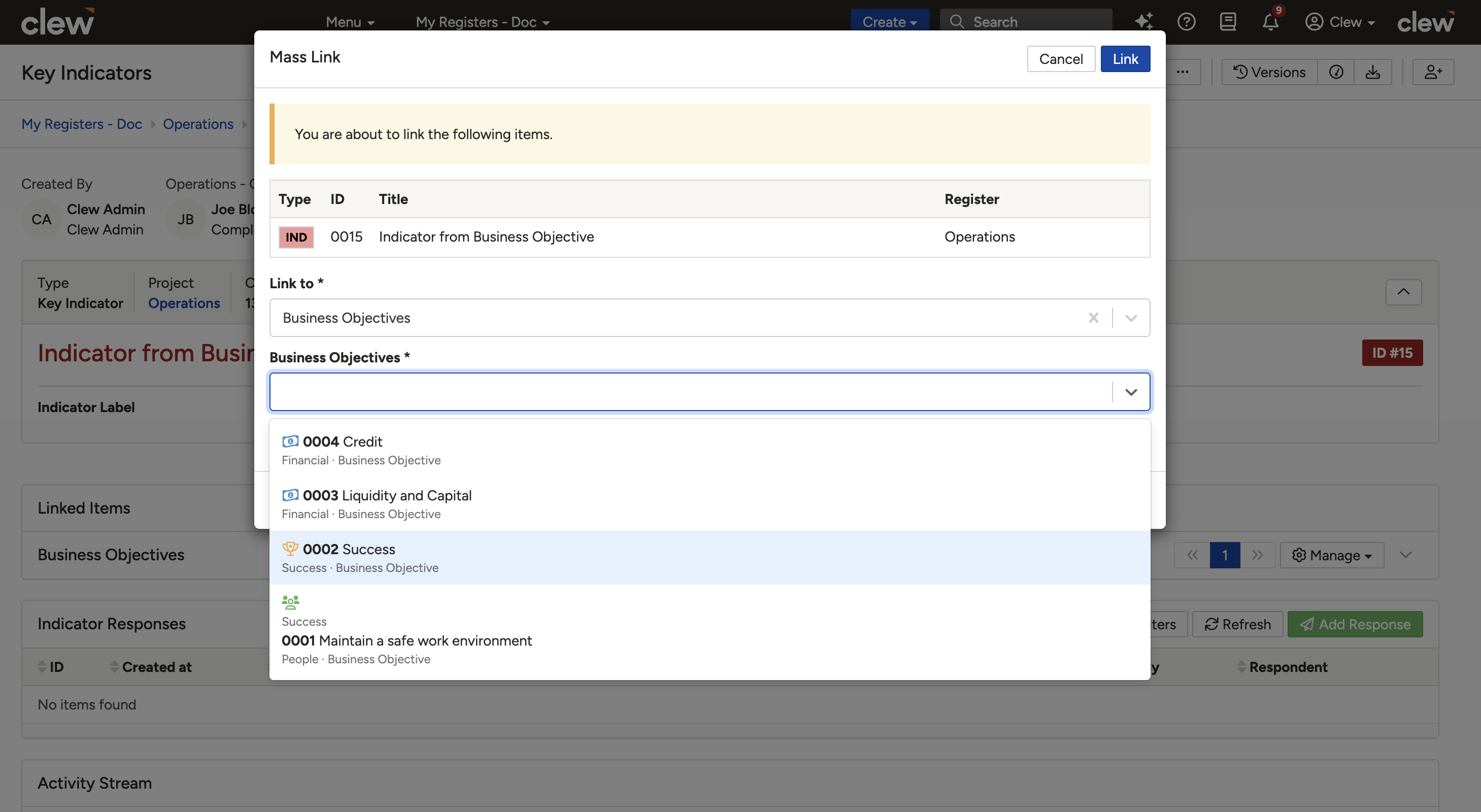
The Link button and the pop-up window with Business Objectives selected as the target module.
5. Common Issues & Troubleshooting
| Issue | Likely Cause | Solution |
| Business Objectives is not visible in the Library menu | The feature has not been enabled in your Clew Platform configuration | Contact your system administrator to enable Business Objectives |
| Cannot edit or add Business Objectives | Your Team does not have business objectives management enabled | Navigate to Admin > Teams, open the relevant Team, and set Can manage business objectives to Yes. See the Related Articles section for full steps. |
| The Business Objectives field does not appear in the Indicator edit form | The field may not be included in the form configuration for your organisation | Use Method 2 (the Link button) as an alternative, or contact your system administrator to add the field to the form |
| The tree view is not showing the expected hierarchy | Objectives may not have been set up with parent-child relationships, or no child objectives exist yet | Check the objective list to confirm parent-child relationships are configured. Contact your system administrator if the hierarchy needs to be set up. |
Best practices:
- Set up parent-child relationships between objectives before linking records to them. A well-structured hierarchy makes the tree view far more useful for reporting and analysis.
- Link objectives to records as part of your standard record creation workflow, not as a retrospective task. Records linked at creation time produce more complete and reliable objective summaries.
- Restrict editing to a small, defined group using the Team permission setting. Because the hierarchy is visible to all users, keeping changes controlled avoids confusion caused by unplanned edits.
- Review the indicator and risk summaries on each objective periodically to ensure your strategic goals are being adequately tracked across the platform.
Click a title to preview it here. Use the Open full article button to read the full version in a new tab.
▾How to Restrict Business Objectives Editing to Certain Users Open full article »
Related article
Step-by-step guide to controlling who can create and edit Business Objectives using the “Can manage business objectives” Team permission.
Was this article helpful?
That’s Great!
Thank you for your feedback
Sorry! We couldn't be helpful
Thank you for your feedback
Feedback sent
We appreciate your effort and will try to fix the article